
GetResponse A/B Testing: Best 2026 Guide for Affiliates
This article contains affiliate links. If you sign up for GetResponse through a link on this page, I may earn a commission at no extra cost to you. I only recommend tools I have genuinely evaluated.
You’re Guessing, Not Testing
You write a subject line, hit send, and hope. Sometimes it works. Sometimes your open rate is half what you expected and you have no idea why. If every email campaign feels like a guess, GetResponse A/B testing is the tool that turns that guess into a repeatable process.
I am Andreas Maratheftis, 30 years in professional finance and the person running InnovateHub Finance on GetResponse. Testing isn’t optional in this business — it’s how you find out which subject line actually gets an affiliate offer opened, and which one gets ignored. This guide covers every A/B testing feature available in GetResponse in 2026: what you can test, exactly how to set each type up, which plan you need, and how to read the results without overreacting to small sample sizes. By the end, you’ll be able to run your first proper test within 15 minutes.
Always verify current plan features and pricing at getresponse.com/pricing before upgrading based on anything in this guide.
Quick Answer
GetResponse A/B testing lets you compare multiple variants of an email against each other — up to 5 for subject line and from-field tests — testing the subject line, the content, or the from field — and automatically or manually send the winning version to the rest of your list. A/B testing for emails is available on paid plans; landing page A/B testing generally requires a higher-tier plan. Plan feature access can vary, so verify exactly what your specific plan includes at getresponse.com/pricing before relying on this for a purchase decision.
You choose whether the winner is decided by open rate or click rate, and you can either let GetResponse pick the winner automatically or review results yourself before sending. For affiliate marketers, subject line testing on your promotional emails delivers the fastest, clearest return on the time it takes to set up.
Start your free GetResponse account and explore the platform before choosing the right plan →
What You Can Actually Test in GetResponse
GetResponse A/B testing covers three distinct test types, and understanding the difference determines which one solves your specific problem. You cannot combine test types within a single test — you choose one type per test.
| Test Type | What Changes | Best For |
|---|---|---|
| Subject line | Up to 5 subject line variants; everything else stays identical | Improving open rates on affiliate promotions |
| Content | The email body differs; subject line and from field come from the source message. Confirm the current variant limit inside your account. | Testing CTA placement, offer framing, or email length |
| From field | The sender name/address differs across up to 5 variants | Testing whether a personal name outperforms a brand name for trust |
For affiliate marketers, subject line testing is where to start. It’s the fastest test to set up, the results are the clearest to interpret, and open rate is the metric most directly under your control. Content testing matters more once your list is engaged enough that opens are consistent and you’re optimising for clicks specifically. From field testing is the most overlooked of the three — and often the most surprising. A personal sender name (“Andreas from InnovateHub Finance”) frequently outperforms a branded one (“InnovateHub Finance Team”) because it reads as a real person rather than a company.
How to Set Up an A/B Test in GetResponse
Setting up GetResponse A/B testing follows the same process regardless of which test type you choose, with small variations at the content step. Here is the exact path, verified from GetResponse’s own help documentation.
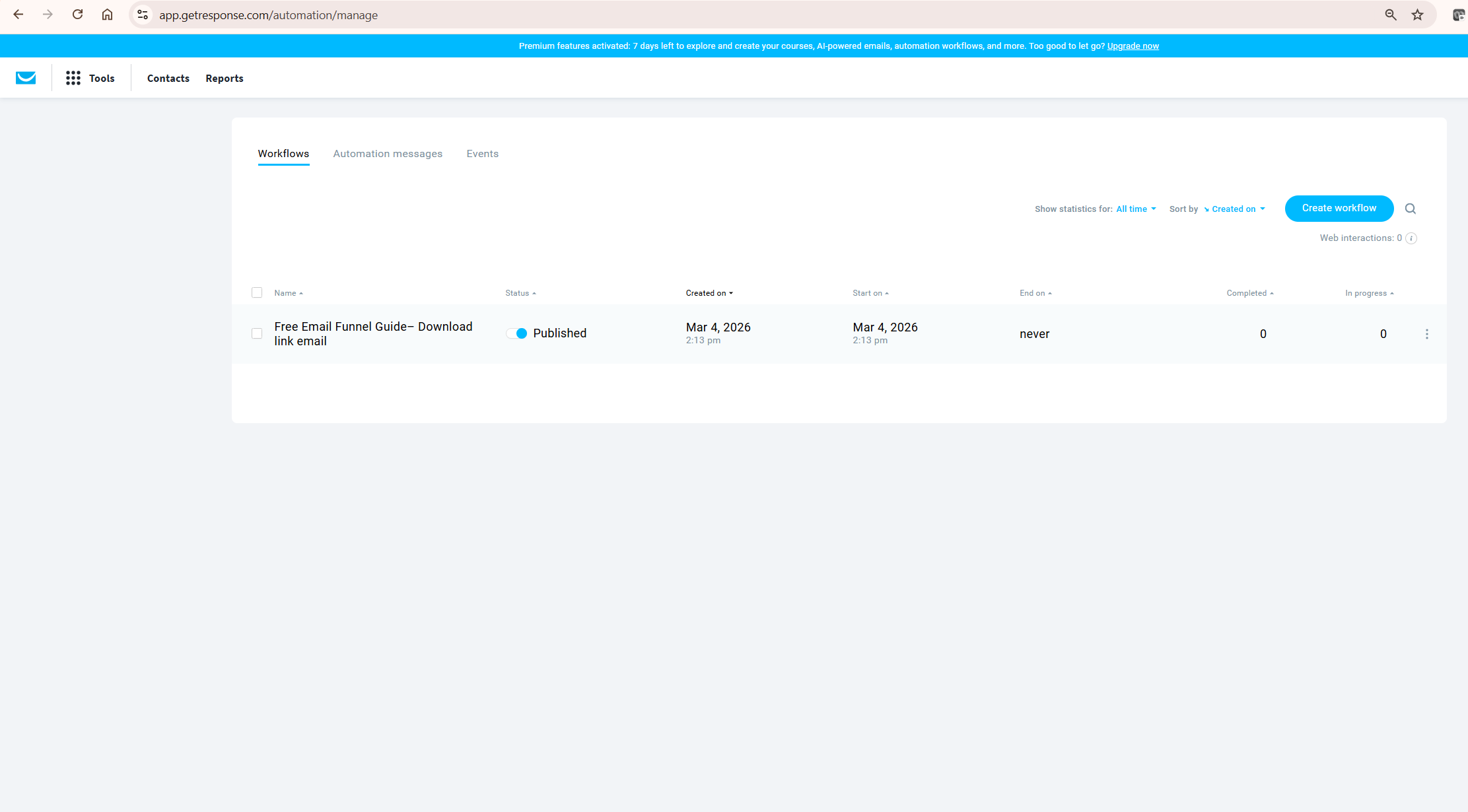
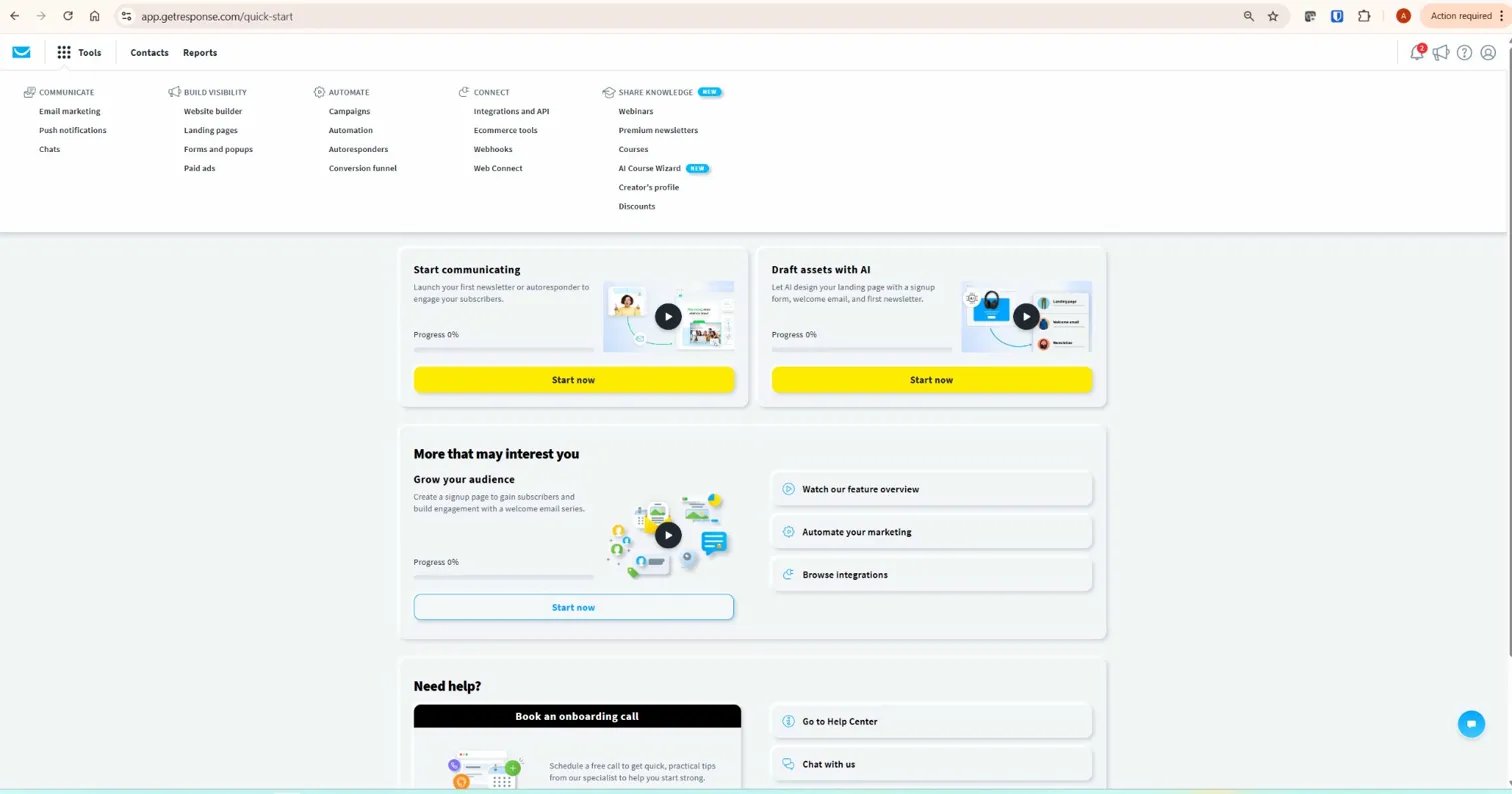
Step 1. Go to Tools → Email marketing → A/B tests in your GetResponse dashboard.
Step 2. Click Create A/B test.
Step 3. Select your test type — Subject line, Content, or From field — and click Create test.
Step 4. Name your test. This name is only visible to you, so make it descriptive enough to track later — “Koinly Promo — Subject Line Test — July” is more useful than “Test 1.”
Step 5. Depending on your test type: for a subject line test, enter up to 5 subject line variants plus preview text for each. For a content test, build your variant A first, then create variant B (and up to three more if needed). For a from field test, enter up to 5 sender name and address combinations.
Step 6. Select your recipients — you can send to an entire list or to a specific segment. If you’ve built engagement-based segments already, testing against your most engaged subscribers first gives you a faster, more reliable read on results. For more on building those segments, see the GetResponse segmentation guide.
Step 7. Configure the test using the size slider — decide what percentage of your list receives the test variants versus the winning message. You can test with up to 100% of recipients, though if you move the slider fully to the right, no winning message is sent afterward — every contact simply receives one of the test variants.
Step 8. Choose your winning factor — open rate or click rate — and set how long the test should run before a winner is determined.
Step 9. Decide whether GetResponse should send the winning message automatically once the test period ends, or whether you want to review results and select the winner manually. Manual selection only applies if less than 100% of your list was included in the initial test.
Step 10. Send immediately or schedule for a specific time, then save or launch the test.
One detail worth knowing before you start: GetResponse provides bot-detection options within automation workflows to help exclude fake clicks and opens generated by security scanners rather than real subscribers. Because bot-filtering behaviour can vary by feature area and account configuration, treat your A/B test open-rate data as directional rather than perfectly precise — a known challenge across the email industry that independent testers like EmailToolTester have documented affecting open rate accuracy platform-wide, not just on GetResponse.
How GetResponse A/B Testing Decides the Winner
GetResponse determines the winning variant based on whichever metric you selected during setup — open rate or click rate — measured only during your defined testing window. If your test ran for 4 hours, only the opens and clicks that happened in those 4 hours count toward picking a winner. Anything that happens after the test period doesn’t factor into the decision, even though GetResponse continues tracking it.
Once a winner is determined, if you selected automatic sending, GetResponse sends the winning variant to the remaining portion of your list without you needing to do anything further. If you chose manual selection, you’ll see a summary comparing all variants — delivered messages, open rate, and click rate for each — and you decide which one to send onward, or override the system’s pick entirely if you have a reason to.
For affiliate marketers running time-sensitive promotions — a limited-time Koinly discount, for example — automatic winner selection with a short test window (2-4 hours) and a smaller test group (20-30% of your list) is usually the right configuration for GetResponse A/B testing. It gets your best-performing version in front of the majority of your list quickly, without you needing to babysit the campaign.
Email A/B Testing vs Automation Split Testing
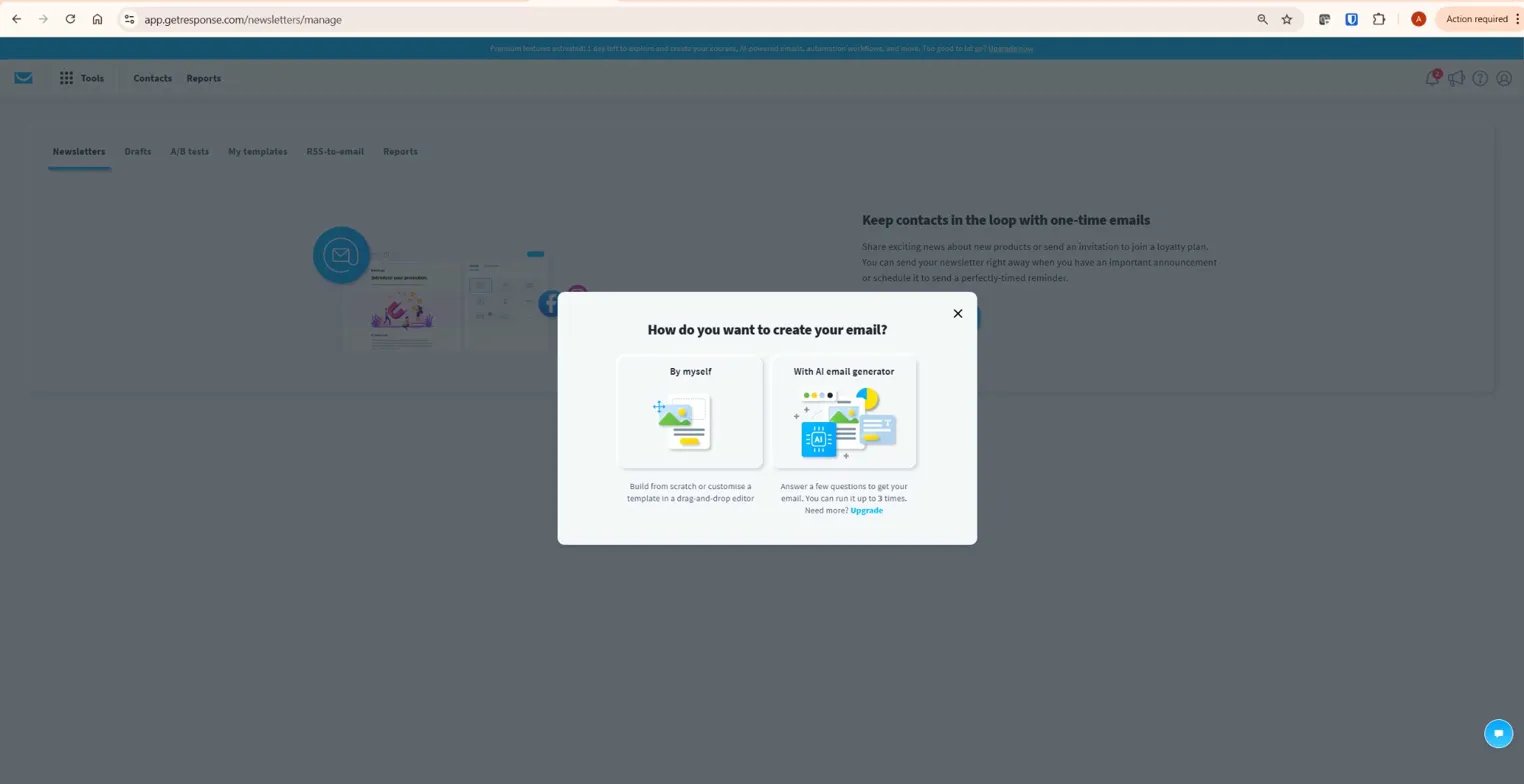
It’s worth being clear about what GetResponse A/B testing does and doesn’t cover, because the terminology can get confusing. GetResponse A/B testing compares versions of a single newsletter or campaign message — different subject lines, different content, or different sender details, sent to your list at one point in time.
This is different from testing full paths inside an automation workflow — for example, sending half your new subscribers down a 5-email welcome sequence and the other half down a 10-email sequence, then comparing which group converts better long-term. If automation path split-testing is important to your funnel, verify inside your GetResponse account whether your current plan supports that workflow, because this is a different capability from standard email A/B testing.
For affiliate marketers, start with email A/B testing first regardless — it’s easier to set up and interpret with a smaller list. Automation-level split testing becomes more relevant once your list is large enough to divide into groups that are each still statistically meaningful — typically a few thousand contacts or more.
Which GetResponse Plan You Need for A/B Testing
This is where most guides get vague, so here is the honest plan-by-plan breakdown.
Starter (currently starting around $19/month, 1,000 contacts): GetResponse’s own pricing page states that A/B testing is available on paid plans, as distinct from the free plan — though some independent reviews describe A/B testing as a Marketer-plan feature specifically. Given this ambiguity, confirm directly inside your account or on getresponse.com/pricing whether your specific plan includes A/B testing before assuming it’s available.
Marketer (currently starting around $59/month for 1,000 contacts, pricing varies by region and billing period): Adds A/B testing for landing pages, alongside unlimited automation workflows and advanced segmentation. If your affiliate strategy relies on converting cold traffic through opt-in pages, Marketer’s landing page testing lets you optimise headline, image, and CTA button variants — not just your emails. Verify current plan features at getresponse.com/pricing, as plan structures are periodically revised.
The honest takeaway: if your bottleneck is email open rates, confirm whether your current paid plan includes email A/B testing before upgrading further. If your bottleneck is landing page conversion — visitors arriving but not opting in — that is where a higher-tier plan with landing page testing may earn its price. Diagnose which stage of your funnel is actually underperforming before assuming you need the more expensive plan.
What Affiliate Marketers Should Test First With GetResponse A/B Testing
Testing everything at once produces noise, not insight. Here is the order for GetResponse A/B testing that delivers the clearest results fastest for an affiliate email list.
Test 1: Subject line, on your next affiliate promotion. Write three genuinely different subject lines — not three versions of the same phrase. One direct and benefit-led (“Save 20% on Koinly this week”), one curiosity-led (“The crypto tax mistake costing you money”), and one urgency-led without being manipulative (“Last day: Koinly discount ends tonight”). Run the test on your full list with open rate as the winning factor. This tells you what tone your specific audience responds to — information that applies to every future promotional email you send.
Test 2: From field, on a standard newsletter send. Test “Andreas Maratheftis” against “InnovateHub Finance” as the sender name. This is a one-time test that gives you a durable answer — once you know which performs better, you don’t need to keep testing it on every send. Set it and apply the winner going forward.
Test 3: Content — CTA placement and framing, on an affiliate review email. Test a single CTA at the end of the email against the same CTA repeated once in the middle and once at the end. For affiliate content specifically, this reveals whether your audience needs a mid-content nudge or prefers to read fully before being asked to click.
Original data point: A/B test results only become statistically meaningful once each variant receives enough opens to smooth out random variation. As a practical rule of thumb, aim for at least 100 opens per variant before treating a result as reliable — below that, a 3-point difference in open rate could easily be noise rather than a genuine signal. For a subject line test split three ways on a 1,000-contact list with a typical 21.5% industry-average open rate (Campaign Monitor 2026 benchmarks), that means each variant needs roughly 450-500 recipients to reliably clear the 100-open threshold — which is why testing with your full list, rather than a small percentage, produces more trustworthy results on lists under 2,000 contacts.
GetResponse A/B Testing for Landing Pages and Affiliate Funnels
Landing page A/B testing within GetResponse solves a different problem than email A/B testing — it’s about conversion at the point of opt-in, not open rates. If traffic is arriving at your landing page but not signing up, testing the page itself is more valuable than testing any email.
The highest-impact elements to test on an affiliate opt-in page, in priority order: the headline (the single biggest lever for conversion), the call-to-action button text and colour, the form length (asking for email only versus email plus name), and the presence or absence of a testimonial or trust signal near the form. Test one element at a time — changing the headline and the CTA simultaneously in the same test means you won’t know which change drove the result.
One honest limitation: landing page A/B testing availability depends on your current GetResponse plan tier, and plan packaging is updated periodically — verify this feature is included before building a funnel strategy around it. GetResponse’s landing page testing is also solid for straightforward two-variant tests but isn’t built for the kind of multivariate testing that dedicated conversion optimisation tools like Unbounce or Optimizely offer. For an affiliate site testing one page element at a time, GetResponse’s approach is more than sufficient. If you’re running dozens of simultaneous landing page variants for a high-volume paid traffic operation, a dedicated CRO tool may serve you better. For more on building the pages themselves, see the GetResponse landing page builder guide.
Common GetResponse A/B Testing Mistakes Affiliates Make
Calling a winner too early. A 2-point open rate difference after 50 opens per variant is not a result — it’s noise. Wait until each variant has a meaningful sample size before trusting the outcome, especially on smaller lists.
Testing multiple variables in one content test. Changing the subject line, the CTA, and the email length all in the same test means you learn nothing specific — you only know that “version B” did better, without knowing which change caused it. Isolate one variable per test.
Never revisiting past winners. A subject line style that won six months ago on a smaller, newer list may not still be your best option once your audience has matured and become more familiar with your voice. Re-test your core assumptions every quarter, not just once and never again.
Testing on too small a segment. Running a subject line test against only your 50 most engaged subscribers might feel efficient, but the sample is too small to produce a reliable signal. Test against your broader list, or at minimum a segment large enough to clear a meaningful open threshold.
What To Do Next
The best way to see GetResponse A/B testing in action is to open your account now and go to Tools → Email marketing → A/B tests. Set up a subject line test on your next scheduled send — even if it’s a routine newsletter rather than a promotional email. Write three genuinely different subject line variants, split your list, and let the test run for at least 4 hours before reviewing results. That single test will tell you more about what your audience responds to than months of guessing ever will. For the full picture of what else GetResponse offers, read the complete GetResponse review.
Try GetResponse free and set up your first A/B test today →
Conclusion
GetResponse A/B testing turns email marketing from a guessing game into a process you can actually improve over time. Subject line testing is the fastest starting point for most affiliates — confirm which plan tier your account needs for A/B testing before assuming it’s included, since guidance on this varies across sources. Landing page testing on the Marketer plan matters more once your bottleneck shifts from opens to opt-in conversion. Start with one subject line test this week, treat the result as data rather than a verdict, and build from there. If you’re still deciding whether GetResponse is the right platform overall, the full GetResponse review covers the complete feature set and honest limitations in detail.
Start your free GetResponse account and confirm which A/B testing features your plan includes →
Frequently Asked Questions
What can you test with GetResponse A/B testing?
GetResponse offers three A/B test types: subject line (up to 5 variants), from field (up to 5 sender name/address combinations), and content. You choose one test type per test — combining subject line and content changes in a single test isn’t possible. GetResponse’s pricing page describes A/B testing as a paid-plan feature; confirm the exact plan tier and feature scope for your account at getresponse.com/pricing, since guidance on Starter versus Marketer access varies across sources.
How many variants can you test at once in GetResponse?
GetResponse supports multiple variants in A/B tests. Subject line and from-field tests can use up to 5 variants. For content tests, confirm the current variant limit inside your GetResponse account before building a multi-variant campaign. Most affiliate marketers get clear, actionable results from testing 2–3 genuinely different variants rather than the full maximum, because more variants split your sample into smaller groups and make results harder to interpret reliably on smaller lists.
Which GetResponse plan includes A/B testing?
GetResponse’s own pricing page describes A/B testing as a paid-plan feature, distinct from the free plan. Some independent reviews describe it specifically as a Marketer-plan feature. Given this inconsistency across sources, confirm directly inside your GetResponse account or at getresponse.com/pricing exactly which A/B testing features your specific plan includes before making a purchase decision based on this guide.
Does GetResponse automatically pick the A/B test winner?
You choose. GetResponse can automatically send the winning variant to the rest of your list once the test period ends, based on whichever metric you selected — open rate or click rate. Alternatively, you can review the results manually and select the winner yourself, though this option is only available if less than 100% of your list was included in the initial test.
Can you A/B test landing pages in GetResponse?
Yes, landing page A/B testing is available in GetResponse, generally as part of the Marketer plan and above. This lets you test elements like headlines, CTA button text, and form length against each other to improve opt-in conversion rates, separate from email-specific A/B testing. Verify current feature availability at getresponse.com/pricing, as plan structures are periodically updated.
How long should a GetResponse A/B test run?
GetResponse lets you set your own testing duration, and the right length depends on your goal. For time-sensitive affiliate promotions, a 2-4 hour test window against a portion of your list is usually enough to identify a clear winner before sending to the remainder. For less urgent sends, a longer window of 24 hours or more captures a fuller picture of engagement, particularly across different time zones if your list is international.
What’s the minimum list size for A/B testing to be useful?
There’s no hard minimum enforced by GetResponse, but for statistically reliable results, aim for each test variant to receive at least 100 opens before trusting the outcome. On a list with a typical 21.5% open rate, that means each variant in a two-way test needs roughly 500 recipients to clear that threshold reliably. Below that, differences between variants are more likely to reflect random variation than a genuine audience preference — treat early results as directional rather than conclusive on smaller lists.
