
Koinly Missing Transactions: Complete Fix Guide (2026)
Affiliate Disclosure: This article contains affiliate links. If you sign up for Koinly through a link on this page, I may earn a commission at no extra cost to you. I only recommend tools I have researched and believe are worth your time.
Tax Disclaimer: This article is for informational purposes only and does not constitute professional tax or financial advice. Consult a qualified tax professional for advice specific to your situation.
Koinly missing transactions is one of the most common problems investors encounter — and in most cases it has a straightforward fix. Before spending time troubleshooting, the most important thing to understand is that Koinly deliberately skips certain transactions by design. What looks like a sync error is often Koinly working exactly as intended. This guide covers every cause of missing or unsynced transactions in Koinly and gives you a clear fix sequence for each one.
Missing transactions matter because they affect your cost basis calculations. A disposal without a matching acquisition produces an inflated capital gain — which means overpaying tax. Getting your transaction history complete before generating any report is not optional. The fix sequence below is ordered from simplest to most complex — work through it in order rather than jumping to the most drastic step first.
If your Koinly data has errors that are affecting your tax calculations and you haven’t yet checked your gains preview, the free plan lets you see your full position before purchasing a report: check your Koinly data here.
Koinly Missing Transactions: Quick Answer
First check whether Koinly is skipping the transactions intentionally — internal exchange transfers, duplicates, cancelled transactions, and some staking or unstaking movements may be skipped or treated differently by design. If the transactions genuinely should be there, check your API key permissions or CSV import for errors, trigger a full resync, and check Koinly’s feedback portal for known exchange bugs. If the exchange simply doesn’t provide historical data via API, switch to CSV import for older transactions and use API only for new ones going forward.
Step 1: Check If Koinly Is Skipping Transactions Intentionally
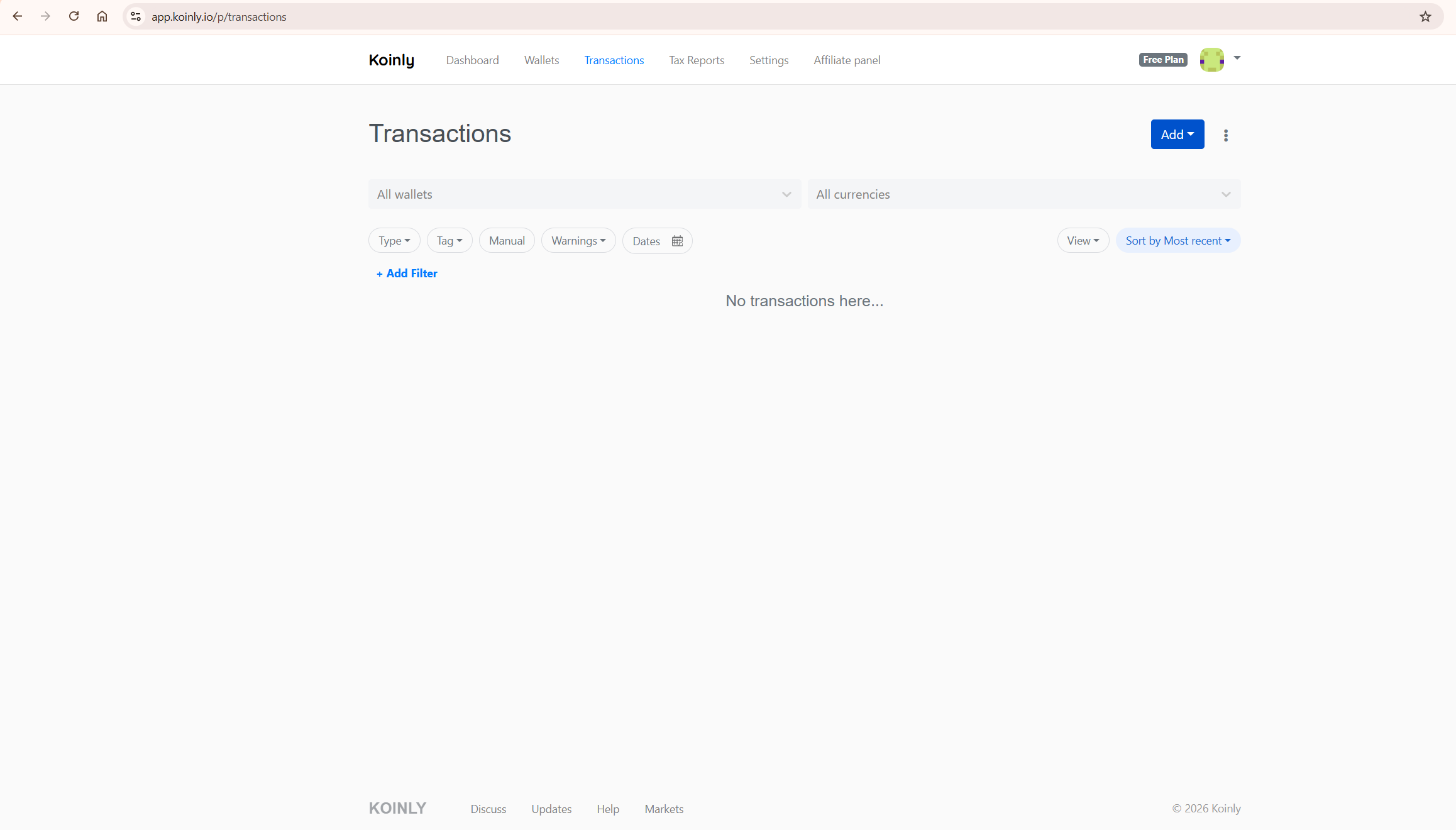
Before assuming something is wrong, check your import summary. Koinly intentionally skips certain transactions because they are not needed for tax calculations or would create errors if imported. The reason for skipping is shown in the import summary — always read this first.
Koinly skips the following transaction types by design:
- Internal exchange transfers — moving funds between your own accounts on the same exchange, such as from a funding wallet to a spot trading wallet. These are not taxable events and Koinly correctly excludes them.
- Duplicates — transactions already imported to Koinly from another source. Importing the same transaction twice would create errors in your cost basis calculations.
- Transactions imported from another file — some exchanges split transaction history across multiple export files. Koinly skips a transaction in one file if it will be imported from a different file for the same exchange.
- Staking and unstaking events — staking and unstaking movements may be skipped or treated differently depending on the exchange and transaction type. Actual staking rewards should still appear in your income summary if they are imported correctly.
- Transactions before your lock date — if you have set a lock date in your Koinly Settings, all transactions before that date are skipped. Check your Settings if recent transactions are appearing but older ones are not.
- Cancelled transactions — transactions that were submitted but never processed. These never happened economically and correctly have no place in your tax calculations.
If your missing transactions fall into any of these categories, no action is needed. Koinly is working correctly.
Step 2: Identify the Type of Import Issue
If the transactions genuinely should be in Koinly and are not skipped by design, identify which type of import error you have. Koinly’s import errors fall into distinct categories, each with a different fix.
For API-Connected Wallets
- Access denied (red warning) — your API key is incorrect, missing required permissions, or has expired. See Step 3 below.
- Transactions missing after successful sync — the exchange API may not provide your full transaction history, or a resync is needed. See Steps 4 and 5.
- Balance mismatch immediately after a transaction — this often self-resolves on the next sync. Wait and resync before troubleshooting further.
For CSV Imports
- Rejected file — Koinly does not recognise the file format. You may have uploaded the wrong export type or opened the file in Excel before importing, which can alter the formatting.
- Unrecognised file — similar to rejected file. Check that you are using exactly the file type specified in Koinly’s integration instructions for your exchange.
- Invalid file — the file is corrupted or incorrectly formatted. Re-export directly from the exchange without opening in any spreadsheet application first.
- Failed transaction rows — specific rows within an otherwise valid file failed to import. Check the import summary for the specific rows and reasons.
Step 3: Fix API Access Denied Errors
If your wallet shows a red warning or access denied error after syncing, your API connection has a problem. Work through these fixes in order:
- Check your API key and secret for typos — double-check that you entered both exactly as provided by your exchange, with no trailing spaces or missing characters.
- Verify permissions — most exchanges require specific read permissions to be enabled when creating an API key for Koinly. Check your exchange’s API settings and confirm the required permissions are active. Common required permissions include read access to trade history, deposits, and withdrawals.
- Check if the key has expired — some exchanges automatically expire API keys after a set period. If your key has expired, create a new one and update it in Koinly.
- Create a new API key — on most exchanges, the API secret cannot be retrieved after initial creation. If you have lost your secret or the key is not working after the above steps, create a new API key following Koinly’s integration instructions for your specific exchange precisely. Update the key in your Koinly wallet settings.
Always store your API key and secret securely when first generated — most exchanges will not show the secret again after the initial creation screen.
Step 4: Check for Known Exchange Bugs
Before spending time troubleshooting a sync issue manually, check whether it is a known problem with your specific exchange integration. Koinly maintains a public feedback portal at feedback.koinly.io where known API and CSV issues are listed by exchange, usually with a workaround.
Go to the API/CSV issues board and search for your exchange. If a known issue exists, follow the listed workaround before attempting any other fix — this saves significant time and avoids creating additional problems by trying fixes that don’t apply to your situation.
Step 5: Trigger a Full Resync
If your API connection is working correctly but transactions are still missing, trigger a full resync. This tells Koinly to re-import any transactions that don’t currently exist in your account without modifying transactions that have already been imported.
To trigger a full resync:
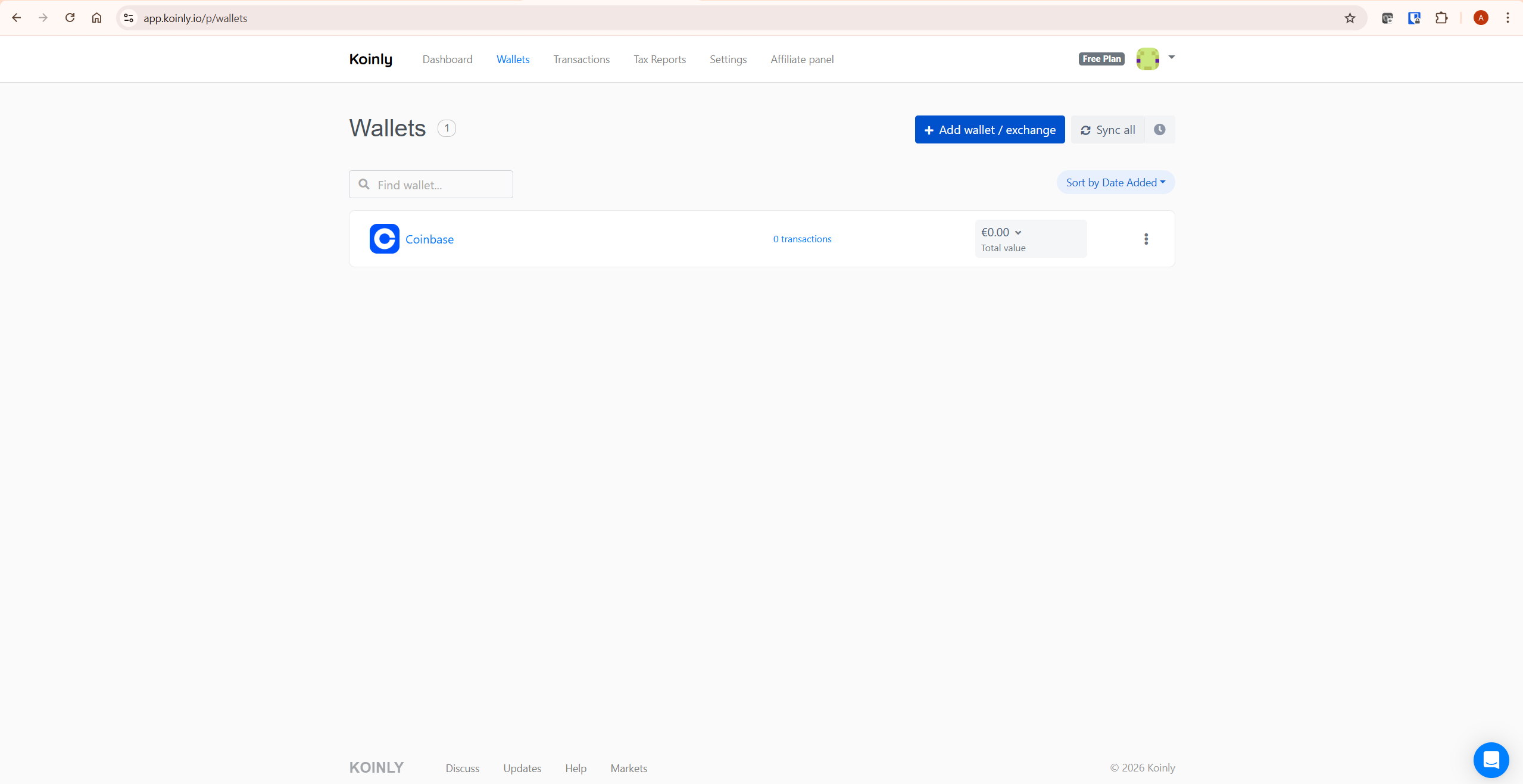
- Go to your Wallets page and select the affected wallet
- Navigate to the Troubleshoot page for that wallet
- Click Trigger a full resync
- In the popup, choose whether to resync from the beginning of the wallet’s history or from a specific date
- Wait for the sync to complete before checking your transaction count
One important caveat: if the wallet’s API has been significantly upgraded since you first connected it, a full resync may occasionally import duplicate transactions because Koinly now imports the data differently than before. If duplicates appear after a resync, delete the wallet and recreate it rather than trying to manually remove individual duplicates.
Also check whether a “Start import from” date is set in your wallet settings. If this date is too recent, Koinly will not import older transactions. Remove the start date to allow a full history resync.
Step 6: Fix CSV Import Problems
If you are importing via CSV rather than API, follow these steps to resolve missing transactions.
Use Exactly the Files Koinly Specifies
Each exchange has specific export file types that Koinly expects. Importing the wrong file type — even if it contains transaction data — will produce errors or missing transactions. Follow Koinly’s integration instructions for your specific exchange precisely. Import only the files the instructions specify. Importing additional files not listed in the instructions often creates duplicates.
Do Not Open CSV Files in Excel Before Importing
Opening a CSV export file in Excel or any other spreadsheet application before importing it to Koinly can alter the file’s formatting — changing date formats, adding or removing columns, or converting numbers to scientific notation. Always import CSV files directly from your exchange download without opening them first.
Check Timezone Settings
CSV timestamps should either be in UTC or have the timezone clearly specified. If your exchange exports in a local timezone without specifying it, use Koinly’s timezone offset option during import rather than manually editing the file. Koinly’s CSV import instructions cover how to handle timezone differences for specific exchanges.
Delete and Recreate the Wallet
If reimporting the CSV files doesn’t resolve missing transactions, delete the wallet entirely and add it again, following the integration instructions precisely from the beginning. This is more reliable than trying to patch an existing wallet with known import errors.
Step 7: Handle Exchange API Limitations
Some exchanges simply do not provide your full transaction history via their API. This is not a Koinly bug — it is a limitation of the exchange’s API that Koinly has no control over. When this happens, Koinly will typically show balance errors or missing cost basis warnings for affected transactions.
The fix is to supplement the API import with CSV files for historical transactions the API cannot retrieve:
- Export CSV transaction files from your exchange for the period the API cannot cover
- Import the CSV files into Koinly first
- Set the API connection’s “Start import from” date to one day after the last transaction in your CSV files
- This prevents the API and CSV from overlapping and creating duplicates
Never mix API and CSV in the same Koinly wallet without setting the start date correctly — overlapping imports create duplicate transactions that are difficult to identify and remove.
Before You Make Manual Changes: A Warning
Do not delete wallets, manually edit large batches of transactions, or mix API and CSV imports until you have read your import summary carefully and identified the specific cause of the problem. Most Koinly issues get worse when users start making random manual changes before understanding what went wrong. Delete and recreate only when you have a clear reason to do so — and always export a record of your current transaction data before making significant changes.
Step 8: Add Missing Transactions Manually
If a small number of transactions cannot be imported automatically — because the exchange no longer provides the data, the exchange has closed, or the transaction type is not supported — you can add them manually in Koinly.
Koinly recommends manual entry only for a small number of transactions. For large volumes of missing transactions, use a custom CSV file instead — create a CSV with all the missing transactions formatted according to Koinly’s custom CSV template and import it as a new wallet.
Manually added transactions are identified by an “M” icon in Koinly, which helps distinguish them from API and CSV imports when reviewing your data.
When to Contact Koinly Support
Contact Koinly support via the in-app chat when:
- You have worked through all the steps above and transactions are still missing
- You believe you have found a new bug with a specific exchange integration not listed on the feedback portal
- Your account shows an incorrect total transaction count that doesn’t change after deleting and recreating wallets
- A full resync is not completing or is taking an unexpectedly long time despite a normal transaction volume
Support access varies by plan — check Koinly’s current pricing page for the latest email and chat support availability before purchasing. For a full breakdown of what’s included in each plan, see our Koinly pricing guide.
Why Missing Transactions Matter for Your Tax Report
Every missing transaction has a potential tax consequence. A missing purchase creates a disposal without a cost basis — Koinly may assign a zero cost base, making the full sale proceeds appear as a capital gain. A missing transfer may be classified as a taxable disposal rather than a non-taxable internal movement. A missing staking reward affects your income total.
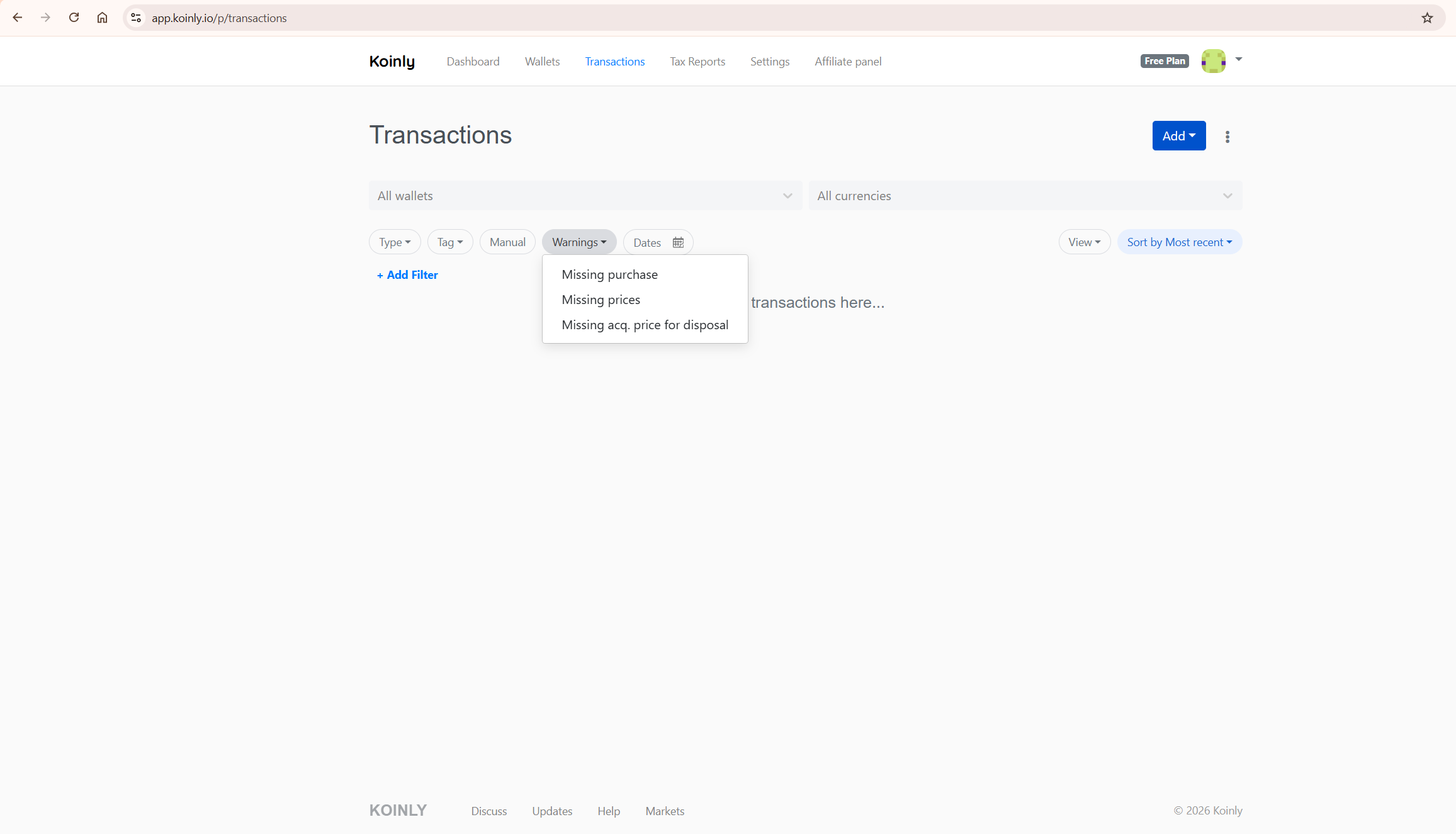
The correct approach is always to resolve all warnings and missing transaction issues before purchasing a Koinly report. The free plan gives you access to the warnings filter and capital gains preview — use both to verify your data is complete before spending anything. If your gains look unexpectedly high, missing transaction history is almost always the cause. See our guide on fixing wrong gains in Koinly for a detailed walkthrough.
Once your data is clean and complete, upgrade to the right Koinly plan here and generate your tax report with confidence.
Frequently Asked Questions
Why are some of my transactions missing from Koinly?
The most common reason is that Koinly has intentionally skipped them. Koinly skips internal exchange transfers, duplicates, staking and unstaking events, cancelled transactions, and any transactions before a lock date you may have set. Check your import summary for the skip reason before troubleshooting. If the transactions should genuinely be there, check your API key permissions, trigger a full resync, or check Koinly’s feedback portal for known exchange issues.
Why is Koinly not syncing my transactions?
Sync failures are usually caused by API key issues — incorrect credentials, expired keys, or missing permissions. Check your wallet for a red access denied warning. If the API is connecting but transactions are still missing, the exchange may not provide full historical data via its API, which is an exchange limitation rather than a Koinly problem. In that case, supplement with CSV imports for historical data.
How do I trigger a full resync in Koinly?
Go to your Wallets page, select the affected wallet, navigate to its Troubleshoot page, and click Trigger a full resync. This imports any transactions that don’t currently exist in Koinly without modifying already-imported ones. Also check whether a “Start import from” date is set — if so, remove it to allow the full history to be imported.
Can I mix CSV and API imports for the same exchange in Koinly?
Yes, but only with careful date management. Import your CSV files first, then set the API connection’s “Start import from” date to one day after the last transaction in your CSV files. This prevents the two sources from overlapping and creating duplicate transactions. Never import both without setting this date — duplicates are difficult to identify and remove.
Why does Koinly show wrong gains after I fixed missing transactions?
If gains figures change after resolving missing transactions but still look incorrect, there may be additional warnings to resolve — unmatched transfers, missing purchase history on other assets, or incorrectly categorised transactions. Use the warnings filter in the Transactions tab to identify all remaining issues. For a full troubleshooting guide on incorrect gain figures, see our article on Koinly showing wrong gains.
What should I do if my exchange no longer exists or has no API?
If the exchange has closed or never offered an API, you have two options. If you have any historical transaction exports, import them as CSV files using Koinly’s custom CSV template. If no export is available, add the transactions manually in Koinly — enter the date, asset, amount, and transaction type for each one. For large volumes of missing transactions, the custom CSV approach is faster than manual entry.
Does Koinly import staking rewards automatically?
It depends on the exchange and the type of staking. For many centralised exchanges, staking rewards are imported automatically via API and appear in your income summary. However, Koinly intentionally skips staking and unstaking events that are internal to the exchange — these appear as income rather than individual transactions. For on-chain staking via self-custody wallets, rewards are generally imported automatically if the blockchain is supported. Check your income summary to confirm staking rewards are captured correctly.
The Bottom Line
Koinly missing transactions almost always has one of a small number of causes — intentional skipping by design, API key issues, exchange API limitations, or CSV import errors. Work through the fix sequence above in order: check the import summary first, verify API access, check the feedback portal for known bugs, trigger a resync, and add manually only as a last resort.
Complete transaction history is the foundation of an accurate tax report. The warnings filter and capital gains preview on the free plan give you everything you need to verify your data before purchasing. Fix the warnings first — then generate your report.
Ready to check your data? Start with Koinly free here — import your wallets, review your warnings, and verify your gains before spending anything.
Related reading:
- Koinly Showing Wrong Gains? How to Fix Cost Basis Errors
- Koinly Review: Is It the Best Crypto Tax Software in 2026?
- How to Use Koinly: Complete Step-by-Step Guide (2026)
- Koinly Pricing: Plans, Limits & Which One You Actually Need
- Is Koinly Accurate? How Reliable Are Its Calculations?
