
GetResponse Segmentation: Best 2026 Guide for Affiliates
This article contains affiliate links. If you sign up for GetResponse through a link on this page, I may earn a commission at no extra cost to you. I only recommend tools I have genuinely evaluated.
The Problem With Sending the Same Email to Everyone
You built the list. You set up the welcome sequence. You send the newsletter every week. And yet your open rates are flat, your click-throughs are disappointing, and unsubscribes are quietly climbing. The list isn’t broken. The problem is that you’re treating a room full of different people as if they’re all the same person.
GetResponse segmentation is the fix — and it’s more capable than most affiliates realise. I am Andreas Maratheftis, 30 years in professional finance and the person running InnovateHub Finance on GetResponse. After setting up segmentation properly across this site’s email list, the difference in campaign relevance was immediate — and performance became easier to measure. This guide covers every segmentation method available in GetResponse in 2026, which features your plan actually includes, and the three specific segments every affiliate marketer should build first. By the end, you’ll have a clear action plan you can implement in under 30 minutes.
Note: GetResponse launched a new segmentation interface in January 2026 — the BETA version — which is now the default for all new accounts and is being rolled out to existing ones. This guide covers both the new BETA interface and the legacy path so you can follow along regardless of which version your account currently shows. Always verify current feature availability at getresponse.com/pricing.
Quick Answer
GetResponse segmentation works by letting you create dynamic groups of contacts based on conditions — tags, engagement score, custom fields, subscription source, email behaviour, and more. Segments update automatically: when a contact meets your conditions, they join the segment; when they no longer meet them, they leave. Core contact filtering and segmentation features are available on paid plans, while advanced automation-based segmentation generally requires the Marketer plan, which currently starts around $59/month for 1,000 contacts on monthly billing. Verify current pricing at getresponse.com/pricing. The fastest way to improve your email performance is to build three segments immediately: engaged subscribers, unengaged subscribers, and subscribers by lead magnet source.
Start your free GetResponse account and explore the platform before choosing the right paid plan →
What GetResponse Segmentation Actually Is
A segment in GetResponse is a saved search — a group of contacts defined by one or more conditions, stored under a name you choose. The critical distinction from a static list is that segments are dynamic. You do not manually add contacts to a segment. As soon as a contact meets the conditions you set, they are added automatically. As soon as they no longer meet those conditions, they are removed. You build the rule once; GetResponse keeps the segment current.
This matters practically. If you create a segment called “Highly Engaged — Last 30 Days,” GetResponse continuously evaluates your contact list against that condition. A subscriber who went cold last month but re-engaged this week moves into the segment without any action from you. A subscriber who stops opening emails drops out. The segment is always an accurate picture of who currently meets your criteria — not a snapshot from when you last exported a CSV.
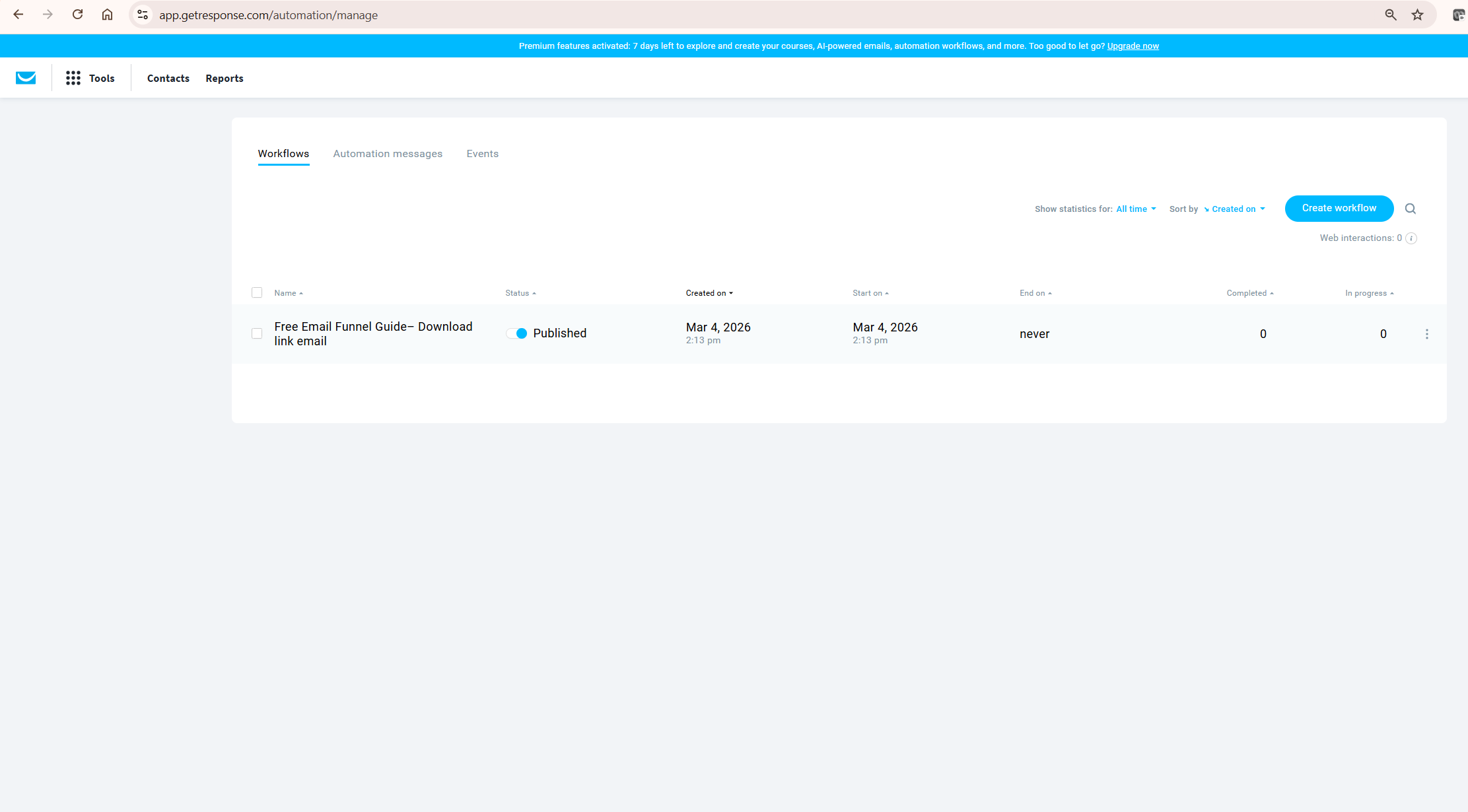
Segments are separate from tags. Tags are labels you assign to contacts — manually, through automation, or via form fields. A tag says “this person downloaded the crypto tax guide.” A segment says “show me everyone who downloaded the crypto tax guide AND opened an email in the last 14 days.” Tags are ingredients. Segments are the recipe. Both work together, and the most effective GetResponse setups use both — tags to capture behaviour as it happens, segments to define audience groups for campaigns.
Tags vs Segments: The Difference That Changes How You Build
Tags and segments are the two tools GetResponse gives you to organise contacts, and confusing them is the most common mistake affiliates make when setting up their list for the first time.
| Feature | Tags | Segments |
|---|---|---|
| What it is | A label assigned to a contact | A saved search based on conditions |
| How contacts are added | Manually, via automation, or form field | Automatically when conditions are met |
| Dynamic updating | No — stays until removed | Yes — updates continuously |
| Use in newsletter sends | Can filter by tag | Can select segment as recipient group |
| Use in automation | Tag added / tag removed triggers | Segment membership can be used as an automation condition |
| Best for | Capturing a specific moment or action | Defining an ongoing audience group |
| Example | “Downloaded lead magnet — June 2026” | “Active subscribers who clicked in last 30 days” |
The practical workflow for affiliates: use tags to record what a subscriber did (“clicked affiliate link — Koinly offer”), then build segments that combine tags with other conditions (“clicked Koinly link AND subscribed in last 90 days AND engagement score is Active or above”). That combination gives you a precise audience for a targeted follow-up campaign — something you cannot achieve with tags or segments alone.
How to Create a Segment in GetResponse (2026 Interface)
GetResponse rolled out a new BETA segmentation interface in January 2026. If your account shows the BETA label under Contacts → Segments, use the steps below. If your account still shows the legacy interface, the alternative path is included at the end of this section.
New BETA interface (January 2026 and newer accounts):
Step 1. Go to Contacts → Segments (BETA) in your GetResponse dashboard.
Step 2. Click Create segment. You have three options: create from scratch, use an AI prompt to describe your audience and let GetResponse suggest conditions, or use a pre-built segment template.
Step 3. If building from scratch, enter a name for your segment. Make it specific — “Engaged — Opened Last 14 Days” is more useful than “Active List.”
Step 4. Add your conditions. You can add up to 8 conditions and up to 8 condition groups per segment. Conditions within a group use AND logic (contact must meet all). Multiple groups use OR logic (contact must meet at least one group). Use this to build precise or flexible audiences.
Step 5. Click Save. Your segment is live and will update automatically as contacts meet or leave the conditions.
Legacy interface path: Go to Contacts → Search → Advanced search → add your conditions → Save as segment. The functionality is identical — only the navigation differs.
AI segmentation (new in 2026): In the BETA interface, you can describe your target audience in plain language — for example, “subscribers who signed up in the last 60 days but haven’t opened an email yet” — and GetResponse will ask clarifying questions and suggest the conditions needed to build that segment. For affiliates who find condition-building unfamiliar, this is a genuinely useful starting point.
Every Segmentation Condition Available in GetResponse
Understanding what you can segment on determines what campaigns you can run. GetResponse supports the following condition types — verified from the official help documentation at getresponse.com:
Contact data conditions: Name or email address (include or exclude specific contacts or domains). Custom fields (segment by any field you collect — niche interest, country, business type). Subscription date (joined before, after, or within a date range). Subscription source (which form, landing page, or import they came from).
Engagement conditions: Engagement score (GetResponse’s automatic 5-level scoring — Not engaged, At risk, Neutral, Engaged, Highly engaged). Email opens (opened or did not open a specific campaign). Link clicks (clicked or did not click a specific link). Message received (was or was not sent a specific email).
Tag conditions: Tag assigned (contact has a specific tag) or tag not assigned (contact lacks a specific tag). This is where tag strategy connects to segmentation.
Geolocation conditions: Country or region — useful for affiliates promoting jurisdiction-specific tools like Koinly’s country-specific tax reports.
Ecommerce conditions (requires ecommerce data in account): Number of purchases, total amount spent, specific products bought, brands purchased, abandoned orders. Relevant for affiliates using GetResponse’s conversion funnel with product sales.
Website behaviour conditions (requires Marketer plan + JavaScript tracking code): Visited a specific page, did not visit a specific page, completed a goal. This is the most powerful segmentation method for affiliates — targeting subscribers who visited your review page but did not click through to the affiliate offer.
Which Plan You Actually Need for Segmentation
This is where most GetResponse guides go vague. Here is the honest plan-by-plan breakdown, verified from getresponse.com/pricing:
Starter ($19/month, 1,000 contacts): Basic segmentation is available. You can create segments using contact data conditions, subscription source, tags, and engagement score. You cannot use segments inside automation workflows beyond the single workflow the Starter plan permits. You cannot use advanced segmentation conditions like event-based triggers or website behaviour tracking. For a new affiliate building their first list, Starter segmentation is enough to separate engaged from unengaged subscribers and send targeted newsletters.
Marketer ($59/month, 1,000 contacts): Full segmentation capability. Unlimited automation workflows that can be triggered by segment membership. Advanced segmentation including event-based triggers, website behaviour tracking (requires JavaScript installation), contact scoring, and conditional logic in automation paths. This is the plan where GetResponse segmentation becomes a genuine revenue tool rather than a list-management function. If you are running more than one affiliate offer across your list, Marketer is the realistic minimum.
Original data point: On a 1,000-contact list with an industry-average open rate of 21.5% (Campaign Monitor 2026 benchmarks), sending a segmented campaign only to your Engaged and Highly engaged contacts — typically 30–40% of a healthy affiliate list — means sending to approximately 300–400 people. Even a modest lift in click-through or conversion rate from a well-targeted engaged segment can help offset the cost difference between Starter and Marketer, especially once your list reaches meaningful size. Segmentation is not a cost — it is a margin improvement. Verify current plan pricing at getresponse.com/pricing.
GetResponse Segmentation Examples for Affiliate Marketers
For an affiliate site, GetResponse segmentation works best when each segment reflects a clear business purpose. A crypto tax subscriber should not receive the same follow-up sequence as someone who downloaded a TradingView charting guide. A subscriber who clicked a Koinly link should not be treated the same as someone who has not opened an email in two months. The goal is not to create dozens of tiny segments — it is to create a few useful audience groups that directly improve relevance, timing, and conversion intent.
| Affiliate Situation | Useful Segment | Why It Matters |
|---|---|---|
| Subscriber downloaded a crypto tax checklist | source-crypto-tax | Send Koinly-related guides and tax-season content |
| Subscriber clicked a TradingView tutorial link | clicked-tradingview-content | Send charting, alerts, and indicator content |
| Subscriber opened recent emails but did not click | engaged-no-click | Send stronger educational content before affiliate offers |
| Subscriber has not engaged for 60+ days | re-engagement-needed | Protect deliverability and clean the list |
The Three Segments Every Affiliate Marketer Should Build First
Stop optimising for everything at once. These three segments cover 80% of what matters for an affiliate email list and can be built in under 30 minutes on any GetResponse paid plan.
Segment 1: Engaged subscribers (your best audience). Conditions: Engagement score is Engaged OR Highly engaged. This is your primary campaign audience. These are the subscribers who open reliably, click regularly, and are most likely to convert on affiliate offers. Send your highest-value content and your strongest offers to this group first. For InnovateHub Finance, this segment receives new comparison articles and time-sensitive affiliate promotions before the full list sees them.
Segment 2: Unengaged subscribers (your re-engagement and list hygiene target). Conditions: Engagement score is Not engaged OR At risk AND subscription date is more than 60 days ago. This group is dragging your deliverability. They joined, received your welcome sequence, and stopped engaging. Running a dedicated re-engagement campaign to this segment — three emails over two weeks, offering your best lead magnet or asking directly if they still want to hear from you — typically recovers 10–15% and gives you clean data to unsubscribe the rest. A smaller, engaged list outperforms a large, cold one on every metric that matters.
Segment 3: Subscribers by lead magnet source. Conditions: Subscription source is [specific landing page or form] OR tag is [lead magnet name]. If you have multiple lead magnets — a crypto tax checklist, a TradingView setup guide, a financial toolkit — subscribers who opted in for each one have different interests and different purchase intent. Separating them by source means your Koinly-related emails go to the subscribers who signed up for the crypto tax guide, not to everyone on the list. This single change improves open rates and affiliate click-throughs more than any subject line optimisation.
Using Segments Inside GetResponse Automation
Segments become significantly more powerful when they connect to automation workflows. This requires the Marketer plan, but what it enables is the core reason serious affiliates upgrade.
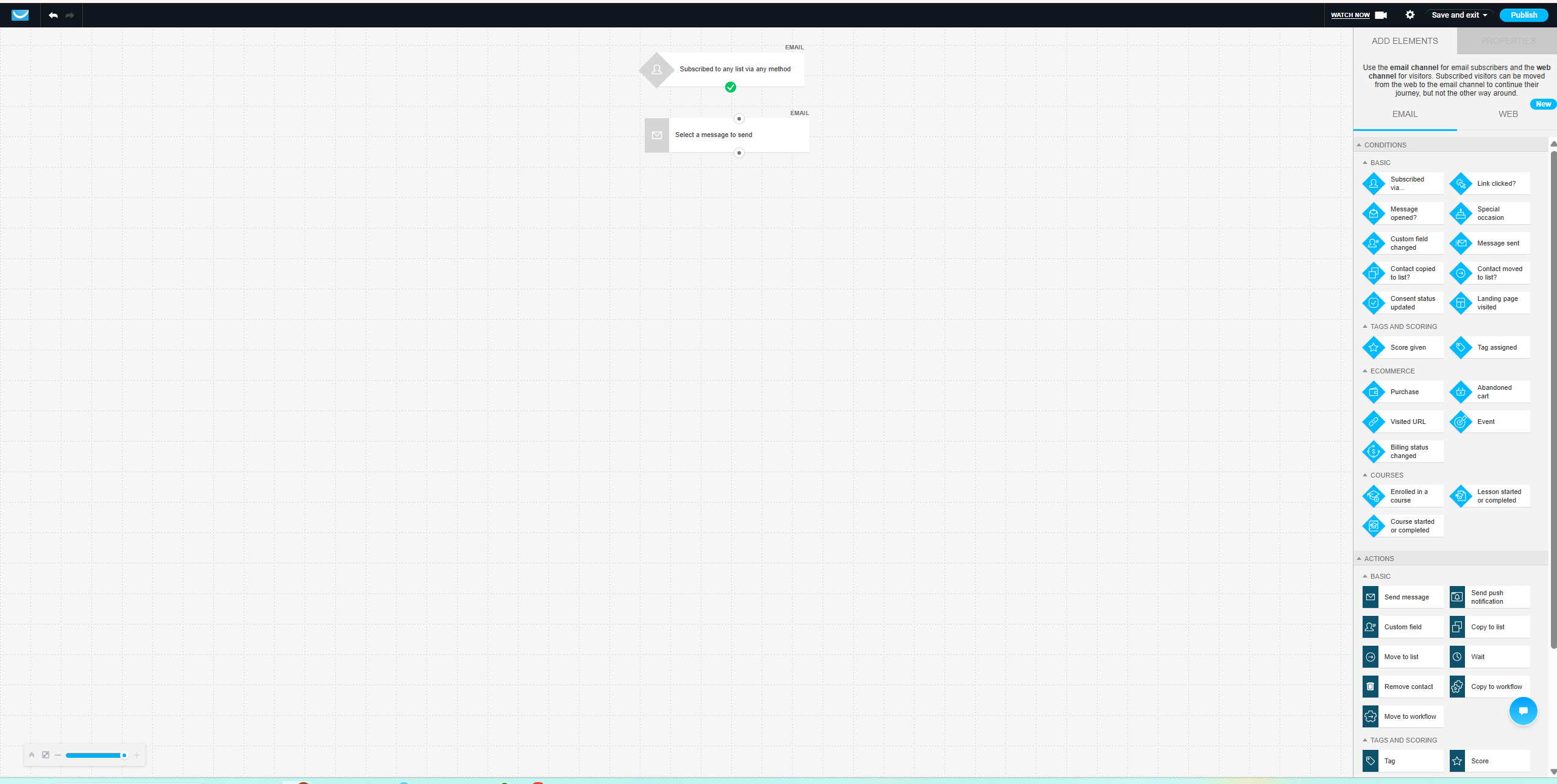
Inside GetResponse’s automation builder, you can use segment membership as a condition in an IF/ELSE branch. A practical affiliate example: a subscriber joins your list via a landing page about crypto tax software. Your automation sends the welcome sequence. At day 7, the workflow checks: is this contact in the “Clicked Koinly Link” segment? If yes, branch A fires — a follow-up email with a deeper Koinly comparison. If no, branch B fires — a broader email about tax preparation generally. The same workflow routes two different people to the content most relevant to their demonstrated interest, without any manual intervention.
You can also use segment exit as a trigger. When a contact leaves the “Unengaged” segment — meaning they opened or clicked something — an automation can fire automatically: add a tag, move them to a different sequence, or send a re-engagement reward email. The list manages itself. For more on building these kinds of workflows, see the GetResponse automation guide for affiliate marketing.
GetResponse Engagement Score: The Built-In Segmentation Tool You Should Use First
When it comes to GetResponse segmentation, the Engagement Score is one of the most underused features in the platform. It automatically evaluates every contact’s interaction history with your emails and assigns them to one of five levels: Not engaged, At risk, Neutral, Engaged, and Highly engaged. The score updates in real time based on opens and clicks across your recent campaigns.
For affiliates who haven’t built a tag structure yet, Engagement Score is the fastest path to meaningful segmentation. You don’t need to set up any conditions beyond selecting the score level — GetResponse calculates everything automatically. Start there. Build your Highly Engaged segment, send your next affiliate campaign exclusively to that group, and compare the results to your previous full-list sends. The difference is almost always significant enough to justify the 10 minutes the setup takes.
One honest limitation: Engagement Score is based solely on email opens and clicks within GetResponse. It does not factor in website visits, purchase history, or external behaviour unless you have the Marketer plan with website tracking installed. A subscriber who reads every email but never clicks links in them — common for informational content — may score lower than their actual engagement warrants.
It is also worth distinguishing two separate scoring concepts in GetResponse. The Engagement Score is automatic — GetResponse calculates it based on email interaction history and you cannot configure it. Separately, GetResponse’s scoring points feature (available in Marketing Automation on the Marketer plan) lets you manually assign, add, subtract, or reset numerical scores based on custom conditions — link clicks, page visits, form submissions, and so on. Beginners should start with Engagement Score; once your automation is more advanced, custom scoring points let you build more nuanced lead-scoring models. Use Engagement Score as your starting point, then layer in additional conditions as your tag structure matures. For a full picture of what the platform can do, see the complete GetResponse review.
Common Segmentation Mistakes Affiliates Make
Building segments but still sending to the full list. The segment exists in your account. You spent time setting it up. Then the next newsletter goes to “All Contacts” because it felt safer. The segment only performs if you use it. Every campaign should have a deliberate recipient decision — and “everyone” should be the exception, not the default.
Using too many tags with no naming convention. A tag library that includes “crypto,” “crypto-tax,” “Crypto Tax,” “koinly-interest,” and “koinly clicked” is not a tag strategy — it’s chaos. Before you start tagging, define a naming convention. All lowercase, hyphens not spaces, action-based names: “clicked-koinly-link,” “downloaded-tax-checklist,” “completed-welcome-sequence.” Consistent naming means your segments stay readable and your automation conditions stay predictable.
Not updating segments after list growth milestones. A segment built when your list had 200 contacts may need new conditions at 2,000. What defined “engaged” at a small list size changes when your send volume increases and your audience diversifies. Review your segment conditions every quarter — not the contacts in them, the conditions themselves.
Ignoring the subscription source condition. This is the most overlooked condition in the GetResponse segmentation toolkit. If you have multiple landing pages, knowing which one a subscriber came from tells you exactly what problem they were trying to solve when they found you. That data is there from the moment they join. If you are not segmenting by source, you are leaving the most reliable interest signal unused. See how to build effective landing pages that feed clean source data in the GetResponse landing page guide.
What To Do Next
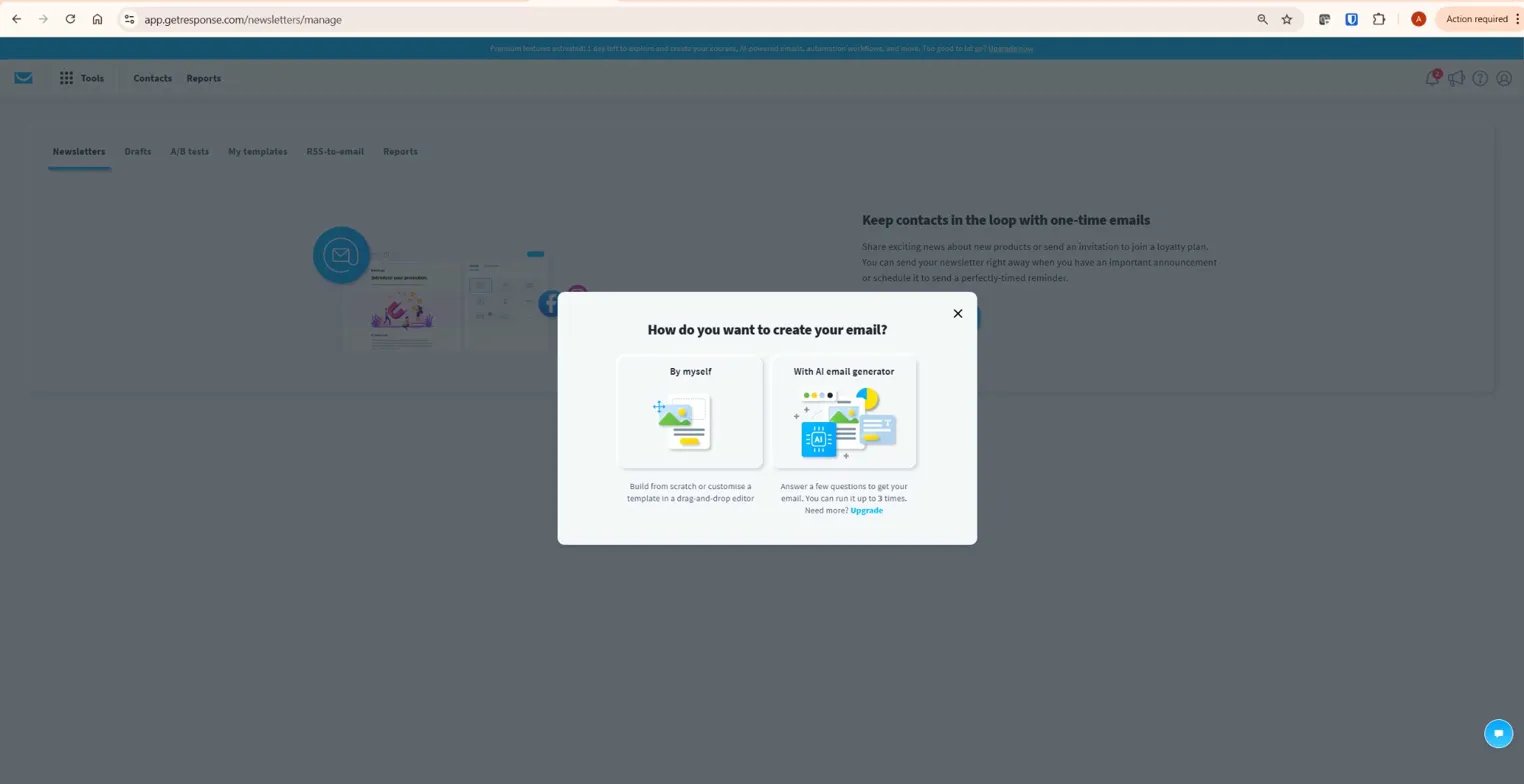
Open your GetResponse account now and go to Contacts → Segments (BETA) or Contacts → Search → Advanced search. Build Segment 1 first: Engagement score is Engaged OR Highly engaged. Save it. Then look at how many contacts are in it. That number — not your total list size — is your real working audience for affiliate campaigns. Once you have that number, your next campaign decision becomes straightforward: send to that segment, measure the results, and use the data to decide whether the Marketer plan’s advanced segmentation tools are worth the upgrade for your current list size. For a full breakdown of what each plan includes, see the GetResponse newsletter guide for how segmentation connects to your campaign sends.
Try GetResponse free and build your first segment today →
The Honest Limitations of GetResponse Segmentation
GetResponse’s segmentation is strong for an all-in-one platform at this price point. It is not ActiveCampaign. If your affiliate business requires deeply granular CRM-style segmentation — predictive lead scoring, complex multi-object data relationships, or extensive API-driven custom data — ActiveCampaign’s automation engine goes further. For most affiliate marketers building and monetising an email list across two to five offers, GetResponse’s segmentation covers everything that matters. But if you are comparing platforms specifically on segmentation depth, that honest distinction is worth knowing before you commit. See the full comparison in the GetResponse vs ActiveCampaign guide.
Conclusion
GetResponse segmentation is one of the highest-leverage actions you can take on your affiliate email list — and it is available from the Starter plan upward. The three segments outlined in this guide — engaged subscribers, unengaged subscribers, and lead magnet source — cover the majority of what determines campaign performance. Build them today, not next week. The Marketer plan’s advanced segmentation and automation integration is the realistic upgrade point for anyone running more than one affiliate offer or wanting website behaviour data to feed their sequences. If you are still deciding whether GetResponse is the right platform for your list, read the full GetResponse review for the complete picture.
Frequently Asked Questions
What is the difference between tags and segments in GetResponse?
Tags are labels assigned to individual contacts — either manually, through automation, or via form fields — to record a specific action or characteristic. Segments are dynamic saved searches that define a group of contacts based on one or more conditions, including tags. Tags capture moments; segments define ongoing audiences. The most effective GetResponse setups use both: tags to record what a subscriber did, segments to group subscribers who share multiple conditions for targeted campaigns.
Does GetResponse segmentation update automatically?
Yes. GetResponse segments are dynamic — contacts are added to or removed from a segment automatically as they meet or stop meeting the conditions you set. You do not need to manually refresh or rebuild segments. A subscriber who becomes highly engaged joins your “Engaged” or “Highly engaged” segment without any action from you; one who stops opening emails will eventually leave it.
Which GetResponse plan do I need for advanced segmentation?
Basic segmentation — tags, engagement score, custom fields, subscription source — is available on the Starter plan ($19/month). Advanced segmentation — using segments inside automation workflows, event-based triggers, website behaviour tracking, and contact scoring — generally requires the Marketer plan, currently starting around $59/month for 1,000 contacts on monthly billing. For affiliates running a single welcome sequence and occasional newsletters, Starter is sufficient. For anyone running multiple offers with behaviour-based sequences, Marketer is the realistic minimum. Verify current plan details at getresponse.com/pricing.
How many segments can I create in GetResponse?
GetResponse does not publish a hard cap on the number of segments you can create. Each segment can include up to 8 conditions and up to 8 condition groups, giving you significant flexibility in how precisely you define each audience. In practice, most affiliate marketers find that 5–10 well-defined segments cover their full campaign needs more effectively than dozens of overlapping ones.
Can I use GetResponse segments in automation workflows?
Yes, on the Marketer plan. Segments can be used as conditions inside automation workflow branches — routing contacts to different email sequences based on whether they are or are not in a specific segment. You can also trigger automations when a contact enters or exits a segment. This is where GetResponse segmentation moves from a newsletter tool to a genuine behaviour-based marketing system. The Starter plan’s single automation workflow has limited segment integration by comparison.
What is the GetResponse Engagement Score?
The Engagement Score is GetResponse’s automatic contact-scoring system. It evaluates each contact’s interaction history with your emails and assigns them to one of five levels: Not engaged, At risk, Neutral, Engaged, and Highly engaged. The score updates in real time and can be used as a segmentation condition on all paid plans. It is the fastest way for affiliates to create meaningful audience segments without building a complex tag structure first — start by segmenting on Engaged and Highly engaged contacts for your next campaign.
How does GetResponse segmentation compare to ActiveCampaign?
GetResponse segmentation covers the full range of conditions most affiliate marketers need: engagement scoring, tag-based filtering, behavioural triggers, custom fields, and subscription source. ActiveCampaign goes further with deeper CRM integration, predictive lead scoring, and more granular automation logic — at a significantly higher price point. For affiliate marketers monetising two to five offers, GetResponse’s segmentation is more than adequate. For businesses needing enterprise-level CRM segmentation, ActiveCampaign has the edge. See the full breakdown in the GetResponse vs ActiveCampaign comparison.
