
How to Import Koinly into TurboTax: Best Complete 2026 Guide
Affiliate Disclosure: This article contains affiliate links. If you sign up for Koinly through a link on this page, I may earn a commission at no extra cost to you. I only recommend tools I have researched and believe are worth your time.
Tax Disclaimer: This article is for informational purposes only and does not constitute professional tax or financial advice. Consult a qualified tax professional for advice specific to your situation.
Importing Koinly into TurboTax changed significantly in 2026 — and if you’re following instructions from last year, you’re going to run into errors. TurboTax removed CSV file support for crypto transactions in January 2026. Koinly now generates a PDF gain/loss report instead. The workflow has changed, the file format has changed, and TurboTax Online and TurboTax Desktop now require different approaches entirely.
This guide covers the complete how to import Koinly into TurboTax process for 2026 — step by step, for both TurboTax Online and TurboTax Desktop, including the most common errors investors hit and exactly how to fix them.
After thirty years in finance, the single pattern I see most at tax time is investors trying to use outdated instructions on updated software. The Koinly-to-TurboTax workflow is the clearest example of this in 2026. Get the steps right once and the process takes under 30 minutes.
If you haven’t set up Koinly yet, start with the free plan — you can import all your transactions and verify your gains before purchasing a plan: get started with Koinly here.
Quick Answer: How to Import Koinly into TurboTax in 2026
Generate your TurboTax PDF report from Koinly’s Tax Reports page, then upload it to TurboTax Online via the cryptocurrency import section. TurboTax Desktop requires a different approach — use the TXF file format or summary reporting instead of PDF. CSV import no longer works in either version as of January 2026. Fix all data errors in Koinly before generating the report — errors in Koinly become errors in TurboTax.
What Changed in 2026: Why Your Old Workflow No Longer Works
Before going through the steps, understanding what changed is essential — otherwise the errors you hit won’t make sense.
TurboTax Removed CSV Support for Crypto
TurboTax removed CSV file upload support for cryptocurrency transactions in January 2026. If you used Koinly’s CSV export in previous tax years, that file format no longer works. Koinly updated its export system in response — the platform now generates a PDF gain/loss report specifically formatted for TurboTax Online upload. This PDF is the correct file to use for the 2025 tax year filing in 2026.
Form 1099-DA Is Now Mandatory
Starting in 2026, exchanges are required to report crypto transaction data to the IRS via Form 1099-DA. This creates a new step in the Koinly-to-TurboTax workflow: before generating your report, you need to complete the 1099-DA flow in Koinly — marking whether you received a 1099-DA for each wallet. Skipping this step produces an incomplete TurboTax report that will need manual correction after import.
TurboTax Online and TurboTax Desktop Have Different Workflows
The PDF export from Koinly works for TurboTax Online only. TurboTax Desktop does not support PDF upload for crypto transactions. Desktop users need to use the TXF file format — which Koinly still generates — or use summary reporting with a supporting statement. This distinction catches a large number of investors who assume the same file works for both versions.
Before You Begin: Preparing Koinly for TurboTax Export
The quality of your TurboTax import depends entirely on the quality of your Koinly data. Errors in Koinly become errors in TurboTax — and errors in TurboTax mean manual corrections on individual transactions after import, which defeats the purpose of using tax software.
Complete these steps before generating any report.
Step 1: Connect All Wallets and Exchanges
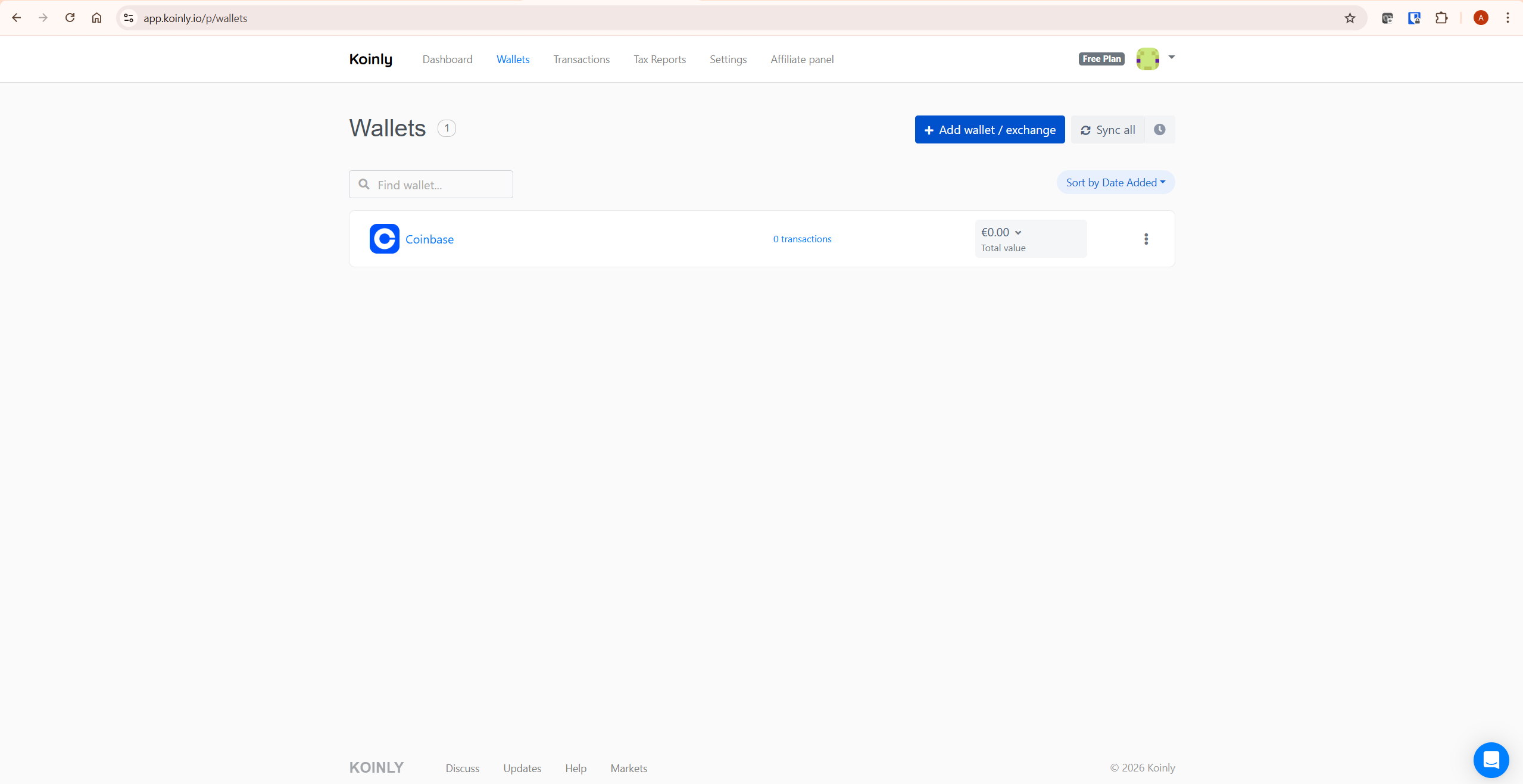
Every exchange and wallet where you held or traded crypto during the tax year must be connected to Koinly. Missing wallets create cost basis gaps — Koinly will show disposals with a $0.00 cost basis, which inflates your gains and produces an inaccurate report. Connect everything before proceeding.
Step 2: Fix All Data Warnings
Go to the Transactions tab in Koinly and check for warnings. The two critical ones to resolve before export are:
- Missing purchase history — any disposal showing a $0.00 cost basis. This means Koinly doesn’t have the original purchase data for that asset. Find the missing transaction and add it manually.
- Missing market price — any disposal showing $0.00 proceeds. Koinly couldn’t find the market price at the time of the transaction. Set it manually using the transaction edit function.
Koinly’s official guide on ensuring report accuracy covers each warning type in detail: Koinly tax report accuracy guide.
Step 3: Verify Your Settings
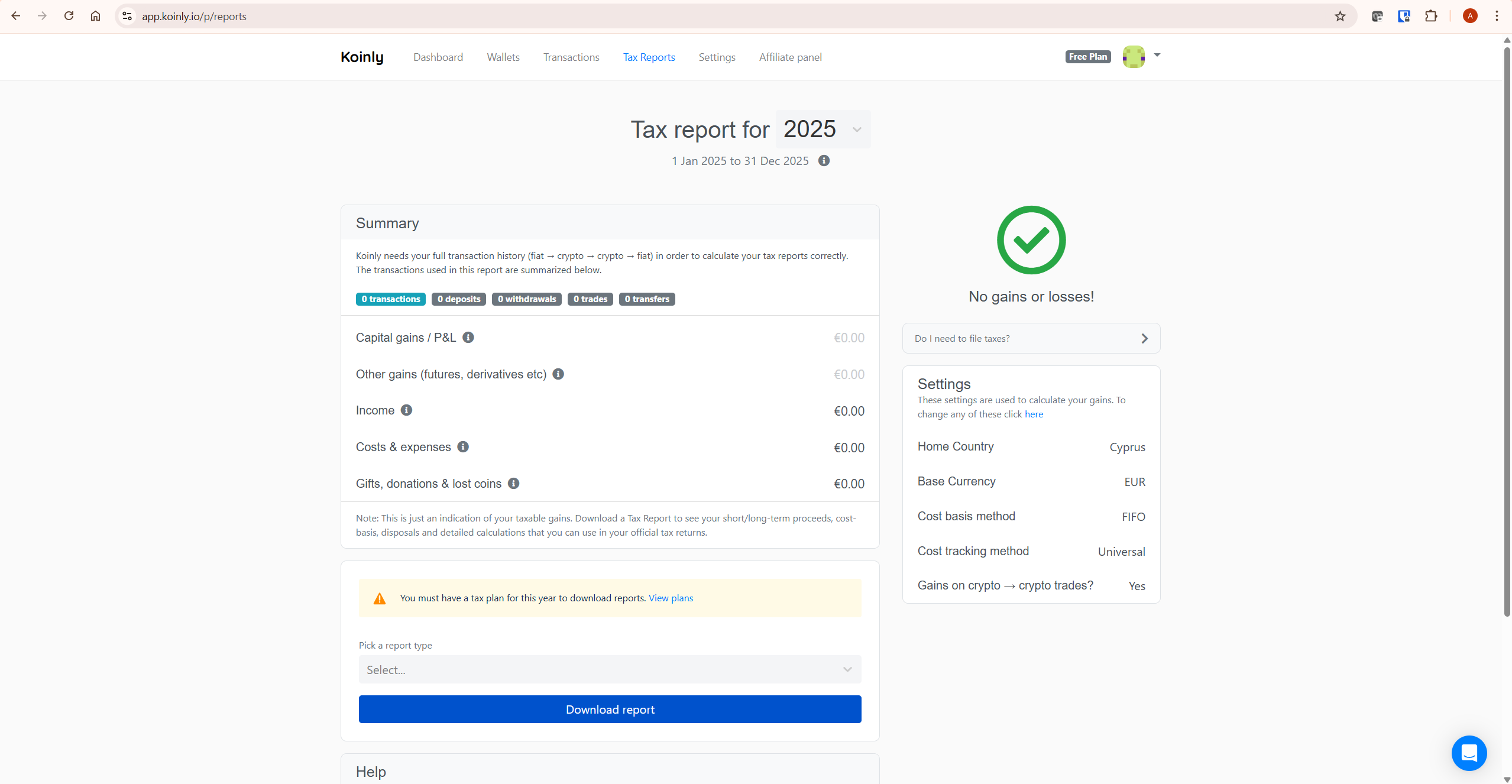
On the Tax Reports page, check the Settings panel on the right side. Confirm:
- Home Country is set to USA
- Cost basis method is set to an IRS-allowable method — FIFO is the default and most commonly used
- Gains on crypto to crypto trades is set to Yes
Wrong settings at this stage produce a report calculated under incorrect rules, which will need to be regenerated after correction.
Step 4: Complete the 1099-DA Flow
On the Tax Reports page, look for the “Pending” section. For each wallet listed, mark whether you received a Form 1099-DA from that exchange or not. The Pending section must be empty before you generate a report. If you received a 1099-DA from an exchange, upload it to Koinly using the 1099-DA upload function — this ensures Koinly’s calculations align with what the IRS has already received from your exchange.
How to Import Koinly into TurboTax Online (Step-by-Step)
This is the standard workflow for TurboTax Online users. The how to import Koinly into TurboTax Online process uses the PDF export — not CSV.
Step 1: Generate Your TurboTax PDF Report in Koinly
Go to the Tax Reports page in Koinly. From the “Pick a report type” dropdown, select TurboTax (Gain/Loss) — not “Transaction History” and not the CSV option. Click Generate. Koinly produces a PDF formatted specifically for TurboTax Online upload. Download this file to your computer.
Note: generating a report requires a paid Koinly plan. The free plan lets you preview your gains but not download the official report. If you’re still on the free plan, you’ll need to upgrade before this step. See our Koinly pricing guide to choose the right plan for your transaction volume.
Step 2: Open TurboTax Online and Navigate to Cryptocurrency
Log into TurboTax Online. Navigate to:
Wages & Income → Investments and Savings → Stocks, Cryptocurrency, Mutual Funds, Bonds, Other (1099-B, 1099-DA)
Select Yes on the investment income screen, then click + Add investments.
Step 3: Select Upload Option
On the “Let’s import your tax info” screen, select Enter a different way. On the next screen, select Upload to upload a PDF file. Do not select your exchange from the list — importing directly from your exchange at this stage will create duplicate transactions if Koinly has already consolidated those transactions in its report.
Step 4: Upload the Koinly PDF
Upload the PDF file you downloaded from Koinly. TurboTax processes the file and imports your transactions. This can take a few minutes. If TurboTax shows a loading screen for an extended period, the servers may be under heavy load — this is common during peak tax season. Try again later rather than uploading multiple times.
Step 5: Review Imported Transactions
After import, TurboTax may show “Review Needed” or “Needs Review” prompts on some transactions. In most cases, clicking Review and Continue three times clears these automatically. Check that cost basis, proceeds, and dates are populated correctly on a sample of transactions. If any fields are empty, add the missing data manually for those transactions.
Step 6: Enter Crypto Income Separately
The TurboTax PDF import covers capital gains and losses only. Crypto income — staking rewards, mining income, airdrops — must be entered separately. Go to your Koinly Income Summary report, take the total income figure, and enter it manually in TurboTax under the appropriate income section. Do not skip this step if you had any crypto income during the tax year.
How to Import Koinly into TurboTax Desktop
TurboTax Desktop does not support PDF upload for crypto. The how to import Koinly into TurboTax Desktop workflow requires a different file format.
Option A: Use the TXF File
Koinly generates a TXF (Tax Exchange Format) file which TurboTax Desktop can import. Download the TXF file from Koinly’s Tax Reports page. In TurboTax Desktop, go to:
File → Import → From Accounting Software → Other Financial Software (TXF file) → Continue → Choose a File to Import → Import now
Select the TXF file from Koinly. TurboTax Desktop imports the transaction data. Review for accuracy after import.
Option B: Summary Reporting for High Transaction Volumes
If you have more than 3,000 transactions — TurboTax’s import limit — you cannot import every transaction individually. Use summary reporting instead:
- From Koinly, download the IRS Form 8949 report — this shows your totals by category (short-term, long-term, with and without 1099-DA).
- In TurboTax, navigate to the investment income section and select Add investments.
- Enter the summary totals from each of the four 8949 categories — short-term covered, short-term uncovered, long-term covered, long-term uncovered.
- Attach your Koinly complete tax report PDF as a supporting statement — TurboTax allows you to mail supporting documents when using summary reporting.
For the full step-by-step on this approach, Koinly’s official TurboTax guide covers it in detail: Koinly’s complete TurboTax guide.
Should I Also Import My Exchange 1099-DA into TurboTax?
This is the most common question investors have when using Koinly with TurboTax, and the answer matters because getting it wrong creates duplicate reporting.
Do not import your exchange 1099-DA forms directly into TurboTax if you are using Koinly.
Here’s why: Koinly’s report already includes all the transactions from your exchanges. If you then import the 1099-DA from Coinbase or Binance separately, TurboTax will count those transactions twice — once from Koinly and once from the exchange. This overstates your gains and produces an inaccurate return.
The correct approach: download your 1099-DA forms from your exchanges so you can refer to them, but do not import them into TurboTax. Use only the Koinly report for your TurboTax import. The IRS will have received the 1099-DA data from your exchange directly — your Koinly report needs to reconcile with that data, which is why completing the 1099-DA flow in Koinly before generating your report is essential.
Common Errors When Importing Koinly into TurboTax
PDF Upload Fails or Loads Indefinitely
This is caused by TurboTax server load during peak tax season. It is not a problem with your Koinly file. Wait a few hours and try again. Do not upload the file multiple times in rapid succession — this can create duplicate import attempts that require manual cleanup.
Transmission Trouble Error
The transmission trouble error appears when the file you’re uploading is too large for TurboTax to process. This typically happens when you have a very high transaction count. Switch to summary reporting using the Form 8949 totals method described above.
Transactions Show $0.00 Cost Basis After Import
This means Koinly exported transactions with missing cost basis data — the underlying problem is in Koinly, not TurboTax. Go back to Koinly, fix the missing purchase history warnings, regenerate the TurboTax report, and re-upload. Do not try to fix cost basis errors transaction by transaction in TurboTax — fix them at source in Koinly.
More Than 3,000 Lines Error
TurboTax has a 3,000 transaction limit for PDF uploads. If your Koinly report exceeds this, you must use summary reporting. Split the reporting by category using Form 8949 totals and attach the full Koinly report as a supporting statement.
Wrong File Type Selected in Koinly
A common mistake is selecting “Transaction History” instead of “TurboTax (Gain/Loss)” in Koinly’s report dropdown. These are different files. TurboTax cannot process the Transaction History export. Always select TurboTax (Gain/Loss) specifically.
What Koinly Plan Do You Need to Import into TurboTax?
You need a paid Koinly plan to generate and download the TurboTax report. The free plan gives you access to the capital gains preview and tax optimizer, but report downloads require a paid tier.
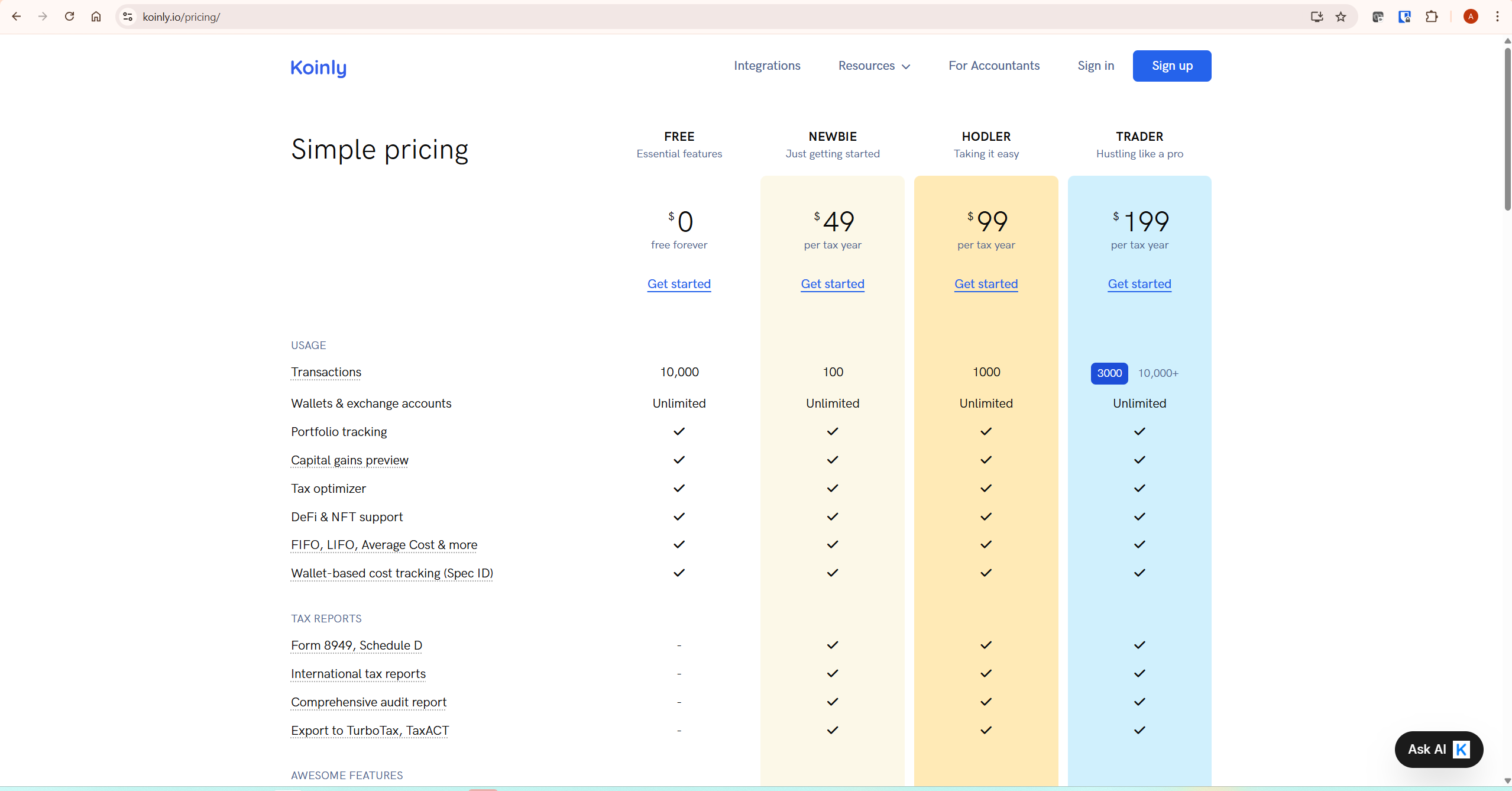
Which plan you need depends on your transaction count:
- Newbie ($49) — up to 100 transactions. Suitable for casual investors with minimal trading activity.
- Hodler ($99) — up to 1,000 transactions. Covers most active investors using multiple exchanges.
- Trader ($199) — up to 3,000 transactions. For frequent traders and active DeFi users.
- Pro ($279) — 10,000+ transactions. For high-volume traders and professionals.
Check your transaction count on the free plan before purchasing — the number is shown directly in your Koinly dashboard. See our full Koinly pricing breakdown for more detail on choosing the right tier.
Always verify current pricing directly on Koinly’s pricing page.
What To Do Next
If you haven’t already, start by connecting all your wallets and exchanges in Koinly and running through the data accuracy checks. Do not generate your TurboTax report until all warnings are resolved and the 1099-DA flow is complete. With clean data, the how to import Koinly into TurboTax process takes under 30 minutes from report generation to completed TurboTax import.
If you’re not yet on a paid Koinly plan, start with the free plan here — import your transactions, check your count and gains preview, then purchase the plan that covers your volume.
Frequently Asked Questions
How do I import Koinly into TurboTax in 2026?
Generate the TurboTax (Gain/Loss) PDF report from Koinly’s Tax Reports page, then upload it to TurboTax Online via the cryptocurrency section under Wages & Income. TurboTax Desktop users should use the TXF file instead. CSV import no longer works — TurboTax removed CSV support for crypto in January 2026.
Why did TurboTax remove CSV support for Koinly?
TurboTax removed CSV upload support for all crypto transactions in January 2026 as part of changes related to the new Form 1099-DA reporting requirements. Koinly responded by switching its TurboTax export to PDF format, which TurboTax Online now accepts. The TXF format remains available for TurboTax Desktop users.
Can I import Koinly into TurboTax Desktop?
Yes, but not via PDF. TurboTax Desktop does not support PDF upload for crypto. Use the TXF file that Koinly generates, or use summary reporting with Form 8949 totals if you have more than 3,000 transactions. The PDF export from Koinly only works with TurboTax Online.
Should I import my exchange 1099-DA into TurboTax if I’m using Koinly?
No. Your Koinly report already includes all exchange transactions. Importing your exchange 1099-DA separately creates duplicate reporting. Download your 1099-DA forms for reference only, complete the 1099-DA flow within Koinly, then import only the Koinly report into TurboTax.
What if my Koinly report has more than 3,000 transactions?
TurboTax has a 3,000 transaction limit for uploads. If your report exceeds this, use summary reporting — enter the totals from each Form 8949 category in TurboTax and attach your full Koinly report as a supporting statement. Koinly’s IRS Form 8949 report provides the totals you need.
How do I fix $0.00 cost basis errors after importing Koinly into TurboTax?
Do not fix these in TurboTax. Go back to Koinly, resolve all missing purchase history warnings in the Transactions tab, then regenerate the TurboTax report and re-upload. Fixing cost basis errors at source in Koinly is faster and more reliable than correcting individual transactions in TurboTax.
Do I need a paid Koinly plan to import into TurboTax?
Yes. Generating and downloading the TurboTax report requires a paid Koinly plan. The free plan lets you import transactions and preview your gains, but report downloads are locked to paid tiers starting at $49 for the Newbie plan covering 100 transactions.
The Bottom Line
The how to import Koinly into TurboTax process in 2026 is straightforward once you know what changed. The PDF replaces the CSV for TurboTax Online. TurboTax Desktop needs the TXF file. The 1099-DA flow in Koinly must be completed before generating your report. And your exchange 1099-DA forms should not be imported separately if you’re using Koinly.
The most common source of problems is not the import itself — it’s incomplete data in Koinly before the report is generated. Fix warnings, verify settings, complete the 1099-DA flow, then generate. With clean data, the entire process from Koinly to a completed TurboTax crypto section takes under 30 minutes.
If you need to upgrade your Koinly plan to generate the TurboTax report, see current Koinly plans here — check your transaction count on the free plan first so you purchase only the tier you actually need.
Related reading:
- Koinly Review: Is It the Best Crypto Tax Software in 2026?
- Koinly Pricing: Plans, Limits & Which One You Actually Need
- How to Use Koinly: Complete Step-by-Step Guide (2026)
- Is Koinly Accurate? How Reliable Is It for Crypto Taxes?
- Koinly Showing Wrong Gains? How to Fix Cost Basis Errors