
TradingView Watchlist: Best Setup Guide for Traders (2026)
Affiliate Disclosure: This article contains affiliate links. If you sign up for TradingView through a link on this page, I may earn a commission at no extra cost to you. I only recommend platforms I have genuinely evaluated.
Trading involves risk. Technical analysis tools do not guarantee profitable results. Past performance is not indicative of future results. Always manage your risk appropriately.
Last verified: July 2026, using TradingView’s official documentation and platform.
The TradingView watchlist is one of the most underused features on the platform. Most traders set it up once, add a handful of tickers, and never think about it again — missing the monitoring and workflow capabilities that make it genuinely valuable for active analysis. I am Andreas Maratheftis, and after 30 years in professional finance I have evaluated more portfolio monitoring systems than most traders encounter in a lifetime. A well-configured TradingView watchlist goes beyond displaying prices — with the right setup it functions as a live market dashboard that surfaces the setups worth analysing and filters out the noise.
This guide covers everything you need to set up, organise, and get real analytical value from TradingView watchlists — from basic creation through advanced column configuration, alerts integration, and the plan-specific limits that determine how far you can take the feature.
- The TradingView watchlist supports stocks, crypto, forex, commodities, and indices in a single list — you are not limited to one asset class
- Free plan users get one watchlist with up to 30 symbols — paid plans expand this significantly, with Ultimate offering unlimited watchlists and 1,000 symbols each
- Custom columns — volume, change percentage, market cap, RSI, MACD — turn a basic price list into a live market dashboard
- Watchlist alerts fire when any symbol in the list meets a price or technical condition — far more efficient than setting individual alerts per ticker
- Watchlist data can be exported as CSV on Plus plans and above — useful for external analysis and record-keeping
Quick Answer: TradingView Watchlist
The TradingView watchlist lets you monitor multiple symbols — stocks, crypto, forex, commodities, indices — in a single organised panel with real-time price data, customisable columns, and integrated alerts. Free users get one watchlist with up to 30 symbols. Paid plans expand the symbol and watchlist limits significantly. The most underused capability is custom columns — adding RSI, volume, and percentage change turns the watchlist from a price display into a live screener that surfaces the setups worth opening.
TradingView Watchlist Limits by Plan
Watchlist capacity scales significantly across TradingView’s plan tiers. Understanding the limits before you build out your watchlist prevents hitting a wall mid-setup.
| Plan | Watchlists | Symbols per Watchlist | Export |
|---|---|---|---|
| Free | 1 | 30 | No |
| Essential | Unlimited | 100 | No |
| Plus | Unlimited | 200 | Yes — CSV |
| Premium | Unlimited | 500 | Yes — CSV |
| Ultimate | Unlimited | 1,000 | Yes — CSV |
The free plan’s 30-symbol limit is workable for a focused watchlist covering your primary trading instruments. Once you need to monitor broader market universes — multiple crypto pairs across different sectors, a full equity screening list, or simultaneous coverage of crypto and macro instruments — the free limit constrains the workflow meaningfully. Essential’s unlimited watchlists with 100 symbols each covers most active retail traders comfortably.
How to Create a TradingView Watchlist
Creating a TradingView watchlist takes under two minutes. The setup process is identical across all plans.
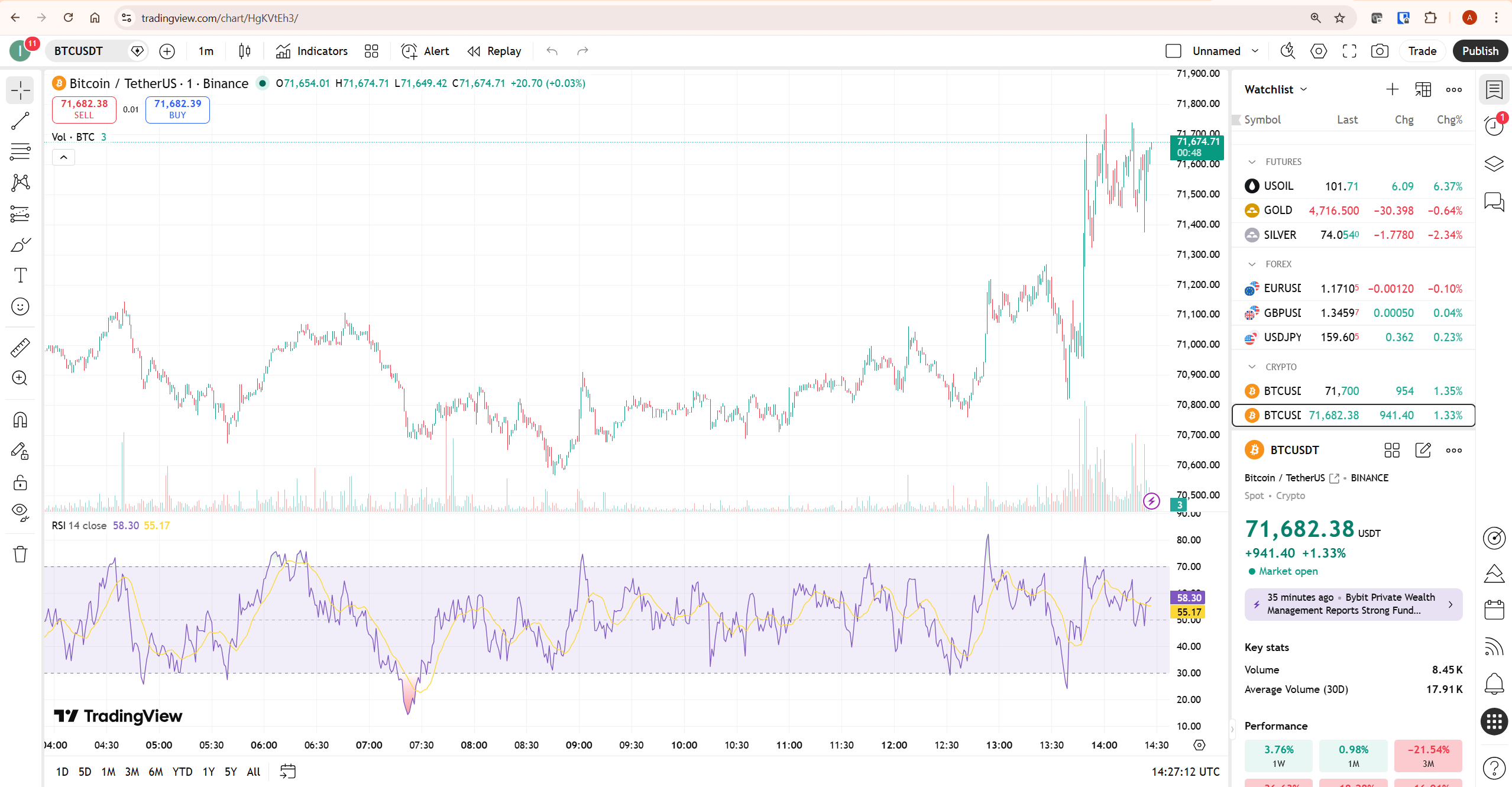
- Open TradingView and locate the Watchlist panel on the right side of the screen. If it is not visible, click the Watchlist icon in the right toolbar.
- Click the + button at the top of the watchlist panel to create a new list. Name it clearly — by asset class, strategy, or market session.
- To add symbols, click inside the watchlist and start typing the ticker — BTCUSDT, AAPL, EURUSD. TradingView auto-suggests matches as you type. Select the correct exchange version of the symbol from the dropdown.
- Repeat for each symbol you want to monitor. Drag and drop symbols to reorder them within the list.
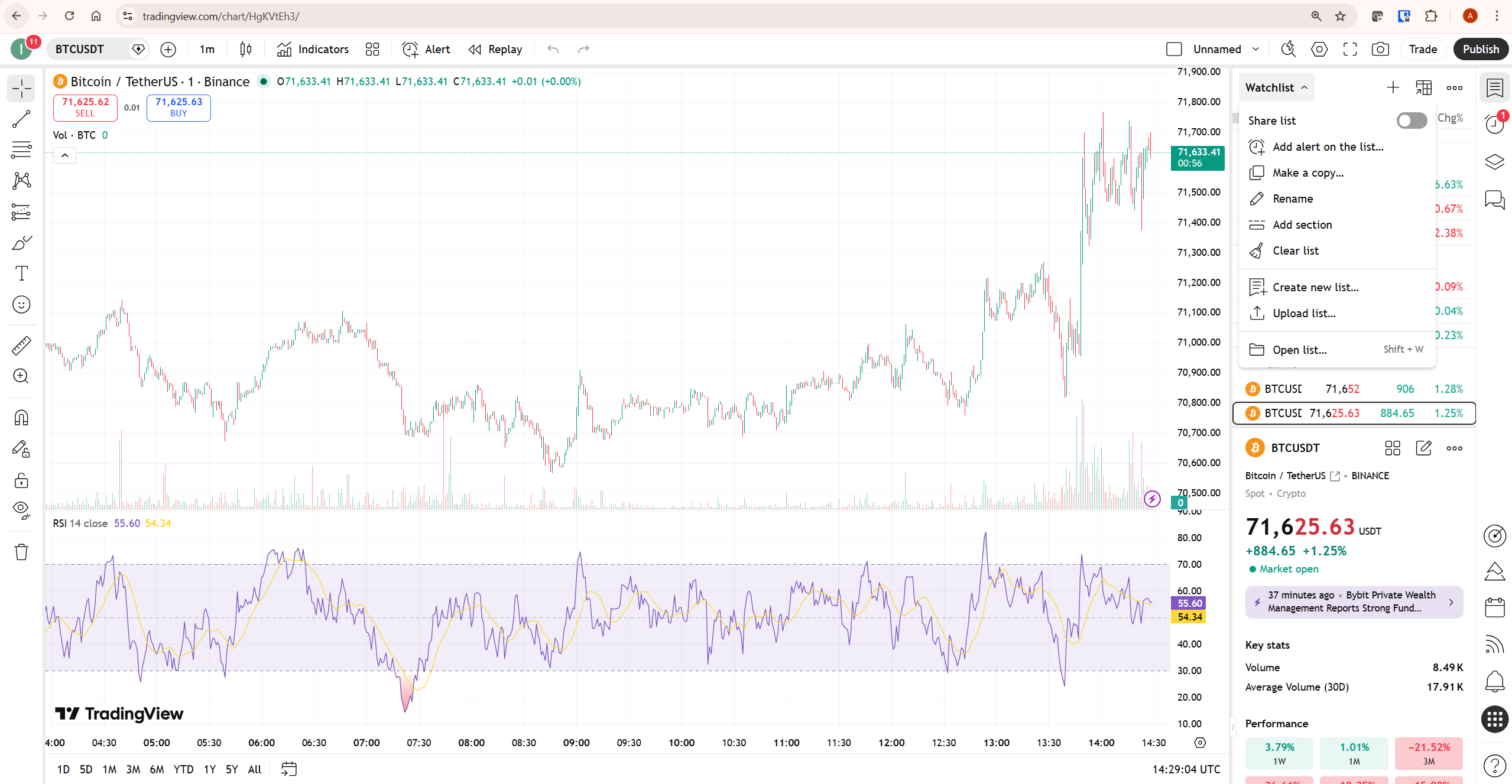
- To organise multiple watchlists, click the watchlist name at the top of the panel to access the full list manager where you can switch between, rename, duplicate, or delete lists.
How to Add Custom Columns to Your TradingView Watchlist
Custom columns are the most valuable and least used watchlist feature. By default the watchlist shows symbol name, last price, and change. Adding the right columns transforms it into a live dashboard that surfaces actionable information without opening individual charts.
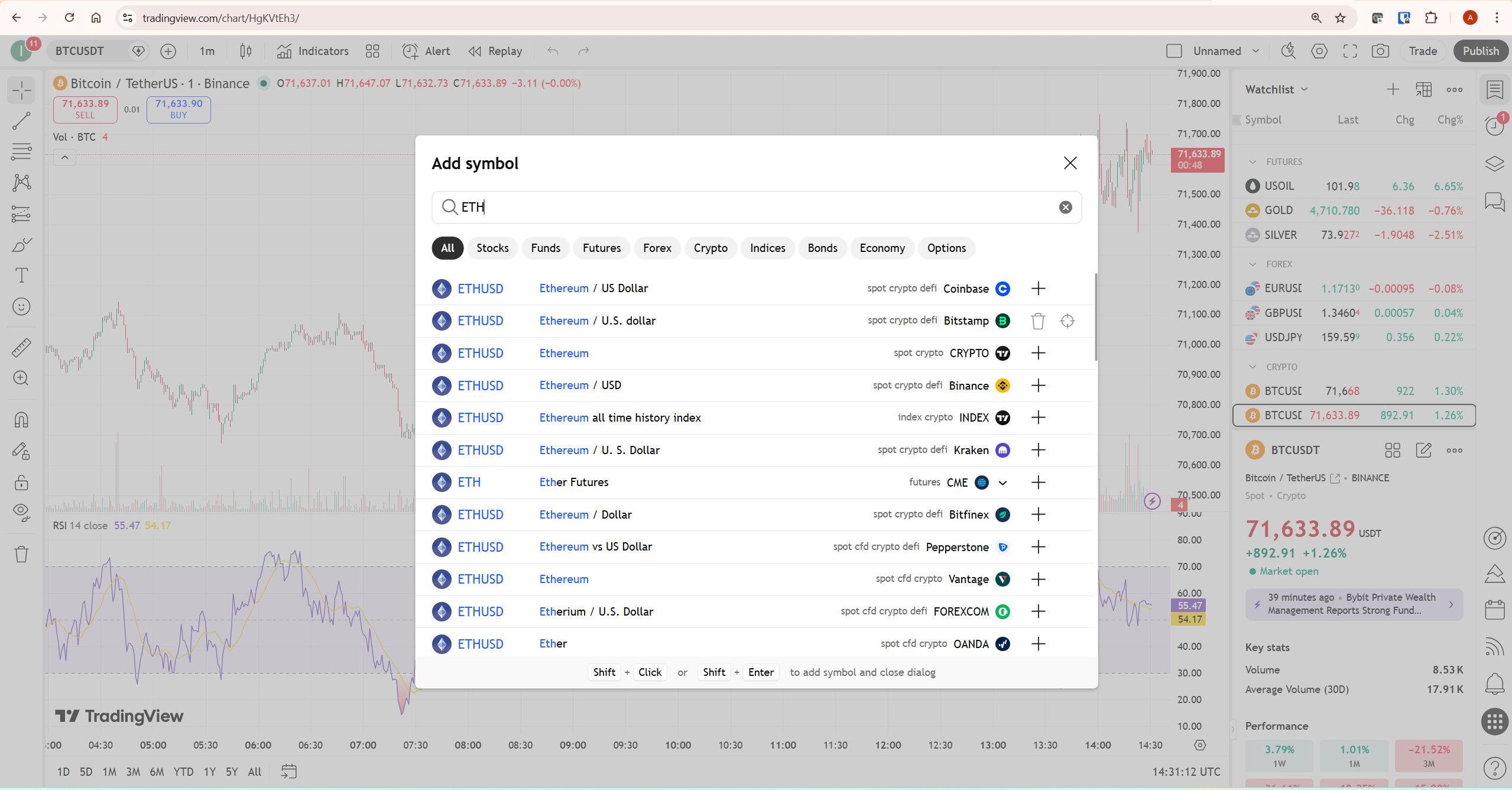
To add custom columns: right-click anywhere in the watchlist header row → select Columns → choose from the available data fields. The most useful columns for active traders are:
- Change % — percentage move from the previous close, immediately surfaces which instruments are moving
- Volume — current session volume, useful for confirming whether moves have conviction
- Market Cap — relevant for crypto screening and equity comparison
- RSI (14) — momentum reading directly in the watchlist, flags overbought and oversold conditions without opening the chart
- Relative Volume — compares current volume to historical average, identifies unusual activity
- 52-week High/Low — structural context for where each instrument sits relative to its range
Column data updates in real time. For traders who scan multiple instruments before deciding where to focus their session, a watchlist with RSI and relative volume columns visible eliminates the need to open each chart individually — you can identify the setups worth examining directly from the watchlist view.
How to Use Watchlist Alerts in TradingView
TradingView allows alerts to be applied at the watchlist level — so rather than setting individual alerts for each symbol, you can monitor an entire list for price or technical conditions simultaneously. This is significantly more efficient for traders monitoring broad market universes.
To set a watchlist-level alert: right-click any symbol in the watchlist → select Add Alert → configure the condition (price crosses, percentage change, technical indicator threshold). The alert fires for that specific symbol when the condition is met. For a comprehensive breakdown of every alert type and webhook integration available in TradingView, my TradingView alerts guide covers the complete setup process.
Alert limits apply per plan — free users get 3 total alerts, Essential gets 20, Premium gets 400 non-expiring alerts. For traders monitoring large watchlists across multiple conditions, Premium is the realistic minimum for a comprehensive alert-driven monitoring workflow.
Organising Your TradingView Watchlist for Maximum Efficiency
A single undifferentiated watchlist with 50 symbols provides less analytical value than three focused lists of 15–20 symbols each, organised by market, strategy, or session. Here is the organisational framework that works best for most active traders.
Organise by asset class or market: separate crypto from equities from forex. Mixing asset classes in a single list makes the change percentage column less useful because you are comparing instruments with fundamentally different volatility profiles. A crypto watchlist with BTC, ETH, SOL, and your primary altcoin positions allows meaningful relative comparison. A macro watchlist with DXY, gold, oil, SPX, and BTC provides cross-market context in a single view.
Maintain a session watchlist: before each trading session, create or update a short list of 5–10 instruments you are actively monitoring for setups that session. This prevents your analysis from spreading across too many instruments simultaneously — a common mistake that leads to missed entries on the setups you identified and half-formed analysis on instruments you were not prepared for.
Use a screener-to-watchlist workflow: TradingView’s screener allows you to filter instruments by technical conditions, fundamental data, or performance metrics. Symbols identified through the screener can be added directly to a watchlist for further monitoring. This workflow — screen broadly, monitor closely, analyse specifically — is how professional traders manage large market universes efficiently. My TradingView screener guide covers this workflow in detail.
TradingView Watchlist vs Screener: When to Use Each
The watchlist and screener serve different functions in a complete analytical workflow — understanding the distinction makes both more useful.
The screener is a discovery tool. You define conditions — RSI below 30, volume above 1 million, price above the 200-day moving average — and the screener returns every instrument currently meeting those criteria across TradingView’s full database. It answers the question: which instruments meet my criteria right now?
The watchlist is a monitoring tool. You have already identified the instruments worth watching — through screener output, fundamental research, or personal familiarity — and you want to monitor them continuously with real-time data and alerts. It answers the question: what is happening right now on the instruments I care about?
The most effective workflow combines both: use the screener at the start of each session to identify new candidates, add the most interesting results to your session watchlist, then monitor that watchlist with custom columns and alerts throughout the session. My TradingView drawing tools guide covers the analytical workflow that follows once you have identified the setups worth examining in depth.
Importing and Exporting TradingView Watchlists
TradingView supports watchlist import and export, which is useful for sharing lists between accounts, backing up your watchlist structure, or importing symbol lists from external sources.
To export: click the three-dot menu at the top of the watchlist panel → select Export list to file. This downloads a .txt file containing your symbol list. Export is available on Plus plans and above.
To import: click the three-dot menu → select Import list from file → upload a .txt file with one symbol per line in the format EXCHANGE:TICKER (e.g. BINANCE:BTCUSDT, NASDAQ:AAPL). Import is available on all plans including free.
The import function is particularly useful for traders who maintain symbol lists in external spreadsheets or who want to recreate a watchlist structure on a new account without manually re-entering each ticker.
TradingView Watchlist on Mobile
The TradingView mobile app includes full watchlist functionality — your desktop watchlists sync automatically to mobile and vice versa. The mobile watchlist supports the same symbol coverage as desktop, with swipe gestures to access chart views and alert configuration directly from the list.
Mobile watchlist column customisation is more limited than desktop — you can display price and change percentage but not the full range of technical indicator columns available on desktop. For monitoring price action on the go, the mobile watchlist is fully functional. For deep column-based scanning, the desktop version remains the more capable interface.
What To Do Next
Open your TradingView watchlist now and do three things: delete any symbols you have not actively monitored in the past 30 days — watchlist quality matters more than size. Add RSI and Change % as custom columns if they are not already visible. Create a second watchlist specifically for your macro context instruments — DXY, gold, SPX, and the key crypto pairs you trade — separate from your individual setup watchlist.
Those three changes take under 10 minutes and immediately improve how much actionable information your watchlist surfaces each session. For traders not yet on a paid plan, Essential at $12.95/month unlocks unlimited watchlists and 100 symbols per list — enough for most active retail trading workflows. You can get started with TradingView through my TradingView affiliate link. For the complete platform evaluation, my TradingView review covers every feature and plan in detail.
Frequently Asked Questions
How many symbols can I add to a TradingView watchlist?
Symbol limits depend on your plan. Free users can add up to 30 symbols per watchlist with one watchlist total. Essential allows up to 100 symbols per watchlist with unlimited watchlists. Plus allows 200, Premium allows 500, and Ultimate allows 1,000 symbols per watchlist — all with unlimited watchlists. For traders monitoring broad market universes across multiple asset classes, Essential or Plus is the realistic minimum for a comprehensive monitoring setup.
Can I have multiple watchlists on TradingView?
Yes — multiple watchlists are available on all paid plans from Essential upward. The free plan is limited to one watchlist. On paid plans, you can create unlimited watchlists and switch between them from the watchlist panel header. There is no limit to the number of watchlists you can create on any paid tier.
Can I add crypto to a TradingView watchlist?
Yes — TradingView supports crypto pairs from all major exchanges including Binance, Coinbase, Kraken, and others. You can mix crypto pairs, equities, forex, commodities, and indices in the same watchlist. When adding a crypto symbol, specify the exchange in the search — for example, type BTCUSDT and select BINANCE:BTCUSDT to get Binance’s BTC/USDT pair specifically.
How do I export my TradingView watchlist?
Click the three-dot menu at the top of the watchlist panel and select Export list to file. This downloads a .txt file with your symbol list in EXCHANGE:TICKER format. Export is available on Plus plans and above. On free and Essential plans, export is not available — you would need to manually record your symbol list if you want a backup.
Does TradingView watchlist sync across devices?
Yes — your TradingView watchlists sync automatically across desktop, web, and mobile app. Any symbol added or removed on desktop appears on mobile immediately and vice versa. The sync is account-based, so as long as you are logged into the same TradingView account across devices, your watchlists remain consistent everywhere.
What is the difference between a TradingView watchlist and a screener?
A watchlist monitors specific symbols you have already selected — it shows real-time data for your chosen instruments with alerts and custom columns. A screener searches the full TradingView database for instruments meeting conditions you define — RSI below 30, volume above a threshold, price above a moving average. Use the screener to discover candidates, then add the most relevant results to your watchlist for ongoing monitoring. My Pine Script tutorial covers how to build custom screener conditions for more advanced filtering.
