
How to Build an Email Funnel with GetResponse (2026)
This article contains affiliate links. If you sign up for GetResponse through a link on this page, I may earn a commission at no extra cost to you. I only recommend tools I have genuinely evaluated.
If you have been publishing content consistently but your traffic is not converting into any kind of recurring income — and visitors read your articles then disappear forever — the missing piece is almost certainly an email funnel. Learning how to build an email funnel with GetResponse is the single most impactful thing an affiliate blogger can do after establishing a publishing cadence, because an email list converts at 10-15x the rate of organic traffic alone and continues generating revenue from subscribers you captured months or years earlier.
How to build an email funnel with GetResponse is a question I approached the same way I approach every financial system — with 30 years of experience evaluating what actually produces results versus what looks impressive in a feature list. I use GetResponse for the InnovateHub Finance email list, so this is not a theoretical walkthrough. Every step in this guide reflects how the platform actually works in practice for an affiliate content operator.
By the end of this guide you will have a complete, functional email funnel built inside GetResponse — a signup page, a lead magnet delivery system, a thank-you page, and a follow-up email sequence — ready to capture your first subscribers and begin the automation that turns a content site into a recurring revenue asset.
GetResponse’s free trial requires no credit card. Start your free trial here and follow along.
Quick Answer: How to Build an Email Funnel with GetResponse
How to build an email funnel with GetResponse in five steps: go to Tools → Conversion Funnel, select Build a List → Lead Magnet Funnel, name your funnel, upload your lead magnet file, then build your signup page, thank-you page, and first follow-up email inside the visual editor. The complete setup takes under 60 minutes for a first funnel. The result is a fully automated system that captures subscriber emails, delivers your lead magnet instantly, and begins a follow-up sequence without any manual action required — running continuously while you publish new content.
Why Every Affiliate Blogger Needs to Know How to Build an Email Funnel with GetResponse
Before walking through how to build an email funnel with GetResponse step by step, understanding exactly why this matters for affiliate content operators eliminates the temptation to skip it in favour of publishing more articles.
Organic traffic from search is the foundation — but it is not the asset. A visitor who reads your article and leaves has contributed nothing to your business. A visitor who reads your article, downloads your lead magnet, and joins your email list becomes a long-term revenue source you can reach repeatedly, without needing them to find you through Google again.
According to Campaign Monitor’s email marketing benchmarks, email consistently delivers the highest ROI of any digital marketing channel — averaging $36 return for every $1 spent. For affiliate marketers, this translates directly: a list of 1,000 engaged subscribers generating 2% click-through on affiliate recommendations produces 20 conversions per send. That compounds every time you publish a new email.
How to build an email funnel with GetResponse specifically — rather than any other platform — is relevant because GetResponse combines the funnel builder, landing page editor, email automation, and list management in a single interface. The alternative is paying for three or four separate tools and managing data flows between them. For our full GetResponse review covering every feature in detail, including how it compares to Mailchimp and ActiveCampaign, that guide covers everything you need to evaluate the platform before committing.
What You Need Before Building Your Funnel
How to build an email funnel with GetResponse requires three things prepared in advance. Without these, the setup process stalls at the first step.
First, a GetResponse account — the free trial is sufficient to build and test your first complete funnel. Second, a lead magnet file — a PDF is the simplest format. A one-page quick-start guide, a checklist, a template, or a short report covering a specific problem your audience has. The content matters more than the length. A focused two-page checklist outperforms a generic twenty-page ebook in both download rate and subscriber quality. Third, clarity on what you want subscribers to do after joining your list — buy a specific affiliate product, sign up for a free trial of a tool, or engage with your content over a defined period before a recommendation is made.
How to Build an Email Funnel with GetResponse: Complete Step-by-Step
How to build an email funnel with GetResponse follows a clear sequence inside the platform. Each step builds on the previous one — do not skip ahead or publish before completing the full setup.
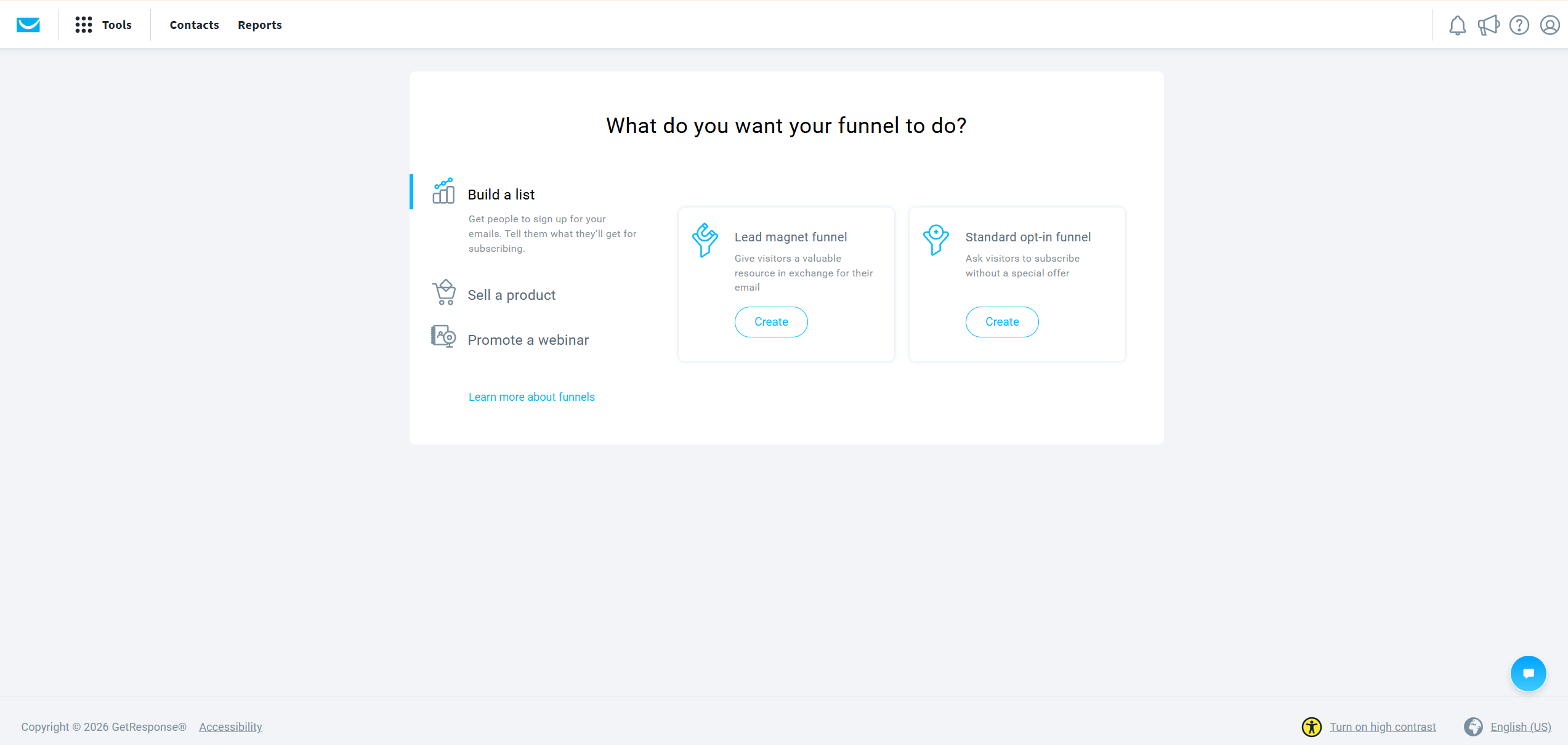
Step 1: Navigate to Conversion Funnel. From your GetResponse dashboard, click Tools in the top navigation, then select Conversion Funnel. This section contains all of GetResponse’s pre-built funnel templates and the visual funnel builder.
Step 2: Select Build a List → Lead Magnet Funnel. Inside the Conversion Funnel section, click Create Funnel. Select Build a List as your goal, then choose Lead Magnet Funnel as the funnel type. How to build an email funnel with GetResponse for affiliate marketing always starts with this path — the lead magnet funnel is specifically designed for the subscriber acquisition model that affiliate content sites use.
Step 3: Name your funnel and save. Enter a clear, specific name — not “Funnel 1” but something like “TradingView Guide Lead Magnet” or “Crypto Tax Checklist Funnel.” This matters when you have multiple funnels running simultaneously and need to identify performance by source. Click Save and Continue. GetResponse automatically creates a dedicated contact list for this funnel.
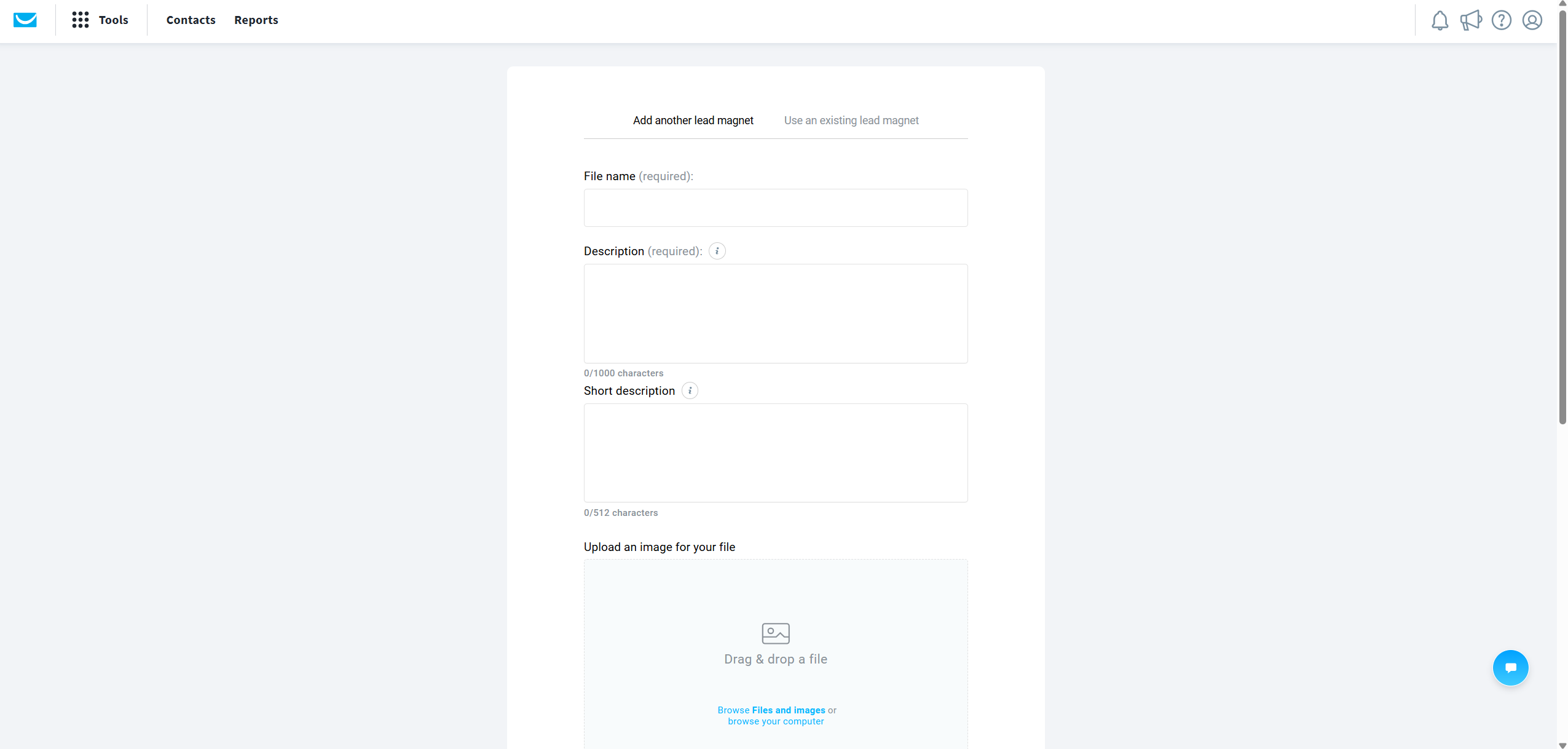
Step 4: Upload your lead magnet. In the lead magnet upload section, select your PDF file and upload it. GetResponse stores the file and automatically attaches it to the confirmation email that subscribers receive after signup. How to build an email funnel with GetResponse correctly at this step: verify the file uploads successfully and appears in the preview before proceeding. A broken lead magnet delivery destroys the subscriber relationship at the moment of highest trust.
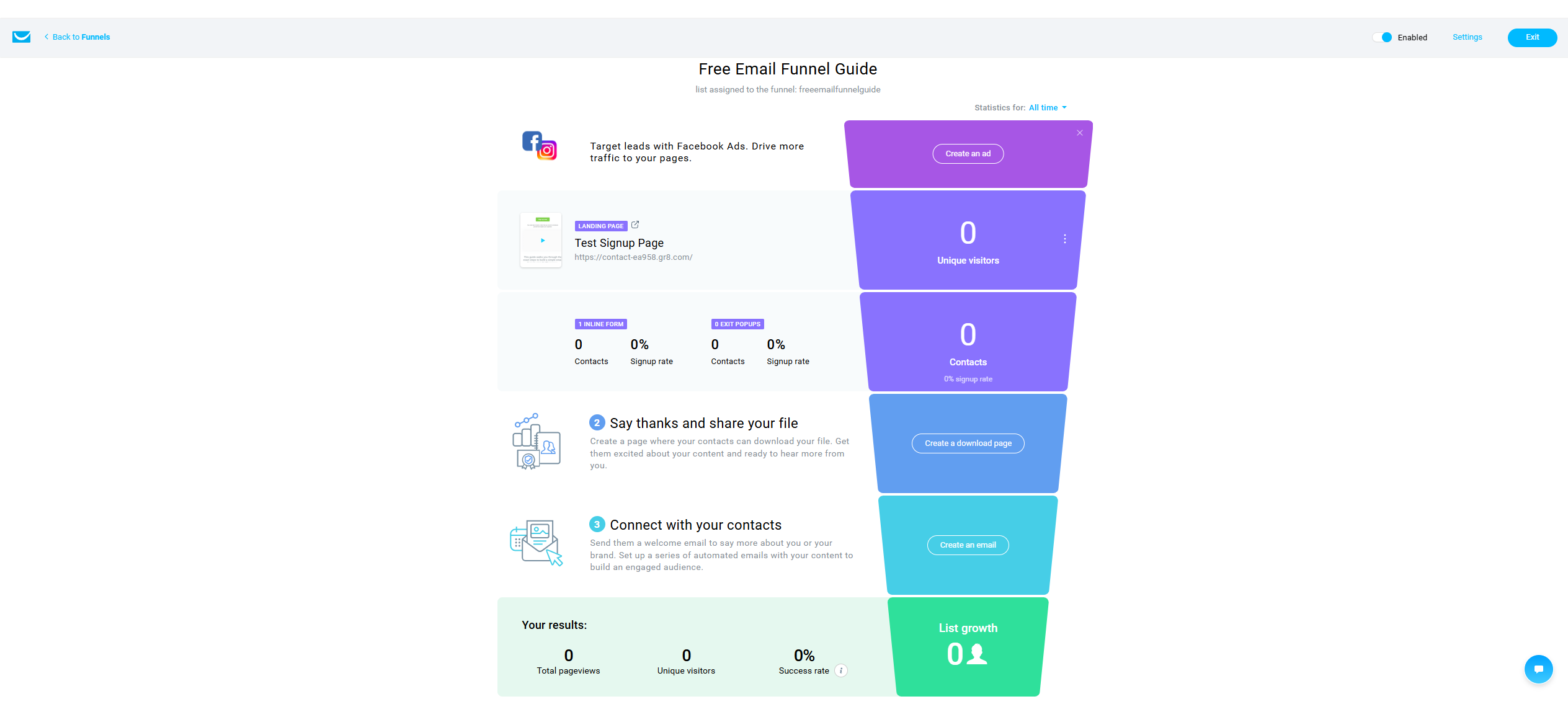
Step 5: Build your signup page. Click Create a Signup Page. You will see template options — for simplicity and full control over the design, select Build from Scratch. Inside the landing page editor, replace the default headline with your specific offer. The headline formula that converts consistently: state exactly what the subscriber gets and the primary benefit in one sentence. “Download the Free [Specific Resource]: [What It Helps Them Do].” Remove every element that does not directly support the single action of entering an email address. No navigation menu, no multiple offers, no lengthy copy blocks.
Step 6: Edit the thank-you page. After completing the signup page, click the Thank-You Page tab. Update the headline to something specific: “Check Your Email — Your [Resource Name] Is On Its Way.” This confirms the action, sets the expectation of an email, and reduces the friction of a subscriber wondering whether something went wrong. Keep this page clean — it is not a sales page. It is confirmation and trust establishment.
Step 7: Configure and publish. Click Next Step to reach the configuration screen. For a basic first funnel, the default settings are sufficient. Click Publish. Your signup page is now live and accepting subscribers.
Step 8: Verify the complete funnel. Back in the funnel overview, confirm the funnel status shows as Enabled. Click the signup page URL and test the complete subscriber journey yourself — enter your own email address, confirm you receive the lead magnet, check that the thank-you page loads correctly, and verify the confirmation email arrives within a few minutes. How to build an email funnel with GetResponse that actually works requires this final verification step before driving any traffic to the funnel.
How to Build an Email Funnel with GetResponse: The Follow-Up Sequence
How to build an email funnel with GetResponse that generates affiliate revenue — rather than just collecting email addresses — requires the follow-up sequence. The lead magnet delivery is step one. The revenue comes from what happens in the five to seven days after signup.
The sequence that works consistently for affiliate content operators follows this structure. Email 1, sent immediately: deliver the lead magnet with a personal note explaining what it covers and what to focus on first. This email has one job — fulfil the promise made on the signup page. Nothing else.
Email 2, sent two days later: provide additional educational value that expands on the lead magnet topic. No affiliate recommendation yet. This email builds trust and establishes your voice as someone who gives before asking. Email 3, sent four days after signup: introduce one relevant affiliate tool naturally, positioned as the logical next step for someone who has engaged with your content. Not a promotion — a recommendation from someone who has already provided value.
How to build an email funnel with GetResponse for this sequence: go to the Email section within your funnel builder and add an autoresponder series. Set the timing intervals between each email, write each one in the same direct voice as your articles, and test the complete sequence from a second email address before activating. According to G2 reviews of GetResponse, the automation builder is consistently rated as one of the platform’s strongest features — users particularly highlight the visual workflow editor for building these kinds of sequential nurture sequences.
How to Build an Email Funnel with GetResponse: What Makes a High-Converting Signup Page
How to build an email funnel with GetResponse that actually converts visitors into subscribers depends more on the signup page copy than on any design element. The visual editor gives you significant flexibility — but the principles that determine whether a visitor subscribes are consistent regardless of design.
Three questions your signup page must answer within three seconds of a visitor arriving: what am I getting, why does it matter specifically to me, and how quickly do I get it? If any of those three questions requires more than one sentence to answer, the page is too complex. The most common conversion killer on affiliate site signup pages is over-explaining the lead magnet instead of just offering it clearly.
Practical signup page formula that works for affiliate content sites: Headline states the specific resource. Subheadline states the primary benefit in one sentence. Single form field — email address only, not name and email. One button with action-oriented copy: “Send Me the Guide” not “Submit.” How to build an email funnel with GetResponse with this structure takes under 20 minutes in the landing page editor once you have the copy written before opening the builder.
Is GetResponse the Right Platform to Build Your Email Funnel?
How to build an email funnel with GetResponse is worth learning if the platform fits your specific situation. Here is the honest comparison.
| Feature | GetResponse | Mailchimp | ActiveCampaign |
|---|---|---|---|
| Built-in funnel builder | Yes — full visual funnel | No — basic landing pages only | No — requires third-party |
| Lead magnet delivery | Automated within funnel | Manual setup required | Manual setup required |
| Landing page builder | Yes — included | Yes — limited templates | Limited |
| Automation for affiliate sites | Strong — visual builder | Basic — limited triggers | Very strong — higher cost |
| Entry price | Free trial, ~$19/month | Free plan, $13/month | From $29/month |
| Best For | Affiliate bloggers, list builders | Newsletter senders, e-commerce | Advanced automation users |
How to build an email funnel with GetResponse makes most sense if you want the funnel builder, landing page editor, and email automation in one platform without paying for three separate tools. The one honest limitation: Mailchimp’s template design quality is more polished, and ActiveCampaign’s conditional automation logic is more powerful. For an affiliate blogger starting out or scaling to 10,000 subscribers, GetResponse’s balance of features and price is the strongest option in the market. For our complete platform comparison, our GetResponse vs Mailchimp guide covers every dimension in detail.
Real Use Case: How to Build an Email Funnel with GetResponse for a Fintech Affiliate Site
How to build an email funnel with GetResponse in practice for InnovateHub Finance — because abstract examples are less useful than a concrete one.
Lead magnet: the Financial Clarity Toolkit — a free Excel and Google Sheets tool covering portfolio tracking, FI calculator, and five financial health indicators. Signup page: single headline “Download the Free Financial Clarity Toolkit,” single email field, one button. Follow-up sequence: Email 1 delivers the toolkit immediately with a note on which tab to start with. Email 2 covers how to interpret the FI calculator results. Email 3 introduces TradingView as the natural next tool for someone managing an investment portfolio, positioned as what the toolkit’s users consistently ask about next.
The result: a subscriber who downloaded a free financial tool receives three emails over five days before any affiliate recommendation is made. By the time the TradingView recommendation arrives, the subscriber has already received more value than most paid newsletter subscriptions deliver. Conversion rates on this kind of warm recommendation consistently outperform cold article CTAs by 3-5x. This is exactly how to build an email funnel with GetResponse that generates real affiliate income — not by promoting early, but by earning the right to recommend. For our complete guide to GetResponse’s automation builder specifically, our GetResponse automation for affiliate marketing guide covers every workflow in detail.
Common Mistakes When Learning How to Build an Email Funnel with GetResponse
These are the specific errors that produce either low subscriber rates or low conversion rates after building — and all are avoidable.
Over-complicating the signup page. How to build an email funnel with GetResponse that converts: remove everything from the signup page that does not directly support the single action of entering an email address. Navigation menus, multiple offers, social media links, and long copy blocks all reduce conversion rates. The funnel builder defaults are clean — resist the urge to add elements.
Asking for too much information. Every additional form field reduces conversion rate. Name and email together convert at roughly 60-70% of the rate of email only. For a first funnel, collect email only. You can always ask for more information in a follow-up email once trust is established.
Not testing before publishing. How to build an email funnel with GetResponse and lose conversions silently: publish without testing the complete subscriber journey. Submit your own email address before sending any traffic. Confirm the lead magnet arrives, the thank-you page loads, and the automation triggers correctly.
Making the affiliate recommendation too early. Email 1 or Email 2 affiliate promotions destroy the subscriber relationship before it has started. Wait until Email 3 at minimum — and frame the recommendation as a natural next step, not a promotional offer.
Creating a funnel with no traffic source. How to build an email funnel with GetResponse is the first step — the second step is embedding the signup form or funnel link within your highest-traffic articles. A funnel with no traffic source generates no subscribers.
Compliance: What to Include in Every Email Funnel
How to build an email funnel with GetResponse that complies with GDPR and other data protection regulations requires three non-negotiable elements. Every email must include an unsubscribe link — GetResponse adds this automatically. The signup page must clearly state what subscribers are signing up for — not just “get the guide” but “get the guide and receive occasional emails about [topic].” And your privacy policy must be linked from the signup page. According to ESMA’s digital finance guidance, EU operators managing subscriber data related to financial content have additional data protection obligations — ensure your GetResponse account’s data processing settings reflect your EU-based operation.
What to Do Next After Building Your First Email Funnel with GetResponse
How to build an email funnel with GetResponse this week: create your GetResponse account, prepare a focused one-page PDF lead magnet on a specific problem your audience has, follow the setup steps in this guide to build your signup page and thank-you page, write your three-email welcome sequence, test the complete journey from your own email address, then embed the funnel link in your three highest-traffic articles. Do not wait for the perfect lead magnet. A focused checklist that solves one specific problem converts better than a comprehensive guide that takes three weeks to create.
For the complete guide to GetResponse’s pricing and which plan you need at different subscriber volumes, our GetResponse pricing guide covers every tier and limit in detail. Start your free GetResponse trial here.
Frequently Asked Questions: How to Build an Email Funnel with GetResponse
Do I need a paid plan to build an email funnel with GetResponse?
How to build an email funnel with GetResponse on the free trial: yes — GetResponse’s free trial includes access to the Conversion Funnel builder, landing page editor, and basic email sending. You can build and test a complete lead magnet funnel without paying anything. Advanced automation sequences — the kind used in three-email welcome sequences with conditional logic — require the Email Marketing plan or higher. Verify current plan limits at getresponse.com before upgrading.
How long does it take to build a funnel with GetResponse?
How to build an email funnel with GetResponse for a first funnel takes 45-90 minutes from account creation to live funnel. The platform’s visual builder is genuinely beginner-accessible — the setup process is guided and each step is clearly labelled. The time investment is in writing the signup page copy and the email sequence, not in learning the platform interface.
Can I build multiple funnels for different affiliate products?
How to build an email funnel with GetResponse for multiple affiliate products: yes — GetResponse allows you to create separate funnels for each lead magnet and product cluster. Separate funnels mean separate subscriber lists, separate automation sequences, and separate conversion tracking. For InnovateHub Finance, this means one funnel for TradingView subscribers, a separate one for Koinly subscribers, and another for GetResponse subscribers — each receiving recommendations relevant to what they originally signed up for.
Is GetResponse good for affiliate marketing email funnels specifically?
How to build an email funnel with GetResponse for affiliate marketing: yes — GetResponse is one of the few email platforms that does not restrict affiliate marketing use in its terms of service, unlike Mailchimp which has historically been more restrictive. The built-in funnel builder, landing page editor, and automation workflow make it the most complete single-platform solution for affiliate bloggers who want to capture subscribers, deliver lead magnets, and send promotional sequences without managing multiple tools. For a complete evaluation of the platform, read our full GetResponse review.