
GetResponse Email Templates: Complete Guide (2026)
Affiliate Disclosure: This article contains affiliate links. If you purchase through these links, I may earn a commission at no extra cost to you. I only recommend tools I have personally used and genuinely believe in. Read my full disclosure policy.
GetResponse email templates are one of the platform’s most practical features — and one of the most underused. New users often start from a blank canvas, spend 45 minutes building an email layout from scratch, and only then discover there are 150+ predesigned, mobile-optimised templates available from inside the editor. I am Andreas Maratheftis, with 30 years of professional finance experience, and I use GetResponse to run the email infrastructure for InnovateHub Finance. This guide covers exactly how to find, use, customise, and save GetResponse email templates — including the My Templates section that most tutorials skip entirely.
→ Don’t have GetResponse yet? Start free — test premium features for 14 days, no credit card required
Quick Answer: How Do You Use GetResponse Email Templates?
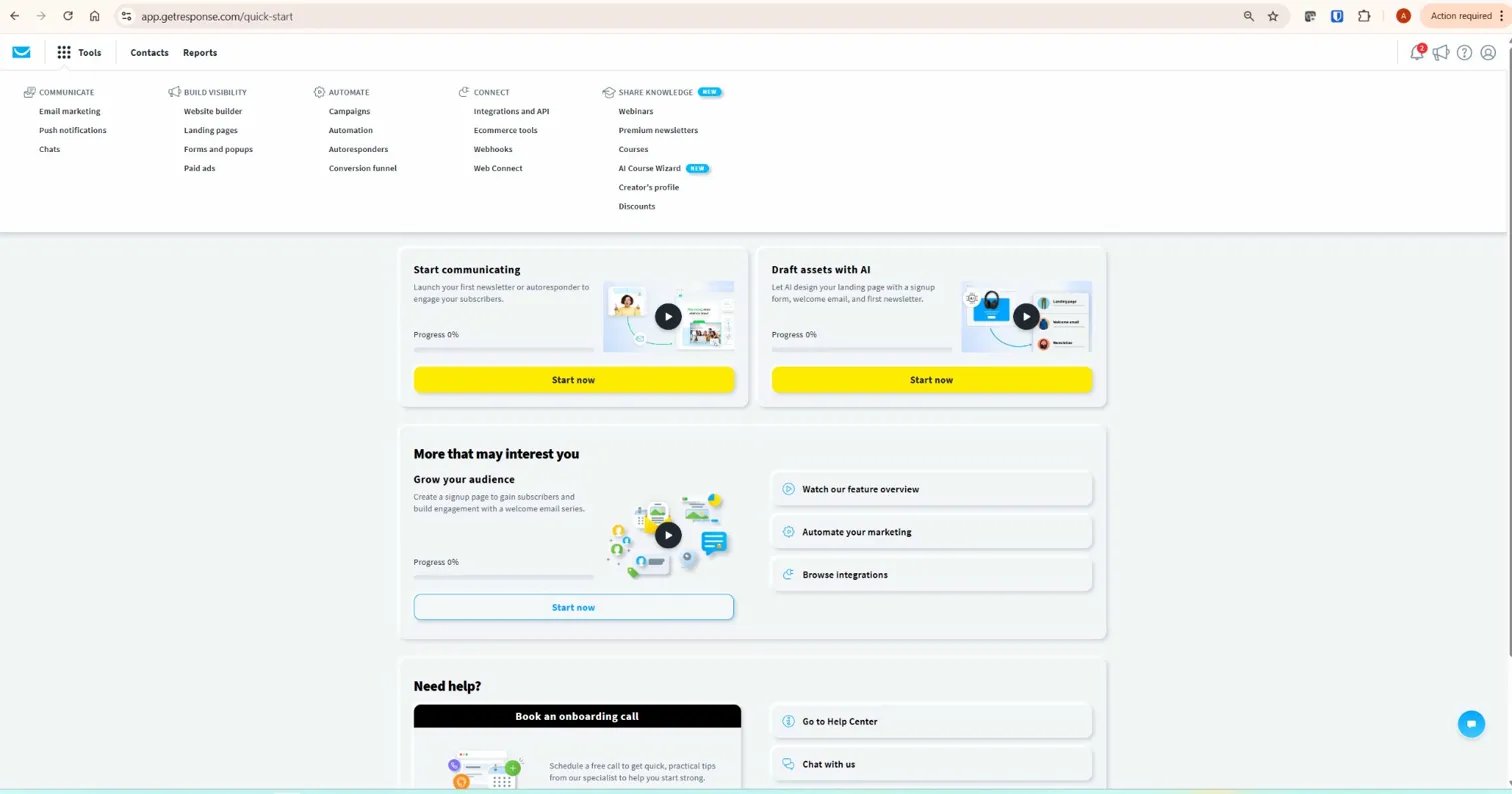
To use a GetResponse email template: go to Tools → Email Marketing → Create Newsletter → Drag-and-Drop Email Editor → Predesigned templates in the side menu. Browse by category, click a template to open it in the editor, customise the content, and send. The original template remains unchanged — GetResponse creates a copy for your newsletter, so you can reuse the same template for future campaigns without rebuilding it. Templates are available from the email creator, including during the free account and trial experience, though some advanced email marketing features may be limited after the 14-day premium trial window.
What Are GetResponse Email Templates?
GetResponse email templates are pre-designed, customisable, and mobile-optimised layouts for email campaigns. According to GetResponse’s official template page, the library contains 150+ predesigned templates covering newsletters, promotional campaigns, welcome emails, seasonal offers, ecommerce announcements, and more.
The key distinction GetResponse’s own help documentation makes is between two types of templates:
- Predesigned templates — the 150+ professionally designed layouts built into every GetResponse account, available from inside the email editor
- My Templates — a separate section where you save your own custom layouts for reuse across future campaigns, accessible under Tools → Email Marketing → My Templates
Most beginner tutorials cover only the predesigned templates and miss the My Templates section entirely. For an affiliate content site sending regular emails, saved custom templates are more valuable than predesigned ones — they let you maintain consistent branding without rebuilding your layout every time you send.
How to Find GetResponse Email Templates: Step by Step
GetResponse email templates are accessed from two different locations depending on whether you want a predesigned layout or your saved custom templates.
Accessing Predesigned Templates
- From your GetResponse dashboard, go to Tools → Email Marketing
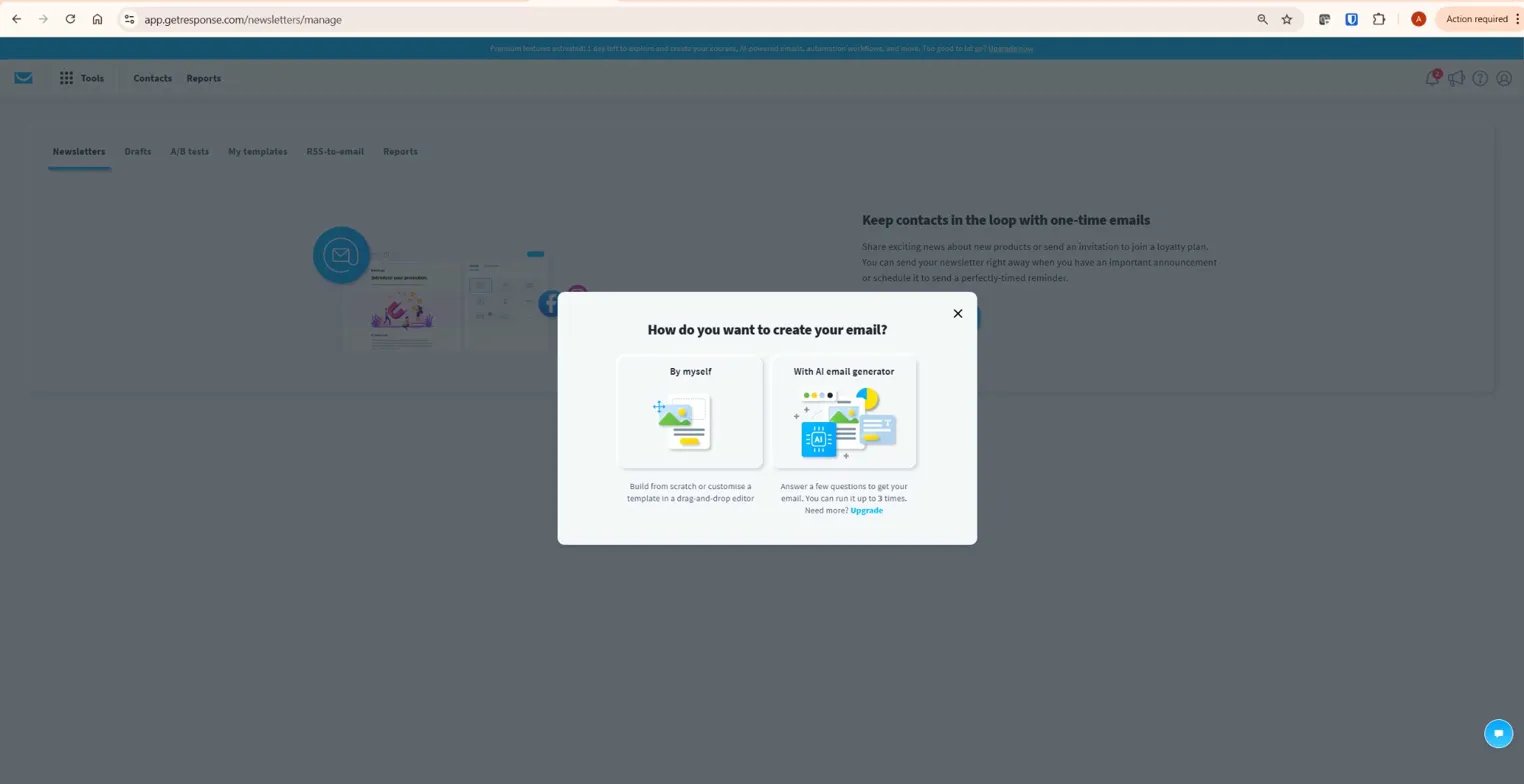
- Click Create Newsletter
- Fill in the message name, subject line, and recipients on the initial screen, then click Next Step
- Click Drag-and-Drop Email Editor
- In the left-hand side menu, click Predesigned templates
- Browse by category — templates are organised by campaign goal: welcome, promotional, seasonal, newsletter, and more
- Click a template to open it in the editor and begin customising
Accessing My Templates
The My Templates section is separate from the predesigned library and is where your custom saved templates live. To access it:
- Go to Tools → Email Marketing → My Templates
- Click Create Template to build a new saved template
- Choose your starting point: a predesigned template, a blank template, the HTML editor, or an existing sent message
- Customise and save — the template is now available every time you create a new newsletter
One important detail confirmed from GetResponse’s help documentation: when you use a template to create a newsletter, GetResponse copies the template content into the newsletter. The original template remains unchanged. This means you can safely edit the newsletter without altering the saved template — making it safe to use the same template repeatedly across campaigns.
GetResponse Email Template Categories
GetResponse organises its 150+ predesigned email templates by campaign goal and occasion. For affiliate content site owners, the most relevant categories are:
| Template Category | Best For | Affiliate Marketing Use Case |
|---|---|---|
| Welcome | New subscriber onboarding | Welcome sequence after lead magnet opt-in |
| Newsletter | Regular content updates | Weekly roundup with affiliate product mentions |
| Promotional | Sales and offers | Time-limited affiliate promotion campaigns |
| Seasonal | Holiday and event emails | Black Friday, New Year, seasonal product roundups |
| Ecommerce | Product announcements | New tool or resource recommendations |
| Blank | Full custom design | Brand-specific layouts with your own structure |
For most affiliate content sites, the Newsletter and Welcome categories are the starting points. Newsletter templates have a clean content-focused structure — header, body text, image block, CTA button — that works well for content-plus-recommendation emails. Welcome templates are designed with a clear hierarchy and a single CTA, which is the right structure for lead magnet delivery emails.
Predesigned Templates vs My Templates: Which Should You Use?
Use predesigned templates when you need a fast starting point for a one-off newsletter, seasonal promotion, or welcome email. Use My Templates when you want a reusable branded layout for repeated campaigns. For an affiliate content site sending weekly emails, My Templates become more valuable over time — they let you maintain consistent branding without rebuilding each campaign from scratch. The practical recommendation: start with a predesigned template that suits your style, customise it to match your brand, then save it to My Templates. From that point forward, every email you send starts from your branded baseline rather than from someone else’s design.
How to Customise a GetResponse Email Template
Once you open a GetResponse email template in the drag-and-drop editor, every element is editable by clicking directly on it. No coding is required at any stage.
The elements you should customise in every GetResponse email template before sending:
Header and Logo
Replace the placeholder logo with your site’s logo. This single change makes any GetResponse email template look like your brand rather than a generic layout. Upload your logo via the image block — recommended size is 200–300px wide, PNG format with transparent background.
Headline and Body Copy
Click directly on any text element to edit it. GetResponse’s editor supports font selection, size, colour, and alignment within text blocks. Keep body copy concise — the purpose of an affiliate marketing email is to direct readers to your content or to a recommended tool, not to replace the article itself.
CTA Button
Replace the default CTA button text — “Learn More” or “Shop Now” — with a specific benefit statement. “Read the Full Guide” or “Get the Free Template” converts significantly better than generic button copy. Update the button URL to your target page.
Colour Scheme
Match the template colour scheme to your site’s branding. In GetResponse’s editor, click any coloured element and use the colour picker to apply your brand colours. For consistency, apply the same primary colour to the header background and CTA button across all your GetResponse email templates.
Footer
Every GetResponse email template includes a footer with your business address and an unsubscribe link — both required by email marketing law. Update the business address to your actual address. The unsubscribe link is added automatically by GetResponse and cannot be removed.
How to Save Your Own GetResponse Email Template
Once you have customised a GetResponse email template to match your branding, save it as a custom template so you do not have to rebuild the layout for future campaigns. This is the single most time-saving action you can take in GetResponse’s email editor.
Two ways to save a custom template:
- From inside the editor: After customising your email, click the Save as template option before sending. The layout is saved to your My Templates section.
- From My Templates directly: Go to Tools → Email Marketing → My Templates → Create Template. Build from a blank or predesigned starting point and save. This method is better for building a master template before creating any campaigns.
The recommended approach for an affiliate content site: build one master newsletter template with your logo, brand colours, standard header, footer, and a consistent body structure — then use it as the starting point for every email you send. This maintains visual consistency across your list without rebuilding from scratch each time.
How to Test a GetResponse Email Template Before Sending
GetResponse includes three testing tools in the editor — accessible via the Test and preview option before sending:
- Send test email: Sends the email to an address you specify — use this to check rendering in Gmail, Outlook, and your own business email before sending to your list
- Desktop and mobile preview: Shows how the GetResponse email template renders on both screen sizes — always check mobile before sending, as over 60% of email opens happen on mobile devices
- Spam score check: Reviews your message before sending and flags items that may need improvement — confirmed from GetResponse’s help documentation
Test every GetResponse email template with your own email address before sending to any subscribers. Check that images load correctly, links work, the unsubscribe link functions, and the layout renders cleanly on mobile. A broken email to a live list cannot be recalled. After sending, compare open rate, click-through rate, and unsubscribe rate inside GetResponse’s campaign reports — those results will tell you whether your template structure and CTA placement are helping or hurting performance over time. For deliverability benchmarks and platform comparisons, EmailToolTester’s deliverability testing provides independent data on inbox placement rates across major email platforms including GetResponse.
Using HTML Email Templates in GetResponse
GetResponse supports custom HTML email templates if you want full design control beyond the drag-and-drop editor. According to GetResponse’s official help documentation, HTML templates can be imported via three methods:
- Paste from code: Copy your HTML code and paste it directly into GetResponse’s HTML editor
- From ZIP: Upload a ZIP file containing your HTML and image assets
- From URL: Provide a URL where GetResponse can download the template
One important note from GetResponse’s documentation: they do not provide support for custom HTML code or templates whose code has been edited by users. If you use a custom HTML template and encounter rendering issues, troubleshooting is your responsibility. For most affiliate content site owners, the drag-and-drop editor with a saved custom template covers all practical needs without the complexity of custom HTML. According to G2 reviews from verified GetResponse users, ease of email creation and quality of the template library are among the most frequently cited strengths.
GetResponse Automation Templates
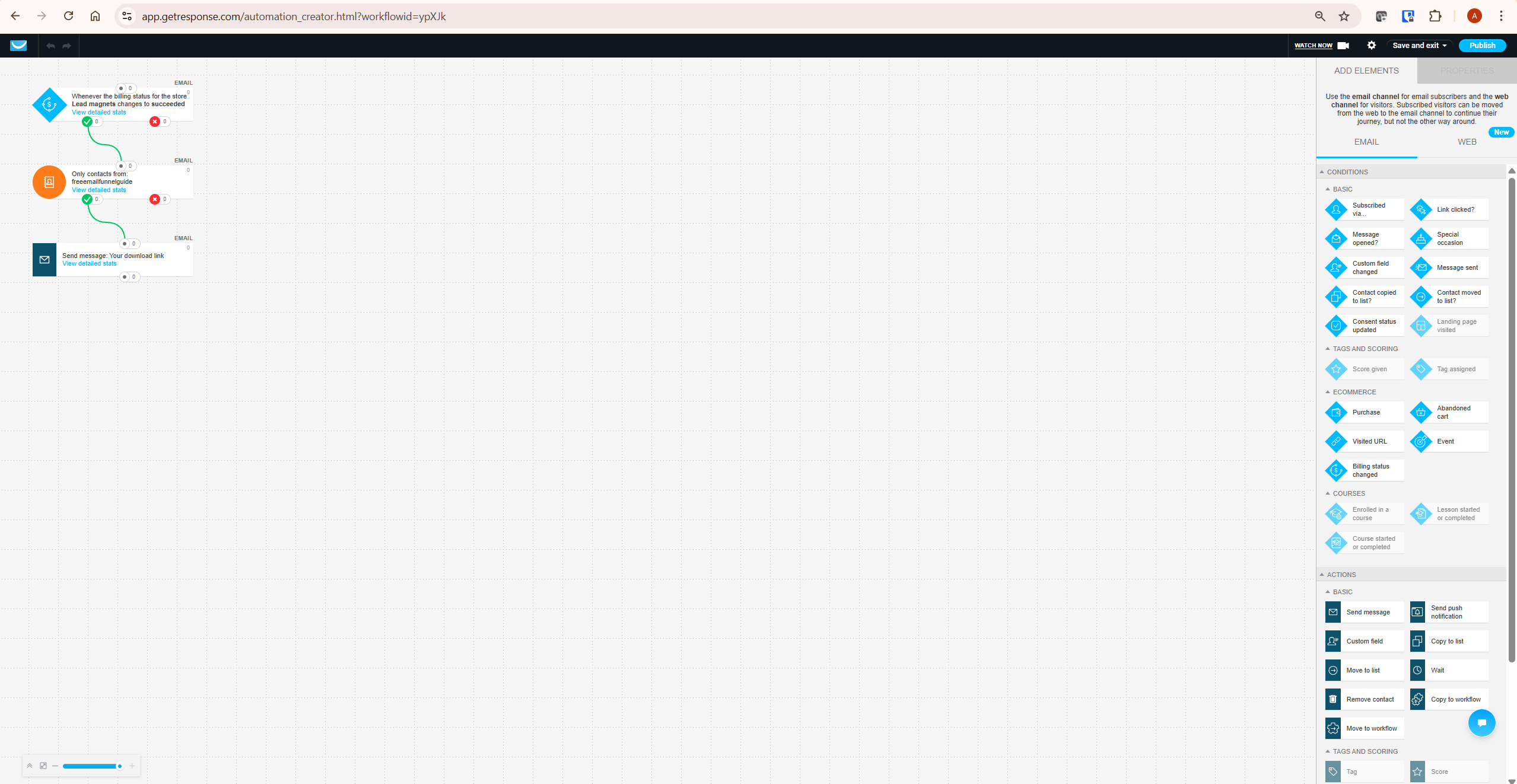
Separate from email templates, GetResponse also includes 40+ prebuilt marketing automation workflow templates — with GetResponse’s own automation template page currently stating 42 ready-to-use templates. These are not email designs; they are workflow blueprints for automating subscriber journeys such as welcome sequences, abandoned cart recovery, re-engagement, and product promotions:
- Welcome message sequences for new subscribers
- Abandoned cart recovery flows
- Re-engagement campaigns for inactive subscribers
- Product launch sequences
- Subscriber scoring and segmentation workflows
- Course promotion sequences
For affiliate content site owners, the most useful automation templates are the welcome sequence and re-engagement templates. Both give you a working workflow structure you customise with your own emails rather than building the conditional logic from scratch. See our GetResponse automation guide for a detailed walkthrough of building and customising these workflows.
Common GetResponse Email Template Mistakes to Avoid
Mistake 1: Not Saving a Custom Master Template
The most common email template mistake in GetResponse is rebuilding your branding from scratch on every campaign. Spend 30 minutes once creating a master GetResponse email template with your logo, brand colours, and standard structure — save it to My Templates — and every future email starts from that branded baseline. This single action saves hours over the lifetime of your email programme.
Mistake 2: Not Checking Mobile Preview
All GetResponse email templates are mobile-responsive by default, but “responsive” does not mean “optimised.” Always check the mobile preview before sending — a three-column layout that looks clean on desktop may collapse awkwardly on a 375px phone screen. Use the Test and preview option to check both views before every send.
Mistake 3: Using Too Many Design Elements
GetResponse’s predesigned templates can tempt new users into adding multiple image blocks, columns, dividers, and colour sections to make emails look “designed.” For affiliate content emails, simplicity converts better than complexity. The best-performing templates for content-driven affiliate marketing are typically one column, one primary image, short body copy, and one CTA button. Every additional element is a potential distraction from the action you want subscribers to take.
Mistake 4: Ignoring the Spam Score Checker
GetResponse’s spam score checker — available in Test and preview before sending — reviews your message and flags items that may need improvement before you send. Run it on every email, particularly promotional campaigns with offers and affiliate links. Addressing any flagged items before sending reduces the risk of your emails being filtered before reaching the inbox.
What To Do Next
If you are using GetResponse, take 30 minutes today to build your master email template. Go to Tools → Email Marketing → My Templates → Create Template, start from a blank template, add your logo, set your brand colours on the header and CTA button, and save it. From now on, every newsletter you send starts from that template rather than from scratch. Then send yourself a test email to confirm it renders correctly on desktop and mobile. That single setup action is the most practical improvement most GetResponse users can make to their email programme today.
Frequently Asked Questions
Are GetResponse email templates free?
GetResponse provides access to predesigned email templates through the email creator, including during the free account and trial experience. However, some advanced email marketing features may be limited after the 14-day premium trial window or may require a paid plan. Confirm current access inside your GetResponse account before building your workflow around a specific feature. There is no additional cost to access the template library itself.
How many email templates does GetResponse have?
GetResponse’s official template page states 150+ predesigned, customisable, and mobile-optimised newsletter templates — available from inside the drag-and-drop email editor. In addition, GetResponse offers 42 marketing automation workflow templates — these are separate from email design templates and cover workflow blueprints for welcome sequences, abandoned cart recovery, re-engagement, and more.
How do I save a custom email template in GetResponse?
Two methods: from inside the editor, click Save as template after customising your email design. Or go to Tools → Email Marketing → My Templates → Create Template to build and save a template independently of any campaign. Both methods save the template to your My Templates library for reuse on future campaigns. GetResponse’s documentation confirms that using a template for a newsletter creates a copy — the original saved template remains unchanged.
Can I use my own HTML template in GetResponse?
Yes. GetResponse supports custom HTML email templates imported via three methods: paste from code, upload as a ZIP file, or import from a URL. Access the HTML editor from inside the email creation flow. Note that GetResponse’s own documentation states they do not provide support for custom HTML code or templates whose code has been edited by users — troubleshooting custom HTML is the user’s responsibility.
Do GetResponse email templates work with automation workflows?
Yes. Automation workflow email steps can use saved message designs and templates, allowing you to keep branding consistent across welcome sequences, lead magnet delivery emails, and manual newsletters. When building a workflow in GetResponse’s automation builder, each Send Message step can draw from your My Templates library or use a newly created email design.
What is the difference between a template and a draft in GetResponse?
GetResponse’s help documentation defines the distinction clearly: a template is a saved design layout — it includes background, fonts, block structure, and formatting, and its purpose is to provide a reusable baseline. A draft is a message in progress that has not been sent yet. When you use a template to create a newsletter, GetResponse copies the template content into the newsletter — so the draft and the original template are separate files. Editing the draft does not change the saved template.
Can I run A/B tests on GetResponse email templates?
Yes. GetResponse confirms that A/B tests can be run for all types of email campaigns, including those built using predesigned templates. You can test subject lines, from names, or full email content. A/B testing is treated as an advanced email marketing feature, so availability depends on your account type and whether you are inside the 14-day premium trial window or on a paid plan — confirm current access in your GetResponse account settings.
Related GetResponse Articles
- GetResponse Review 2026: The Honest Verdict for Affiliate Marketers
- How to Use GetResponse: Complete Step-by-Step Guide (2026)
- GetResponse Automation: 7 Proven Steps for Affiliate Marketing
- GetResponse Landing Page Builder: Complete 2026 Guide
- How to Build an Email Funnel with GetResponse (Step-by-Step)
- GetResponse Free Plan: The Honest 2026 Guide
All template counts, navigation paths, and feature details in this article are verified from getresponse.com, getresponse.com/features/email-marketing/templates, getresponse.com/help/my-templates, and getresponse.com/features/marketing-automation/templates as of May 2026. GetResponse updates its platform regularly — always verify current details at getresponse.com before making decisions.
