
GetResponse Webinars: The Honest Guide for Affiliates (2026)
Affiliate Disclosure: This article contains affiliate links. If you purchase through these links, I may earn a commission at no extra cost to you. I only recommend tools I have personally used and genuinely believe in. Read my full disclosure policy.
GetResponse webinars are one of the platform’s most underappreciated features — and one of the clearest reasons it stands out from many email marketing competitors. Very few email marketing platforms at a comparable price point combine webinar hosting, registration pages, on-demand replay, and automated follow-up sequences inside the same platform. I am Andreas Maratheftis, with 30 years of professional finance experience, and I use GetResponse to run InnovateHub Finance. This guide covers exactly how GetResponse webinars work, which plans include them, what the room features are, and how to use them as a lead generation tool for an affiliate content site — not just a presentation tool.
→ Don’t have GetResponse yet? Start free — test premium features for 14 days, no credit card required
Quick Answer: What Are GetResponse Webinars?
GetResponse webinars are built-in, browser-based online seminars that integrate directly with GetResponse’s email marketing, landing page, and automation tools. The webinar room supports audio and video streaming, screen sharing, file sharing, a digital whiteboard, live chat, polls, and Q&A — with no download required for attendees. Webinars are included on the Creator plan for up to 100 attendees, available as a paid add-on on Starter and Marketer plans, and limited to 10 attendees on free accounts during the first 30 days.
GetResponse Webinars: Which Plans Include Them?
This is the most important section for anyone evaluating whether to use GetResponse webinars — because the plan structure is more nuanced than most articles explain.
| Plan | Webinar Access | Attendee Limit | Additional Cost |
|---|---|---|---|
| Free account | Limited — first 30 days only | 10 attendees including presenters | No extra cost during trial period |
| Starter | Available as paid add-on | 100 or 500 attendees | $40/month (100) or $99/month (500) |
| Marketer | Available as paid add-on | 100 or 500 attendees | $40/month (100) or $99/month (500) |
| Creator | Included in plan | 100 attendees (500 via add-on) | No extra cost for 100 attendees |
Source: getresponse.com/help/what-are-getresponse-webinars.html and getresponse.com/help/how-does-getresponse-pricing-work.html — verified May 2026. Always confirm current plan details at getresponse.com/pricing as these may change.
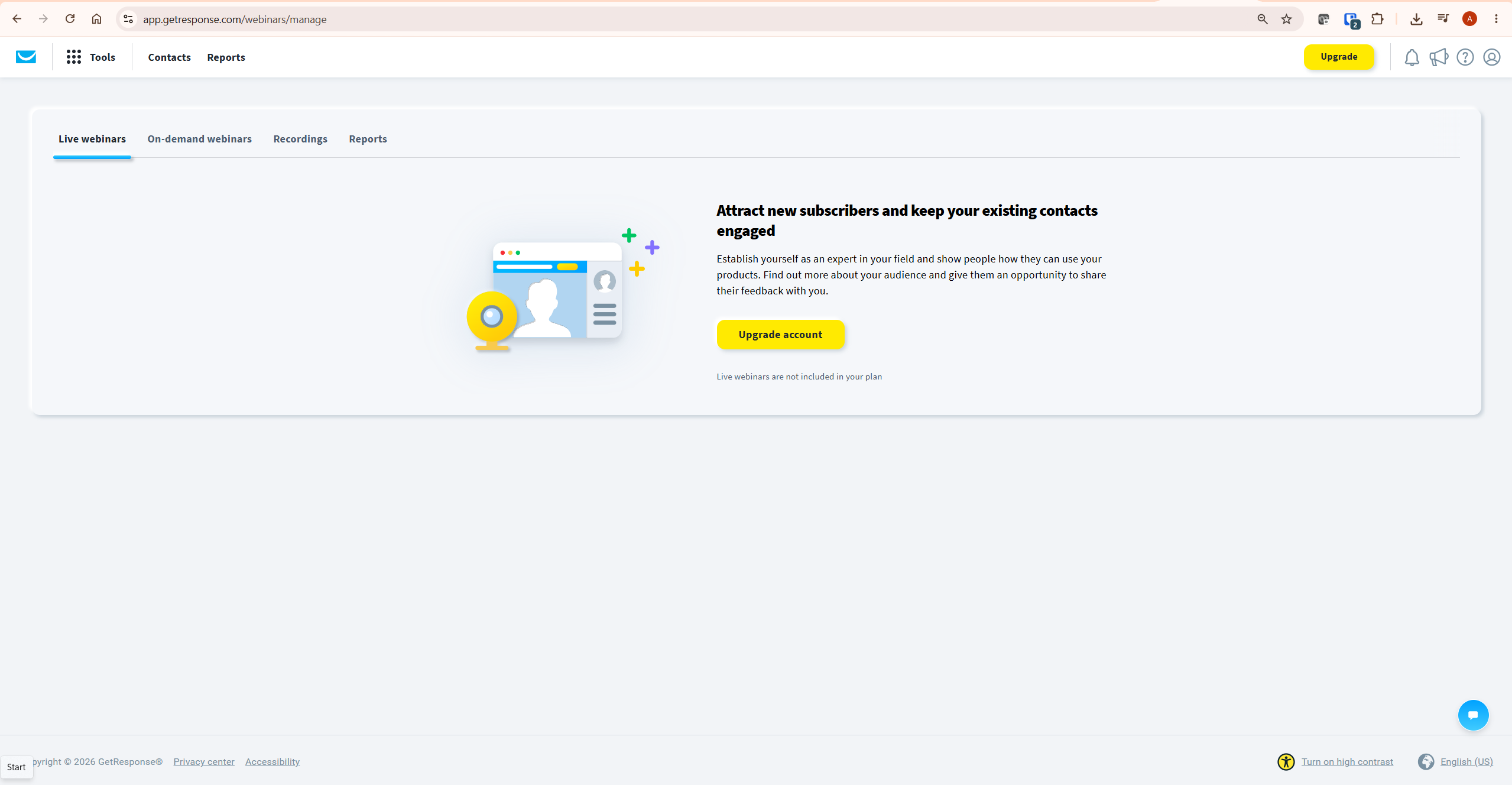
One important caveat confirmed from GetResponse’s own documentation: North American accounts may not have access to purchase or enable the webinar add-on on Starter and Marketer plans. If you are based in North America and want to use GetResponse webinars, verify add-on availability directly inside your account under Billing → My add-ons, or contact GetResponse support to confirm what is available for your account.
For a complete breakdown of what each plan includes, see our GetResponse pricing guide.
GetResponse Webinar Room Features
The GetResponse webinar room is browser-based and uses HTML5 and WebRTC technology — confirmed from getresponse.com/help/technical-requirements-webinars.html. Attendees do not need to download any software to join; they can join from a browser on desktop or mobile. GetResponse recommends Google Chrome for the best compatibility.
Features confirmed from getresponse.com/help/what-are-getresponse-webinars.html:
- Audio and video streaming: Live presenter video and audio broadcast to all attendees
- Screen sharing: Share your desktop, a specific application, or a browser tab
- File sharing: Share files in multiple formats during the webinar
- Digital whiteboard: Draw, annotate, and illustrate points live
- Live chat: Attendees communicate with the presenter and other participants
- Polling: Create polls during the webinar to gather audience data
- Q&A: Structured question and answer functionality
- YouTube video playback: Embed and play YouTube videos inside the webinar room
- Mobile app: Free iOS and Android app for attendees and hosts — available from Apple App Store and Google Play
One honest limitation worth noting: the whiteboard feature is described as fairly basic compared to dedicated whiteboard tools. For content presentations, screen sharing, and demos, the room is well-equipped. For complex visual collaboration, a dedicated tool would be more capable.
How to Set Up a GetResponse Webinar: Step by Step
Setting up a GetResponse webinar takes approximately 15–20 minutes once you understand the workflow. Here is the confirmed navigation path from GetResponse’s own documentation.
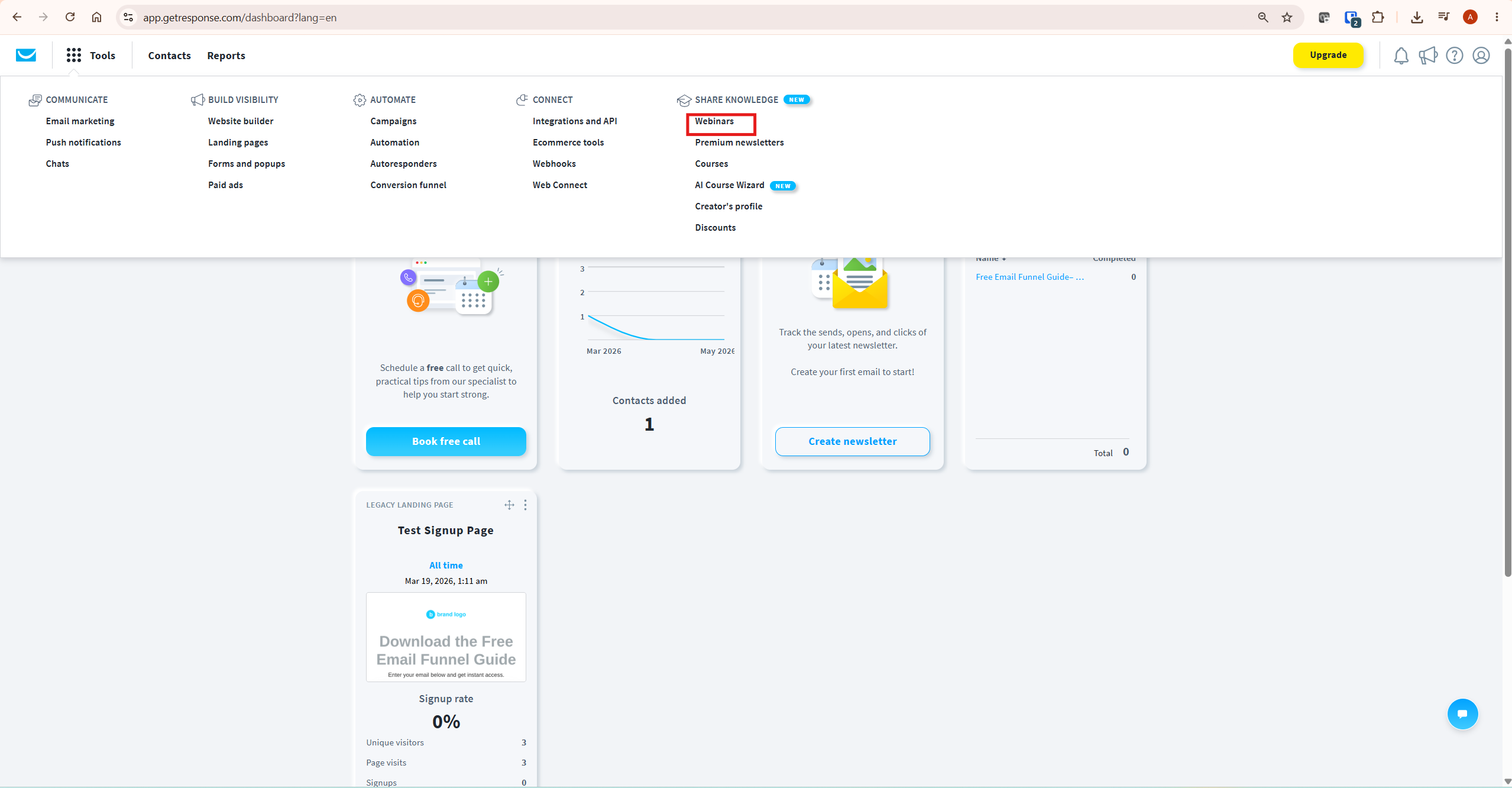
- From your dashboard, go to Tools → Webinars → Create webinar
- Set your webinar title — GetResponse includes an AI title generator to suggest options based on your topic
- Set the date, time, and duration
- Configure the registration page — GetResponse provides registration landing page templates prefilled with your webinar details, confirmed from getresponse.com/features/webinar-software
- Set up automated email reminders — confirmation email on registration, reminder emails before the event
- Configure the thank-you page shown after registration
- Connect to your automation workflow — determine which follow-up sequence attendees enter after the webinar
- Go live on the scheduled date or start immediately for an unscheduled session
The registration page and automated reminders are included in the webinar setup flow — you do not need to create these separately in the landing page or email builder. This integration is where GetResponse webinars save significant time compared to running a standalone webinar tool and connecting it to your email list via Zapier.
GetResponse Webinar Automation: The Follow-Up Sequence
The follow-up automation is where GetResponse webinars become a genuine revenue tool for affiliate content site owners rather than just a presentation platform. This is difficult to replicate with a standalone webinar tool without additional setup, integrations, or manual workflow configuration.
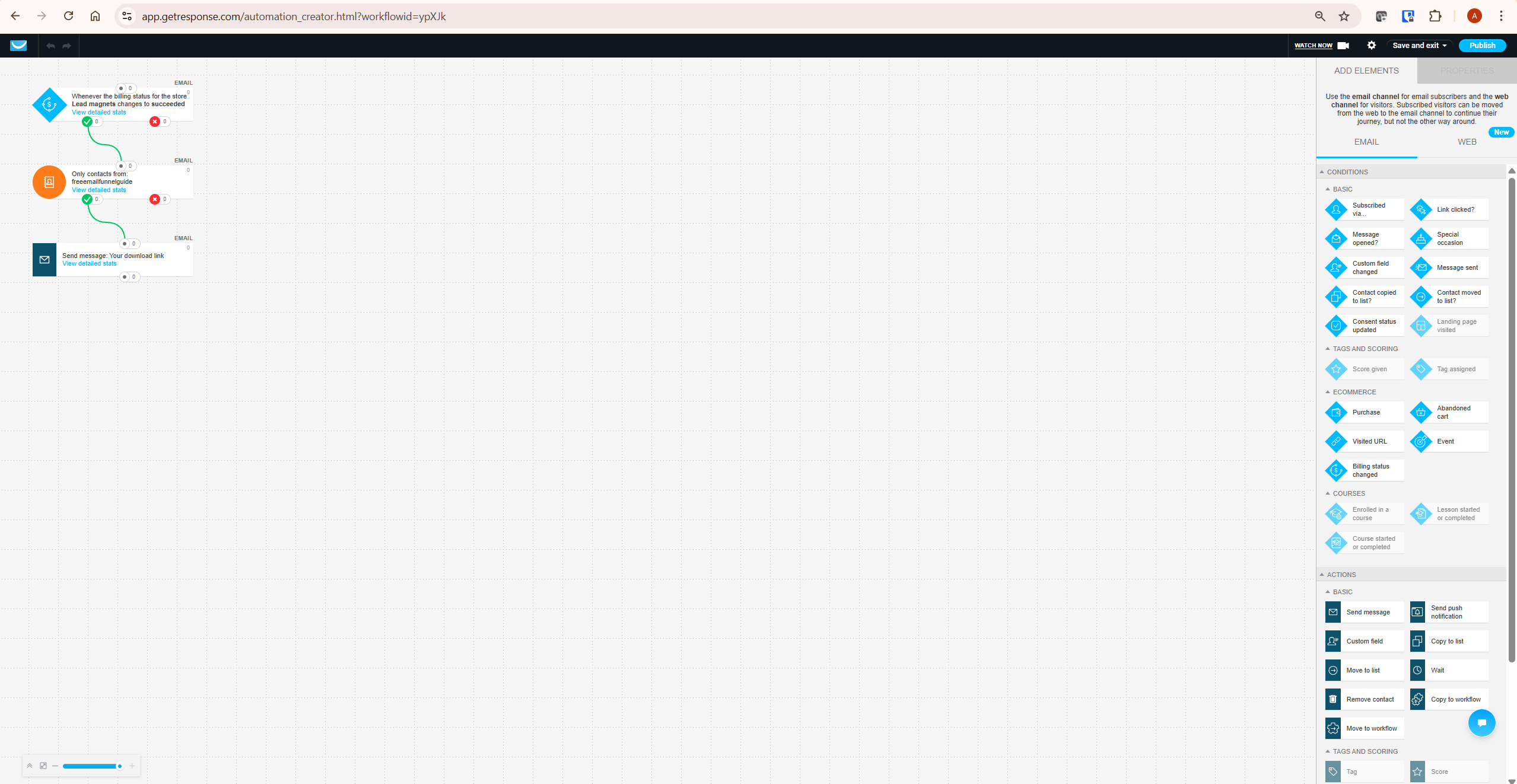
After a GetResponse webinar, you can build automation workflows that route subscribers into different sequences based on their behaviour:
- Attended live: Send a replay link plus a follow-up email sequence with your affiliate recommendation
- Registered but did not attend: Send a re-engagement email with the replay link and a reason to watch
- Watched replay: Send a targeted follow-up based on the fact they engaged with the content after the live event
This three-way segmentation is available in GetResponse’s visual workflow builder and is one of the most practical advantages of using GetResponse webinars versus a standalone tool. With a separate webinar platform connected to GetResponse via Zapier, replicating this behaviour-based routing requires significant configuration. In GetResponse, it is built into the same platform.
For a detailed guide on building these automation sequences, see our GetResponse automation guide.
On-Demand GetResponse Webinars: Passive Lead Generation
On-demand webinars are one of the most underused GetResponse features — confirmed from getresponse.com/help/what-are-on-demand-webinars-and-how-to-use-them.html. Here is exactly how they work according to GetResponse’s own documentation:
An on-demand webinar is a prerecorded webinar that runs automatically when someone accesses the link. The viewer submits their name and email address on the sign-in page, clicks to start the webinar, and is simultaneously added to your GetResponse list. There is no registration required in the traditional sense — the opt-in and the webinar access happen in the same step.
For affiliate content site owners, this creates a permanently running lead generation asset. Some verified G2 reviews from GetResponse users highlight the webinar and email marketing integration as a useful lead-generation advantage. Record a 30-minute tutorial on a topic relevant to your niche, set it up as an on-demand webinar, link to it from your highest-traffic articles, and every viewer who watches becomes a subscriber — with no live hosting time required from you.
One important detail from GetResponse’s documentation: on-demand webinars do not send automatic reminders, because there is no scheduled event — the viewer starts the webinar immediately on their own schedule. The webinar sign-in page language is also based on the language of the list to which the webinar is linked.
GetResponse Webinars vs Dedicated Webinar Tools
The honest comparison that matters for affiliate content site owners: is GetResponse’s built-in webinar tool good enough, or do you need a dedicated platform like Zoom Webinars or Demio?
| Feature | GetResponse Webinars | Zoom Webinars | Demio |
|---|---|---|---|
| Starting price | Included in Creator plan | From approx. $149/month — verify current pricing | From approx. $59/month — verify current pricing |
| Native email integration | Full — same platform | Requires Zapier or manual | Requires integration |
| Automated follow-up sequences | Built-in via automation builder | Requires third-party | Limited native |
| On-demand webinars | Included | Available on higher plans | Included |
| Registration pages | Included, customisable templates | Included | Included |
| Max attendees (entry) | 100 on Creator plan | 500 | 50 |
| Breakout rooms | Not available | Available | Not available |
| Video quality | Standard HD | Up to 1080p | Standard HD |
Honest verdict: For affiliate content site owners running webinars for audiences under 100 people with a primary goal of lead generation and product promotion, GetResponse webinars are sufficient and the native email integration is a genuine operational advantage. For large-scale events, breakout rooms, or broadcast-quality video, dedicated platforms have a clear edge.
The practical cost argument: standalone webinar platforms such as Zoom Webinars and Demio typically add a separate monthly subscription on top of your email marketing platform — at the time of writing, these start from approximately $59–$149/month depending on the plan and attendee count. GetResponse’s advantage is not necessarily superior webinar production features — it is native email automation integration that eliminates third-party connections entirely. For independent deliverability context, EmailToolTester’s deliverability assessments confirm GetResponse performs above the industry average. GetResponse’s Creator plan includes webinars with email marketing, landing pages, automation, and course creation in a single subscription. For a content site that uses all of those features, the all-in-one value is clear.
How to Use GetResponse Webinars for Affiliate Marketing
GetResponse webinars work as an affiliate marketing tool when the content teaches something genuinely useful and the product recommendation follows naturally from the teaching. Three specific formats that work well:
Format 1: The Tutorial Webinar
Teach a specific skill related to your niche — “How to Set Up Your First Email List” for a marketing site, “How to Read a Crypto Tax Report” for a crypto site, “How to Analyse a Chart Pattern” for a trading site. At the end, recommend the tool that makes that process easier. Attendees arrive with a problem, leave having learned something, and your product recommendation lands at peak trust.
Format 2: The Tool Walkthrough
A live walkthrough of the affiliate tool itself — “GetResponse Live Demo: How I Set Up My Email Funnel” is a format that works particularly well because viewers opt in specifically to see how the tool works. This format converts at a higher rate than a general tutorial because viewer intent is already aligned with the product.
Format 3: The On-Demand Resource
Record a 20–30 minute tutorial once, set it up as a GetResponse on-demand webinar, and link to it from relevant articles. Every viewer opts in to watch. The webinar becomes a permanently running lead generation asset that adds subscribers and delivers your affiliate recommendation without any live time investment after the initial recording.
A Simple Webinar Format for Affiliate Marketers
Most affiliate marketers overthink webinar structure. A 30-minute format that works consistently for content-driven affiliate sites:
- Minutes 0–5 — Problem and context: Name the exact problem your audience has. Make them feel understood before you teach anything. “If you are managing crypto tax manually in a spreadsheet, you already know how painful it gets at tax time…”
- Minutes 5–20 — Tutorial or demo: Teach one specific skill or walk through one tool in enough depth that the viewer learns something genuinely useful. This is the content that builds trust.
- Minutes 20–25 — Real example: Show a concrete outcome. A screenshot, a result, a before-and-after. Specific evidence is more persuasive than claims.
- Minutes 25–30 — Recommended next step: One recommendation, not three. “The tool I use for this is GetResponse — here is why and here is where to try it free.” Natural, earned, direct.
This format works for live webinars and on-demand recordings equally. For on-demand, keep the total runtime under 30 minutes — viewer drop-off increases significantly beyond that for pre-recorded content.
What To Do Next
If you are on the Creator plan, GetResponse webinars are already available in your account under Tools → Webinars. The most practical first step is to record a 20-minute on-demand webinar on a topic relevant to your niche, set it up as an on-demand asset, and link to it from your two highest-traffic articles. This gives you a permanently running lead generation asset with no ongoing time commitment. If you are on Starter or Marketer and interested in webinars, check add-on availability under Billing → My add-ons in your account — and note that North American accounts may not have access to the add-on, in which case upgrading to Creator is the path to webinar access.
Frequently Asked Questions
Does GetResponse have webinars?
Yes. GetResponse includes built-in webinar hosting with registration pages, automated email reminders, a live webinar room with chat and polling, on-demand webinar capability, and direct integration with email automation workflows. Webinars are included on the Creator plan for up to 100 attendees and available as a paid add-on ($40/month for 100 attendees, $99/month for 500 attendees) on Starter and Marketer plans — confirmed from getresponse.com/help/what-are-getresponse-webinars.html. Note that North American accounts may not have access to add-ons.
How many attendees can join a GetResponse webinar?
Up to 100 attendees on the Creator plan. Up to 500 attendees with the paid add-on on Creator, Starter, or Marketer plans. Free account users can host webinars with up to 10 attendees including presenters during the first 30 days. All figures confirmed from getresponse.com/help/what-are-getresponse-webinars.html — verify current limits directly in your account as these may change.
Are GetResponse webinars free?
Not permanently. Free account users can host webinars with up to 10 attendees during the first 30 days of their account. After that, webinar access requires either the Creator plan (where webinars for 100 attendees are included in the plan price) or a paid add-on on Starter or Marketer plans. Paid add-on pricing confirmed from getresponse.com: $40/month for 100 attendees or $99/month for 500 attendees.
Do attendees need to download anything to join a GetResponse webinar?
No. GetResponse webinars use HTML5 and WebRTC technology, confirmed from getresponse.com/help/technical-requirements-webinars.html. Attendees can join from a browser — Google Chrome is recommended for best compatibility. There is also a free GetResponse Webinars app available for iOS and Android for mobile attendees who prefer the native app experience.
What is the difference between a live and on-demand GetResponse webinar?
A live webinar is a scheduled event where you present in real time to registered attendees. An on-demand webinar is a prerecorded webinar that runs automatically when someone accesses the link — the viewer submits their email on the sign-in page and the webinar starts immediately. On-demand webinars do not send automatic reminders and there is no registration step separate from the viewing step. Confirmed from getresponse.com/help/what-are-on-demand-webinars-and-how-to-use-them.html.
Can I use GetResponse webinars on a Starter or Marketer plan?
Yes, through a paid add-on — $40/month for 100 attendees or $99/month for 500 attendees, confirmed from GetResponse’s help documentation. However, GetResponse’s own documentation notes that North American accounts may not have access to purchase or enable this add-on. If you are in North America and want webinars, verify add-on availability under Billing → My add-ons in your account, or contact GetResponse support before upgrading your plan for webinar access.
How do GetResponse webinars integrate with email automation?
GetResponse webinars integrate natively with the platform’s visual automation builder. After a webinar, you can create separate follow-up sequences for attendees who showed up live, those who watched the on-demand replay, and those who registered but did not attend. This three-way behavioural segmentation runs automatically and is built into GetResponse’s automation workflows — no third-party connections required. See our GetResponse automation guide for a full walkthrough of building these sequences.
Related GetResponse Articles
- GetResponse Review 2026: The Honest Verdict for Affiliate Marketers
- GetResponse Pricing in 2026: Plans, Features & What You Actually Pay For
- How to Use GetResponse: Complete Step-by-Step Guide (2026)
- GetResponse Automation: 7 Proven Steps for Affiliate Marketing
- GetResponse Landing Page Builder: Complete 2026 Guide
- How to Build an Email Funnel with GetResponse (Step-by-Step)
All webinar features, plan limits, and pricing figures in this article are verified from GetResponse’s official documentation including getresponse.com/help/what-are-getresponse-webinars.html, getresponse.com/features/webinar-software, getresponse.com/help/what-are-on-demand-webinars-and-how-to-use-them.html, and getresponse.com/pricing as of May 2026. GetResponse updates its platform and pricing regularly — always verify current details directly at getresponse.com before making plan or purchasing decisions.
