
TradingView Pine Script Tutorial: Complete Honest v6 Guide (2026)
This article contains affiliate links. If you sign up for TradingView through a link on this page, I may earn a commission at no extra cost to you. I only recommend tools I have genuinely evaluated.
Trading involves risk. Technical analysis tools do not guarantee profitable results. Past performance is not indicative of future results. Always manage your risk appropriately.
The Pine Script code in this article is provided for educational purposes only. Always test any script in TradingView’s paper trading environment before applying it to a live account. Pine Script v6 syntax should be confirmed against the official TradingView Pine Script v6 reference documentation as the language is updated regularly.
This Pine Script tutorial for beginners is written for traders — not software developers. If you have spent any time on TradingView, you have almost certainly used indicators built by other people. Pine Script is what gives you the ability to build your own. That is a meaningful shift, and it is more accessible than most traders assume.
I am Andreas Maratheftis — 30 years in professional finance, and TradingView is the charting platform I use daily for InnovateHub Finance. Pine Script is TradingView’s proprietary scripting language. It runs entirely in the cloud, directly on your charts, without any software installation or local setup. You write code in the built-in Pine Editor, click a button, and your indicator appears on the chart immediately.
This guide covers Pine Script v6, the current version as of 2026. Everything here is written to be understood by someone with no coding background, but with enough trading experience to know what they actually want to measure.
The Pine Editor is available on all TradingView plans. Get started with TradingView here.
Quick Answer: What You Will Build in This Guide
By the end of this tutorial you will have built two complete, deployable Pine Script v6 indicators and understand the core concepts behind them. Here is what this guide covers and what each section produces.
| Section | What You Learn | What You Build |
|---|---|---|
| Core concepts | Series data, variables, functions, plot() | Foundation understanding |
| First indicator | input.int(), ta.sma(), plot() | Configurable simple moving average |
| Second indicator | ta.crossover(), plotshape(), alerts | Dual SMA crossover with visual signals |
| Input types | input.source(), input.bool(), input.color() | Fully configurable indicator template |
| Conditional logic | Ternary operator, dynamic colours | Colour-coded moving average |
What Pine Script Actually Is
Pine Script is a domain-specific language built for one purpose: creating trading indicators and strategies on TradingView. It is not Python. It is not JavaScript. It does not run outside of TradingView, and it was never designed to.
That constraint is actually a feature. Because Pine Script has a narrow purpose, it is far simpler than general-purpose programming languages. You do not need to understand memory management, data structures, or object-oriented programming. You need to understand price data, bar logic, and what you want to visualise on a chart.
Pine Script executes once per bar on historical data, and then continues to execute in real time as new price data arrives. Every built-in variable — close, open, high, low, volume — is automatically a series of values tied to each bar. This maps naturally to how traders think about price.
The TradingView community has published more than 150,000 scripts written in Pine Script. Many of the platform’s own built-in indicators — RSI, MACD, Bollinger Bands — are written in Pine Script themselves. For a complete overview of TradingView’s full feature set, our TradingView review covers the platform in detail.
Why Traders Learn Pine Script
The honest answer is control. Standard indicators are built for the broadest possible audience. They use default settings and standard formulas because those defaults work reasonably well across most markets and timeframes. But markets are not uniform, and the parameters that work well for Bitcoin on a four-hour chart are not necessarily right for S&P 500 futures on a fifteen-minute chart.
Pine Script lets you modify those parameters precisely, or build entirely new indicators that reflect how you personally think about price action. A trader who focuses on volatility breakouts, for example, can build a custom volatility channel that fits their exact methodology rather than adapting their approach to fit a generic tool.
Beyond indicators, Pine Script also powers strategy backtesting. You can codify an entry and exit ruleset, run it across years of historical data, and see exactly how it would have performed — including drawdowns, win rate, and risk-adjusted returns. The third use case is alerts: you can write conditions in Pine Script and attach TradingView alerts to them, so you are notified the moment a specific pattern occurs — across any market, any timeframe, without watching the screen.
Understanding Pine Script v6
Pine Script v6 is the current and actively maintained version. TradingView currently recommends using Pine Script v6 for all new development, and future updates are focused on v6, so if you are starting from scratch, there is no reason to learn an older version.
Key improvements in v6 over earlier versions include stricter type handling, improved boolean logic, better error messaging, and the introduction of bid and ask built-in variables for real-time market data. The Pine Editor has also been updated in 2026 — it now opens in a side panel rather than at the bottom of the screen, letting you edit code and watch the chart respond simultaneously.
Always verify Pine Script v6 syntax against the official Pine Script v6 reference manual — the language is updated regularly and syntax from older tutorials may not work correctly in v6.
Pine Script vs Python: Which Should Traders Learn?
This is one of the most common questions from traders who have heard of both. The answer is straightforward once you understand what each language is actually built for.
| Feature | Pine Script | Python |
|---|---|---|
| Where it runs | TradingView only — cloud-based | Anywhere — local or cloud |
| Primary purpose | Trading indicators and strategies | General programming |
| Learning curve | Low — designed for traders | Much larger language to learn |
| Setup required | None — runs in the browser | Local environment or cloud setup |
| Community scripts | 150,000+ published on TradingView | Unlimited but no central library |
| Best for | Traders who want custom indicators fast | Developers building trading systems |
If your goal is to build custom indicators and alerts on TradingView, Pine Script is the correct choice — it is faster to learn, requires no setup, and produces results you can deploy immediately. Python becomes relevant when you need to build systems that run outside TradingView, connect to broker APIs directly, or process large datasets. For most retail traders, Pine Script covers everything they need.
Setting Up the Pine Editor
You do not need a paid TradingView account to start writing Pine Script. A free account is sufficient to open the Pine Editor, write indicators, and apply them to your charts. Some advanced features — more indicators per chart, more concurrent alerts, running complex backtests — require a paid plan, but the core scripting environment is available to all users.
To open the Pine Editor, log in to TradingView and open any chart. In the updated 2026 interface, look for the Pine Editor option in the right-side panel or access it through the bottom toolbar. When you first open it, you will see a default script — a simple indicator template already populated. For this tutorial, we will build from scratch so every line is intentional and understood.
The Structure of Every Pine Script
Every Pine Script follows the same basic structure. Before writing any logic, you need to declare the version and define what kind of script you are building.
//@version=6
indicator("My First Indicator", overlay=true)
The first line tells TradingView which version of Pine Script you are using — this is mandatory. The second line declares the script as an indicator and gives it a name. The overlay=true argument tells TradingView to display this indicator directly on the price chart rather than in a separate panel below. If you are building an oscillator like RSI, you would use overlay=false — the indicator would then appear in its own panel beneath the chart.
Core Concepts You Need to Understand
Series Data
The most important concept in Pine Script is the series. Every built-in price variable — close, open, high, low, volume — is not a single number. It is a series of values, one for each bar on your chart. When you write close, you are referencing the closing price of the current bar. When you write close[1], you are referencing the closing price of the previous bar.
Once you internalise this mental model, reading Pine Script becomes straightforward. You are always working with a sequence of bars, and the language is built around that assumption.
Variables
Variables in Pine Script store values. You declare them using the var keyword for values that persist across bars, or by assigning a value directly for single-bar calculations.
myClose = close
myPreviousClose = close[1]
Built-In Functions
Pine Script includes a large library of built-in functions that handle common trading calculations. Rather than writing the mathematics for a simple moving average from scratch, you call ta.sma(). Rather than calculating RSI manually, you call ta.rsi(). The ta prefix stands for technical analysis — most indicator calculations you would want to use are available under this namespace.
The plot() Function
The plot() function is how you display values on your chart. Without a plot() call, your script runs its calculations but shows nothing.
plot(close, title="Close Price", color=color.blue, linewidth=2)Most of the indicators you build will end with one or more plot() calls. Get comfortable with this function early — you will use it constantly.
Building Your First Indicator: A Simple Moving Average
A simple moving average is the ideal starting point — it is genuinely useful, the logic is easy to follow, and it introduces every core concept without overwhelming complexity. Here is the complete script:
//@version=6
indicator("Simple Moving Average", overlay=true)

length = input.int(20, title="SMA Length", minval=1)
smaValue = ta.sma(close, length)

plot(smaValue, title="SMA", color=color.orange, linewidth=2)
The input.int() function creates a user-adjustable input — when you apply this indicator to a chart, TradingView displays a settings panel where you can change the period from 20 to any value without touching the code. The minval=1 parameter prevents someone from entering zero or a negative number.
The ta.sma() function calculates the simple moving average. It takes two arguments: the series to calculate on (close) and the period length. Finally, plot() draws the result on the chart as an orange line. Paste this into your Pine Editor, click Add to Chart, and you will see a clean, configurable moving average appear immediately. That is a complete, functional, deployable indicator — in six lines of code.
Adding a Second Moving Average and a Crossover Signal
Two moving averages — one short, one long — let you identify crossovers. Here is the expanded version:
//@version=6
indicator("Moving Average Crossover", overlay=true)

fastLength = input.int(9, title="Fast SMA", minval=1)
slowLength = input.int(21, title="Slow SMA", minval=1)

fastSMA = ta.sma(close, fastLength)
slowSMA = ta.sma(close, slowLength)

plot(fastSMA, title="Fast SMA", color=color.blue, linewidth=2)
plot(slowSMA, title="Slow SMA", color=color.red, linewidth=2)

bullCross = ta.crossover(fastSMA, slowSMA)
bearCross = ta.crossunder(fastSMA, slowSMA)

plotshape(bullCross, title="Bullish Cross", location=location.belowbar, color=color.green, style=shape.triangleup, size=size.small)
plotshape(bearCross, title="Bearish Cross", location=location.abovebar, color=color.red, style=shape.triangledown, size=size.small)
ta.crossover() returns true on the bar where the first series crosses above the second. ta.crossunder() does the opposite. The plotshape() function draws visual markers — a green triangle below the bar on a bullish cross, a red triangle above on a bearish cross. This is a customisable dual moving average crossover system with visual signals, in under twenty lines of code.
Adding Alerts to Your Indicator
Visual signals on a chart are useful. Alerts that notify you when a condition occurs — without you watching the screen — are more useful. Add these two lines to the crossover script above:
alertcondition(bullCross, title="Bullish Crossover", message="Fast SMA crossed above Slow SMA")
alertcondition(bearCross, title="Bearish Crossover", message="Fast SMA crossed below Slow SMA")
Once you add the indicator to your chart, go to the TradingView alerts panel, create a new alert, and select your indicator from the dropdown. The alert conditions you defined in Pine Script will appear as options. Set your preferred notification method — email, mobile push, or webhook — and you will be notified the next time either crossover occurs, on any market, on any timeframe.
Alerts on paid TradingView plans can fire across multiple tickers simultaneously. For the complete guide to setting up alerts, our TradingView alerts guide covers every option. Explore TradingView’s plan options here.
Understanding Input Types
Inputs make your indicators reusable rather than hardcoded. Pine Script v6 supports several input types:
input.int() accepts whole numbers — useful for periods and lookback windows. input.float() accepts decimal numbers — useful for thresholds and multipliers. input.bool() creates a true/false toggle — useful for turning features on or off. input.color() lets the user choose a colour. input.source() lets the user choose which price series to calculate on.
//@version=6
indicator("Configurable SMA", overlay=true)

src = input.source(close, title="Source")
length = input.int(20, title="Length", minval=1)
lineColor = input.color(color.blue, title="Line Color")
showSMA = input.bool(true, title="Show SMA")

smaValue = ta.sma(src, length)

plot(showSMA ? smaValue : na, title="SMA", color=lineColor, linewidth=2)
The expression showSMA ? smaValue : na means: if showSMA is true, plot the SMA value; if false, plot nothing. na is Pine Script’s equivalent of a null value. This pattern is extremely common and worth memorising.
Conditional Logic in Pine Script
Most useful indicators require conditional logic. Here is a practical example — colouring your moving average green when price is above it and red when price is below it:
//@version=6
indicator("Coloured SMA", overlay=true)

length = input.int(20, title="SMA Length", minval=1)
smaValue = ta.sma(close, length)

smaColor = close > smaValue ? color.green : color.red

plot(smaValue, title="SMA", color=smaColor, linewidth=2)
The ternary expression evaluates close > smaValue on every bar. If true, smaColor is green. If false, it is red. The moving average line dynamically shifts colour as price crosses it — a small addition that makes the indicator significantly more readable at a glance.
Common Mistakes Beginners Make
Forgetting the version declaration. Without //@version=6 at the top of your script, TradingView will attempt to run it as an older version and may produce unexpected errors or warnings.
Confusing series values with single values. If you try to use a series variable in a context that expects a single number, Pine Script will throw an error. Understanding that most variables in Pine Script are series, not scalars, prevents a large category of confusion.
Over-fitting during backtesting. When you adjust parameters until historical results look excellent, you are likely fitting your strategy to noise rather than discovering a genuine edge. Define your parameters before looking at results, then validate on data that was not used to optimise the strategy — out-of-sample testing is the only reliable way to distinguish a genuine edge from curve-fitting.
Ignoring the reference manual. When something is not working, the Pine Script v6 reference manual should be your first stop. Error messages in v6 are more descriptive than earlier versions and usually point directly to the problem.
Common Compilation Errors and How to Fix Them
Every Pine Script beginner hits compilation errors. Here are the most common ones and what they mean.
Missing //@version=6. If you forget the version declaration, TradingView attempts to run the script as an older version. Always start every script with //@version=6 on the first line.
Undeclared identifier. This error means you have referenced a variable or function that does not exist in v6 syntax. Check the spelling carefully and verify the function name in the v6 reference manual — function names changed between some Pine Script versions.
Mismatched brackets or parentheses. Every opening bracket must have a closing bracket. Pine Script v6’s error messages now highlight the line where the mismatch occurs, which makes these faster to find than in earlier versions.
Wrong input type. Using input.int() where input.float() is needed — or vice versa — causes type mismatch errors. Check that the input type matches the expected data type for the function you are passing it to.
Cannot use ‘series’ type in ‘simple’ argument. This error occurs when you try to pass a series value where a fixed value is expected. Some function arguments require a compile-time constant rather than a bar-by-bar series value.
What You Can Build Beyond Indicators
Everything covered here applies to indicators — scripts that calculate and display values without placing trades. Pine Script also supports strategy scripts, which add the ability to define entry and exit rules and run them against historical data using TradingView’s Strategy Tester. The output includes a full performance report — total return, maximum drawdown, Sharpe ratio, win rate, and a trade-by-trade breakdown. Our TradingView Strategy Tester guide covers how to use this feature in detail.
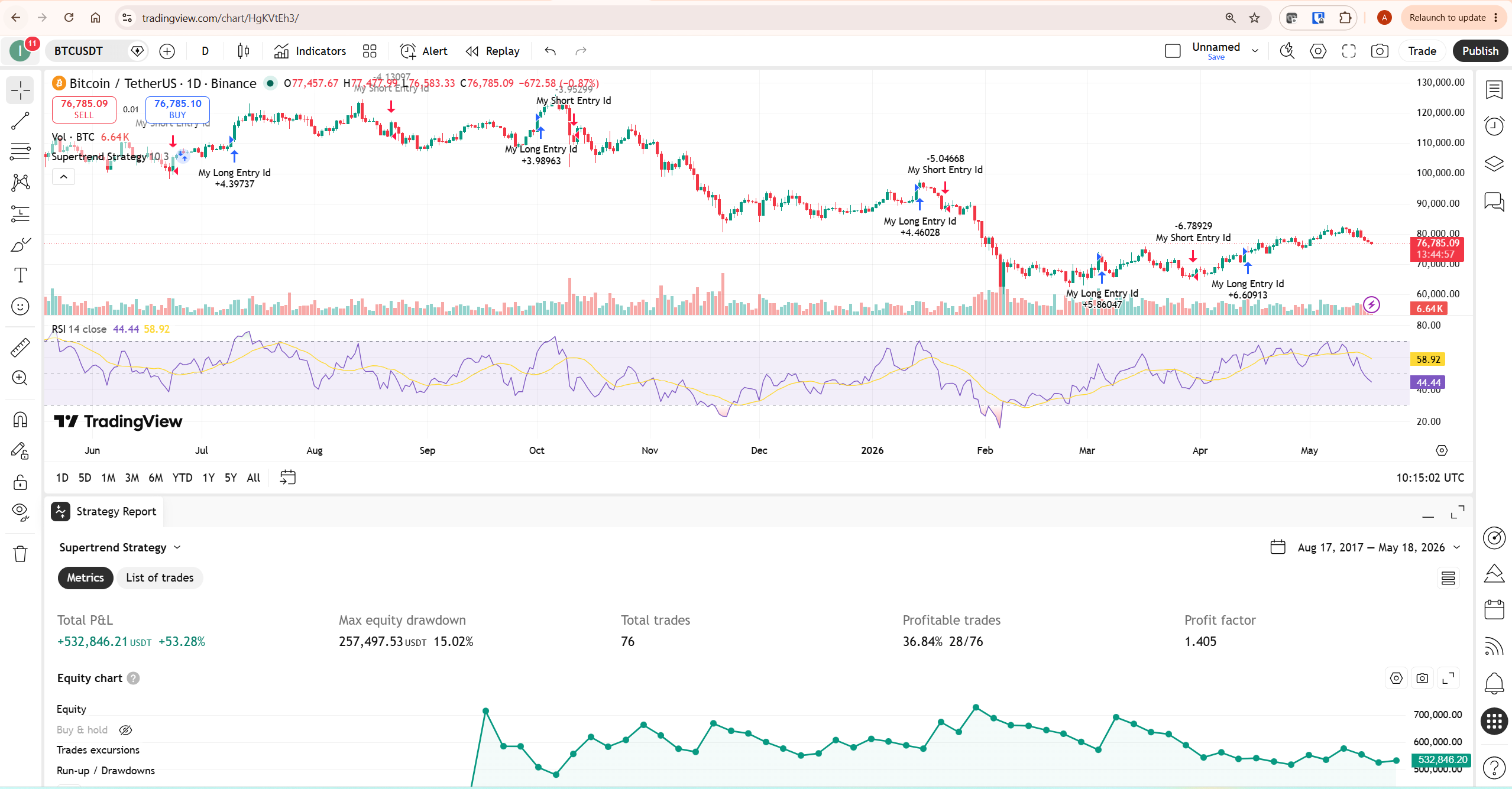
Library scripts allow you to package reusable functions and share them with other Pine Script users — the reason there are 150,000 community scripts available on TradingView. The ecosystem is collaborative, and open-source scripts are a legitimate way to accelerate your own learning.
What To Do Next
Do this now — building the first indicator takes under 10 minutes:
Open TradingView and navigate to any chart. Open the Pine Editor from the toolbar. Click New to start a blank script. Type the six-line simple moving average from this guide — do not copy and paste, type it out so each line registers. Click Add to Chart and watch it appear. Then change the length input from 20 to 50 in the settings panel and see the chart update instantly.
Once that works, build the crossover indicator and add the alertcondition lines. That sequence covers every core concept in this guide in under an hour of hands-on practice.
For deeper learning, TradingView’s official Pine Script v6 User Manual is the best single resource. For best TradingView indicators worth studying and building on top of, our best TradingView indicators for crypto trading guide gives you a clear starting point. And for the complete TradingView platform overview, our TradingView review covers everything the platform offers.
Get started with TradingView here.
Frequently Asked Questions
Do I need to know how to code to learn Pine Script?
No prior coding experience is required. Pine Script was designed for traders, not software developers. The core concepts — series data, built-in functions, plot() — map directly to how traders think about price data. Someone with no programming background but solid trading knowledge can write functional indicators within a few hours of starting. The syntax is simpler than any general-purpose programming language because Pine Script has a narrow, well-defined purpose.
Is Pine Script free to use?
Yes — the Pine Editor is available on all TradingView plans including the free tier. You can write, test, and apply custom indicators without paying anything. Paid plans unlock more indicators per chart, more concurrent alerts, and deeper historical data — features that become relevant as your scripts grow in complexity. For beginners, the free plan is entirely sufficient to learn and practise Pine Script.
What is the difference between Pine Script v5 and v6?
Pine Script v6 introduced stricter type handling, improved boolean logic, better error messages, and new built-in variables including bid and ask for real-time data. TradingView has confirmed that future development will focus exclusively on v6. If you are starting now, learn v6 directly — older tutorials written for v5 may contain syntax that produces warnings or errors in v6. Always verify syntax against the official v6 reference manual.
Can Pine Script place live trades automatically?
Pine Script strategy scripts can be connected to supported brokers through TradingView’s broker integration to place live orders automatically. However, this requires careful setup, thorough testing in paper trading first, and an understanding of the risks involved in automated trading. Always test any Pine Script strategy extensively in TradingView’s paper trading environment before connecting it to a live account. Automated trading does not remove market risk — it changes how risk is managed.
Is Pine Script difficult to learn?
Pine Script is one of the most accessible scripting languages available to traders precisely because it was designed for that audience. Someone with no programming background but solid trading knowledge can write a functional indicator within a few hours. The core concepts — series data, built-in functions, plot() — map directly to how traders already think about price. The main challenge is not the language itself but understanding which built-in functions exist and when to use them — which is what the reference manual is for.
Can I sell Pine Script indicators?
Yes — TradingView allows you to publish indicators with protected source code, meaning users can apply your indicator to their charts without seeing the underlying code. You can set indicators to invite-only access, which lets you control who uses them and charge for access. You can also publish open-source scripts for free, which builds reputation and community visibility. TradingView’s publication rules require scripts to be functional, original, and compliant with their terms of service. Review the current publication guidelines at tradingview.com before publishing commercially.
Where can I find the Pine Script v6 reference documentation?
The official Pine Script v6 reference manual is at tradingview.com/pine-script-reference/v6/ — this should be your first stop for any syntax question. TradingView also maintains a full User Manual at tradingview.com/pine-script-docs/ with tutorials, examples, and explanations of every language feature. Both are actively maintained and updated as the language evolves.
