
GetResponse Newsletter: Complete Step-by-Step Guide (2026)
Affiliate Disclosure: This article contains affiliate links. If you purchase through these links, I may earn a commission at no extra cost to you. I only recommend tools I have personally used and genuinely believe in. Read my full disclosure policy.
If you have just built your GetResponse list and are staring at the dashboard wondering how to actually send your first GetResponse newsletter, this guide is the fastest path from zero to sent. I am Andreas Maratheftis, with 30 years of professional finance experience, and I use GetResponse to run the email infrastructure for InnovateHub Finance. This guide covers how to create, customise, schedule, and send a GetResponse newsletter — including the send-time features most tutorials skip and the AI Email Generator plan limits that catch new users off guard.
→ Don’t have GetResponse yet? Start free — test premium features for 14 days, no credit card required
Quick Answer: How Do You Send a GetResponse Newsletter?
Go to Tools → Email Marketing → Newsletters tab → Create newsletter. Choose the Drag-and-Drop Email Editor, set your linked list, from email, reply-to address, and subject line. Select a template, customise it, click Next step, add your recipients, schedule or send immediately. The full process takes 15–20 minutes the first time and under 10 minutes once you have a saved master template. All navigation paths in this guide are verified from getresponse.com/help/how-to-create-and-send-a-newsletter.html.
What Is a GetResponse Newsletter and How Does It Work?
In GetResponse, a newsletter is a one-time broadcast email sent to your list or a segment of your list at a specific time. This is different from an autoresponder — which is a time-based sequence sent automatically to new subscribers at set intervals after they join your list. Both are created in the Email Marketing section of GetResponse, but they serve different purposes.
For an affiliate content site, GetResponse newsletters are how you maintain regular contact with your list — weekly content updates, affiliate product recommendations, promotional campaigns, and seasonal offers. Autoresponders handle the automated welcome and nurture sequences. Understanding the GetResponse newsletter vs autoresponder distinction prevents the most common beginner mistake: building a welcome sequence as a newsletter and wondering why it sends to everyone at once instead of to new subscribers on a delay.
How to Create a GetResponse Newsletter: Step by Step
Every step below is confirmed from getresponse.com/help/how-to-create-and-send-a-newsletter.html — the official GetResponse help documentation.
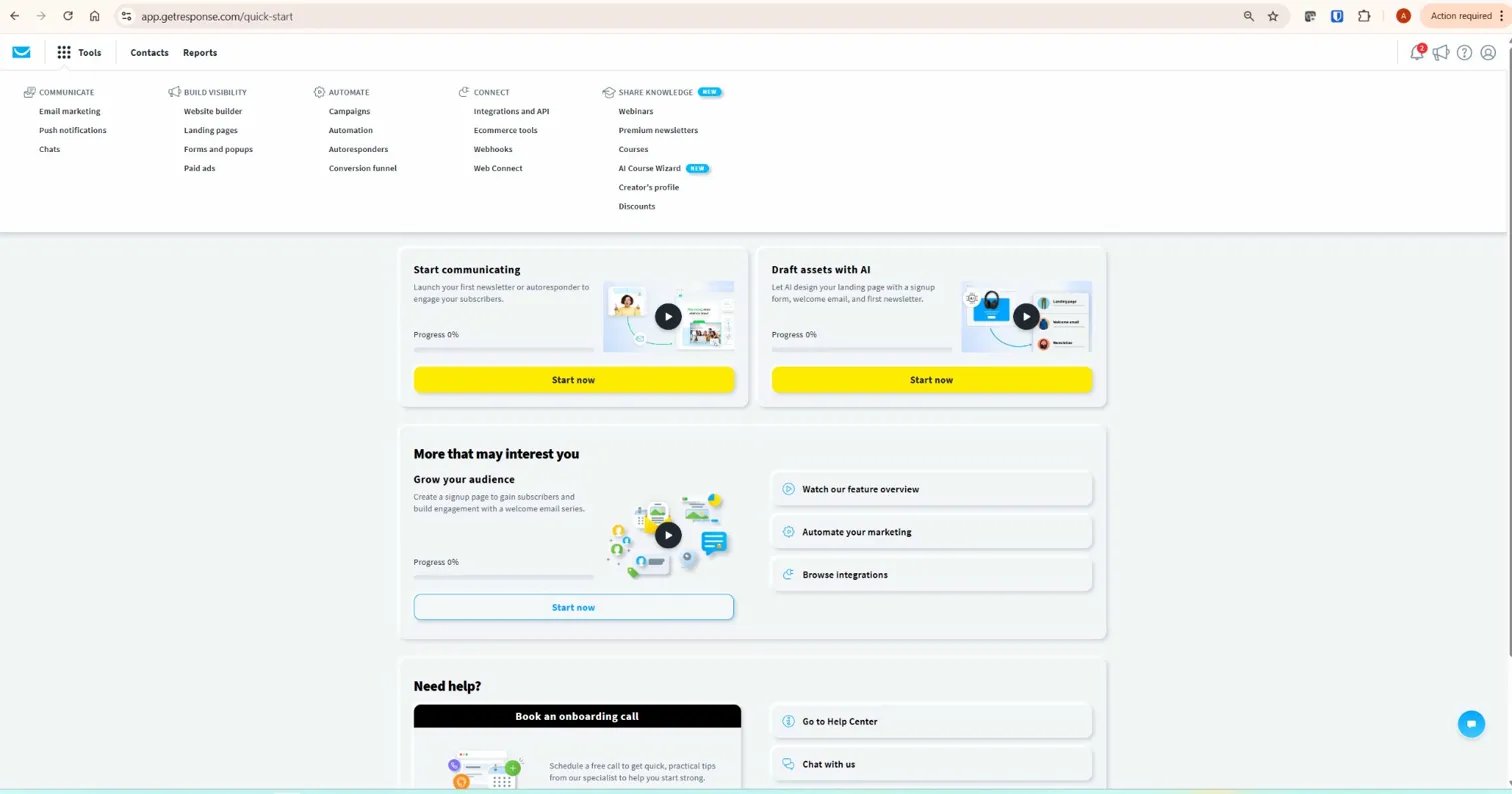
Step 1: Navigate to Newsletters
- From your GetResponse dashboard, go to Tools → Email Marketing
- Click the Newsletters tab
- Click Create newsletter
Step 2: Set Your Newsletter Details
- Enter an internal name for your newsletter — this is for your own reference only, subscribers never see it. Use a naming convention you can search later: “2026-06 Weekly Update” or “June Promo GetResponse”
- Select your linked list — the list whose statistics this newsletter will be tracked against
- Set your From name and From email address — this is what subscribers see as the sender
- Set your Reply-to email — where replies go when subscribers respond
- Enter your subject line — this is the most important factor in open rate; write it before you build the email, not after
Step 3: Choose Your Editor
GetResponse offers two editor options — confirmed from getresponse.com/help:
- Drag-and-Drop Email Editor: The standard choice for most users. Works with predesigned templates, your saved templates, or blank templates. No coding required.
- HTML Editor: Best for users comfortable coding their own email layout. If you encounter rendering issues with custom HTML, you will need to debug the code yourself as GetResponse’s help documentation notes this editor is intended for users already familiar with HTML.
For affiliate content site newsletters, the Drag-and-Drop Editor with a saved master template is the right choice. If you have not yet created a master template for your brand, see our GetResponse email templates guide for how to build and save one before creating your first newsletter.
Step 4: Choose or Customise Your Template
In the editor, use the side menu to browse templates by category — Newsletter, Promotional, Welcome, Seasonal, and more. If you have saved a master template under My Templates, select it here. Click a template to open it in the editor.
Click any element to edit it directly. Replace the logo, headline, body copy, and CTA button with your content. Check the mobile preview before proceeding — the mobile preview toggle is in the top right corner of the editor. When your design is ready, click Next step.
Step 5: Select Recipients
On the recipients screen you can:
- Include specific lists, segments, or individual contacts
- Exclude specific lists or segments — useful for excluding recent buyers from a promotional send or excluding subscribers who already received a similar message
For a standard weekly GetResponse newsletter, select your main list. For a promotional campaign targeting a specific segment — for example, subscribers who clicked a link about a specific topic — select the relevant segment. Check your current plan for available segmentation options — confirm what is included in your account at getresponse.com/pricing.
Step 6: Schedule or Send
On the final screen, choose when to send your newsletter:
- Send now: Delivers immediately
- Schedule for later: Set a specific date and time
- Perfect Timing: GetResponse analyses each subscriber’s past open behaviour and delivers the email at their individually optimal time — explained in more detail below
- Time Travel: Delivers the email at a specific clock time in each subscriber’s local timezone — for example, 9AM for every subscriber regardless of where they are located
Review the summary screen — subject line, recipients count, send time — before clicking Send message or Schedule.
Perfect Timing vs Time Travel: Which Should You Use?
Both features optimise send time — but they work differently and suit different situations. Most GetResponse newsletter tutorials do not distinguish between them, which leads to confusion about which to choose.
| Feature | How It Works | Best For |
|---|---|---|
| Perfect Timing | Analyses each subscriber’s past open behaviour and delivers at their individual optimal time — within a 24-hour window from your send time | Regular newsletters where maximising open rate matters more than a specific delivery window |
| Time Travel | Delivers at a specific clock time in each subscriber’s local timezone — e.g. 9AM for everyone simultaneously in their own timezone | Time-sensitive content where arrival at a specific hour matters — promotions, event announcements, weekly roundups |
| Send Now / Schedule | Delivers at a fixed time regardless of subscriber timezone or behaviour | Simple sends to a geographically concentrated list, or when testing a specific time slot |
For most affiliate content site GetResponse newsletters — weekly content roundups and product recommendations — Perfect Timing is the right default. For time-sensitive promotional campaigns where the offer expires at a specific hour, use Schedule with a fixed time instead.
How to Use the GetResponse AI Email Generator for Newsletters
GetResponse includes an AI Email Generator that creates a complete GetResponse newsletter draft based on your topic and business type — confirmed from getresponse.com/help/how-to-create-a-newsletter-using-ai-email-generator.html.
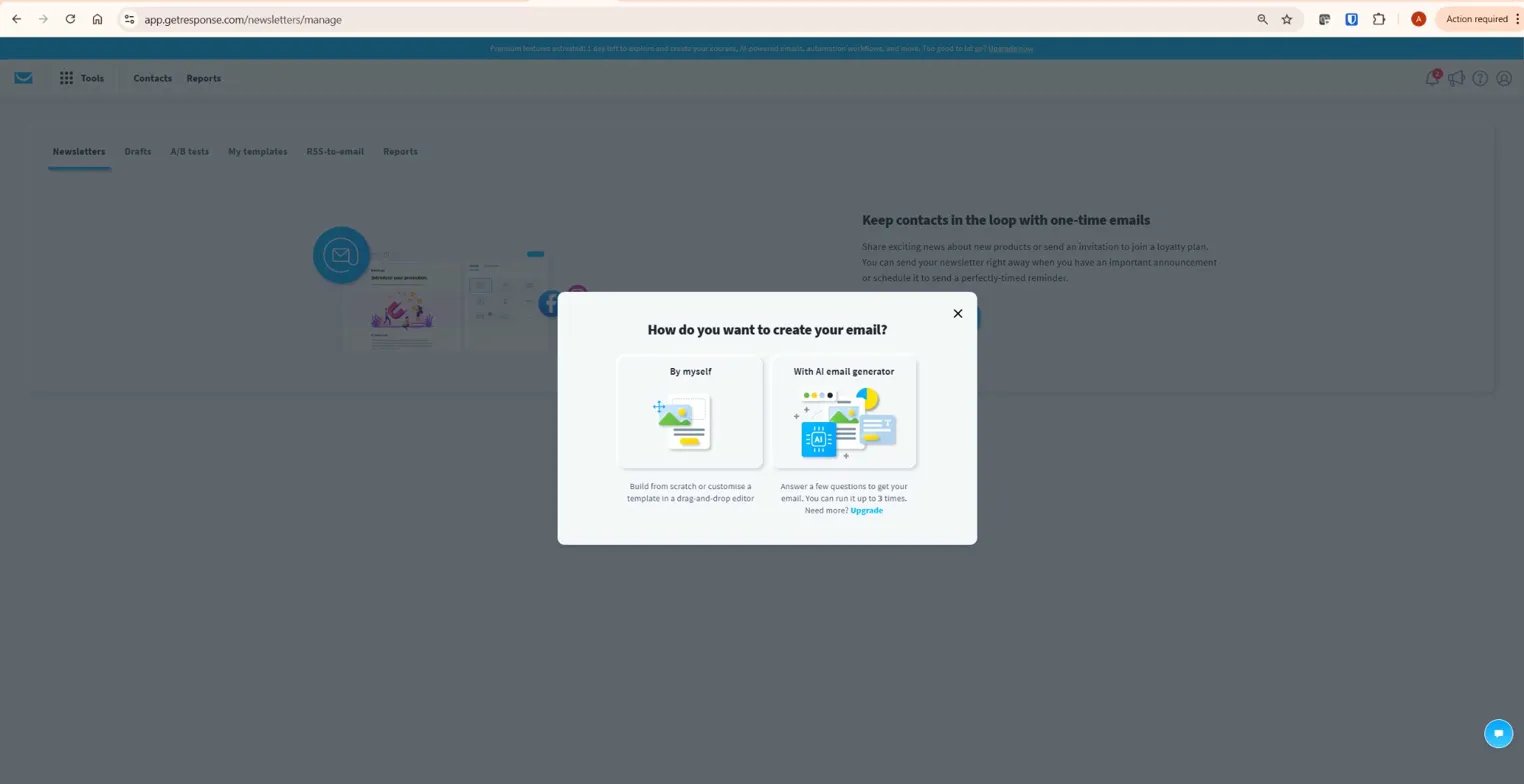
To use it: go to Tools → Email Marketing → Create newsletter, then click Use an AI email creator in the popup window. Enter your topic keywords and business type. GetResponse generates a complete message — subject line, body copy, and layout — that you then customise before sending.
Plan limits for the AI Email Generator — confirmed from primary source:
- Creator and Marketer plans: Unlimited uses — confirmed from getresponse.com/help/how-to-create-a-newsletter-using-ai-email-generator.html
- Starter plan: Limited to 3 uses — confirmed from getresponse.com/help/how-to-create-a-newsletter-using-ai-email-generator.html
- Free account during 14-day trial: Up to 3 uses during the trial period only
- Free account after trial: No access to AI Email Generator — upgrade required
The AI generator is useful for drafting a starting point when you are stuck on structure or copy. For affiliate content site newsletters where the content needs to reflect your specific voice and genuine recommendations, treat the AI output as a draft framework rather than a finished email — edit heavily before sending.
How to Resend a GetResponse Newsletter to Non-Openers
GetResponse allows you to resend a newsletter to subscribers who did not open the first send — confirmed from getresponse.com/help. This is one of the most underused features for improving overall campaign reach without building a new email from scratch.
To resend to non-openers: go to Tools → Email Marketing, find the sent newsletter, click the three-dot menu on the right, and select Resend to non-openers. GetResponse creates a copy of the original newsletter pre-filtered to only the subscribers who did not open. Change the subject line before resending — a different subject line is the primary reason non-openers convert on the second attempt.
As a general best practice, waiting 48–72 hours before resending gives subscribers who open at irregular times a chance to open the original first. According to Campaign Monitor’s email marketing benchmarks, average email open rates vary significantly by industry — knowing your benchmark helps you evaluate whether your resend strategy is improving performance or diminishing returns. This gives subscribers who open emails at irregular times a chance to open the original before receiving the follow-up.
GetResponse Newsletter vs Premium Newsletter: What Is the Difference?
GetResponse now offers two distinct newsletter types — confirmed from getresponse.com/help/what-are-premium-newsletters-and-how-to-create-them.html:
- Regular newsletter: A one-time broadcast email sent free to your subscribers — no paywall, accessible by everyone on your list. This is what most users mean by a “GetResponse newsletter.”
- Premium newsletter: A paid-access newsletter where subscribers pay a subscription fee to receive your content. Available on the Creator plan under Tools → Premium Newsletters. Subscribers can access content via your Creator’s profile page at a URL generated from your newsletter name.
For affiliate content site owners at the current stage, regular newsletters are the right tool. Premium newsletters become relevant when the site has sufficient audience and authority to charge subscribers directly for content — a separate revenue stream from affiliate commissions.
GetResponse Newsletter: Common Mistakes to Avoid
Mistake 1: Sending Without a Saved Master Template
Rebuilding your logo, colours, header, and footer layout from scratch on every newsletter wastes time and produces inconsistent branding. Build a master template once, save it to My Templates, and every newsletter starts from your branded baseline. See our GetResponse email templates guide for the exact setup process.
Mistake 2: Writing the Subject Line Last
The subject line determines whether your newsletter gets opened. Writing it last — after the body copy is finished — means it becomes an afterthought. Write the subject line first, before designing the email, so the entire newsletter is built around a clear, specific promise to the reader.
Mistake 3: Not Sending a Test Email
GetResponse’s editor shows a preview, but previews do not replicate how different email clients render HTML. Always send a test email to Gmail and Outlook before sending to your list. Check that images load, links work, the unsubscribe link functions, and the layout renders correctly on mobile. A broken newsletter sent to your full list cannot be recalled.
Mistake 4: Sending to Your Entire List Every Time
Sending every newsletter to every subscriber regardless of their interests inflates unsubscribe rates over time. Use the recipients exclusion feature to exclude subscribers who have recently received a similar message, or use segments to target newsletters by topic interest. Better targeting produces better open rates and lower unsubscribes — both of which improve your long-term deliverability. For independent deliverability data across email platforms, EmailToolTester’s deliverability assessments consistently show GetResponse performing above the industry average for inbox placement.
What To Do Next
If you have never sent a GetResponse newsletter before, go to Tools → Email Marketing → Create newsletter now and build your first draft. Do not aim for perfect — aim for sent. Use a predesigned template, write a clear subject line, select your list, and schedule for tomorrow morning. Once you have one GetResponse newsletter sent and the statistics in front of you, the process becomes straightforward for every send that follows. For the broader GetResponse setup process — domain authentication, list creation, landing pages, and automation — see our complete GetResponse guide.
Frequently Asked Questions
How do I create a newsletter in GetResponse?
Go to Tools → Email Marketing → Newsletters tab → Create newsletter. Choose the Drag-and-Drop Email Editor, set your linked list, from email, reply-to address, and subject line. Select a template and customise it in the editor. Click Next step, add recipients, then schedule or send. Full navigation confirmed from getresponse.com/help/how-to-create-and-send-a-newsletter.html.
What is the difference between a newsletter and an autoresponder in GetResponse?
A newsletter is a one-time broadcast email sent to your list or a segment at a specific time — every recipient receives it at once. An autoresponder is a time-based email sequence sent automatically to individual subscribers at set intervals after they join your list — each subscriber receives the same sequence but on their own timeline. Newsletters are for regular communications to your whole list; autoresponders handle automated welcome and nurture sequences for new subscribers.
How do I send a newsletter to specific contacts in GetResponse?
On the recipients screen during newsletter creation, you can include specific lists, segments, or individual contacts — and exclude others. To target a specific segment, create the segment first under Contacts → Segments, then select it on the recipients screen. Segmentation options are available from the Marketer plan. You can also exclude contacts from a send — useful for excluding recent buyers from a promotional campaign or subscribers who already received a similar email.
Can I schedule a newsletter in GetResponse?
Yes. On the final screen before sending, choose Schedule for later and set your date and time. GetResponse also offers Perfect Timing (delivers at each subscriber’s individually optimal time based on past open behaviour) and Time Travel (delivers at a specific clock time in each subscriber’s local timezone). All three scheduling options are confirmed from getresponse.com/help/how-to-create-and-send-a-newsletter.html.
How does Perfect Timing work in GetResponse?
Perfect Timing analyses each subscriber’s past open behaviour and delivers the newsletter at their individually optimal time — within a 24-hour window from your scheduled send time. It is different from Time Travel, which delivers at a specific clock time in each subscriber’s local timezone. Perfect Timing is best for regular newsletters where maximising open rate is the priority. Time Travel is best for time-sensitive content where delivery at a specific hour matters regardless of each subscriber’s individual behaviour patterns.
How do I use the AI Email Generator for newsletters in GetResponse?
Go to Tools → Email Marketing → Create newsletter, then click Use an AI email creator in the popup window. Enter your topic keywords and business type — GetResponse generates a complete draft including subject line, body copy, and layout. Creator and Marketer plan users have unlimited uses. Starter plan users are limited to 3 uses. Free account users can try it up to 3 times during the 14-day premium trial only — confirmed from getresponse.com/help/how-to-create-a-newsletter-using-ai-email-generator.html.
Can I resend a GetResponse newsletter to subscribers who did not open it?
Yes. Go to Tools → Email Marketing, find the sent newsletter, click the three-dot menu, and select Resend to non-openers. GetResponse creates a copy pre-filtered to non-openers. Change the subject line before resending — a different subject line is the main reason the second send converts subscribers who ignored the first. As a general best practice, waiting 48–72 hours before resending gives subscribers who open at irregular times a chance to open the original first. Confirmed from getresponse.com/help.
Related GetResponse Articles
- GetResponse Review 2026: The Honest Verdict for Affiliate Marketers
- How to Use GetResponse: Complete Step-by-Step Guide (2026)
- GetResponse Email Templates: Complete Guide (2026)
- GetResponse Automation: 7 Proven Steps for Affiliate Marketing
- GetResponse Free Plan: The Honest 2026 Guide
- GetResponse Pricing in 2026: Plans, Features & What You Actually Pay For
All navigation paths, feature descriptions, and plan limits in this article are verified from GetResponse’s official help documentation — getresponse.com/help/how-to-create-and-send-a-newsletter.html, getresponse.com/help/how-to-create-a-newsletter-using-ai-email-generator.html, and getresponse.com/help/what-are-premium-newsletters-and-how-to-create-them.html — as of June 2026. GetResponse updates its platform regularly — always verify current details at getresponse.com before making decisions.
