
TradingView Alerts Not Working? 9 Proven Fixes (2026)
This article contains affiliate links. If you sign up for TradingView through a link on this page, I may earn a commission at no extra cost to you. I only recommend tools I have genuinely evaluated.
Trading involves risk. Technical analysis tools do not guarantee profitable results. Past performance is not indicative of future results. Always manage your risk appropriately.
TradingView alerts not working is one of the most frustrating problems on the platform — you set up a condition, wait for the signal, and nothing fires. I am Andreas Maratheftis, and after 30 years in professional finance I have learned that most alert failures come down to one of nine specific causes, almost all of which are fixable in under five minutes. This guide walks through each one in order of how commonly they occur, so you can diagnose and fix the problem without wasting time on the wrong solution.
Quick Answer
TradingView alerts stop working for nine main reasons: hitting your plan’s alert limit, alert expiry, wrong frequency setting, repainting indicators, notification delivery failures, webhook misconfiguration, browser vs server-side alert confusion, changed chart settings after alert creation, and platform outages. One of the most common causes is alert expiry — Basic plan alerts expire after one month, Essential and Plus alerts after two months. If your alert simply stopped firing without any obvious change on your end, expiry is the first thing to check.
Why TradingView Alerts Stop Working: The Root Causes
Before running through the fixes, it helps to understand what TradingView actually does when you create an alert. The platform saves a snapshot of your symbol, timeframe, condition, frequency setting, and notification preferences at the moment you create it. If anything in that snapshot becomes invalid later — the condition is never met on the saved timeframe, the alert expires, or you hit your plan limit — the alert will silently stop firing. TradingView does not always notify you when this happens. That silence is why diagnosing the cause matters more than randomly recreating alerts.
Fix 1: Your Alert Has Expired
Alert expiry is one of the most common causes of alerts suddenly stopping. TradingView imposes expiry limits on every plan, and many traders never realise their alerts have a shelf life.
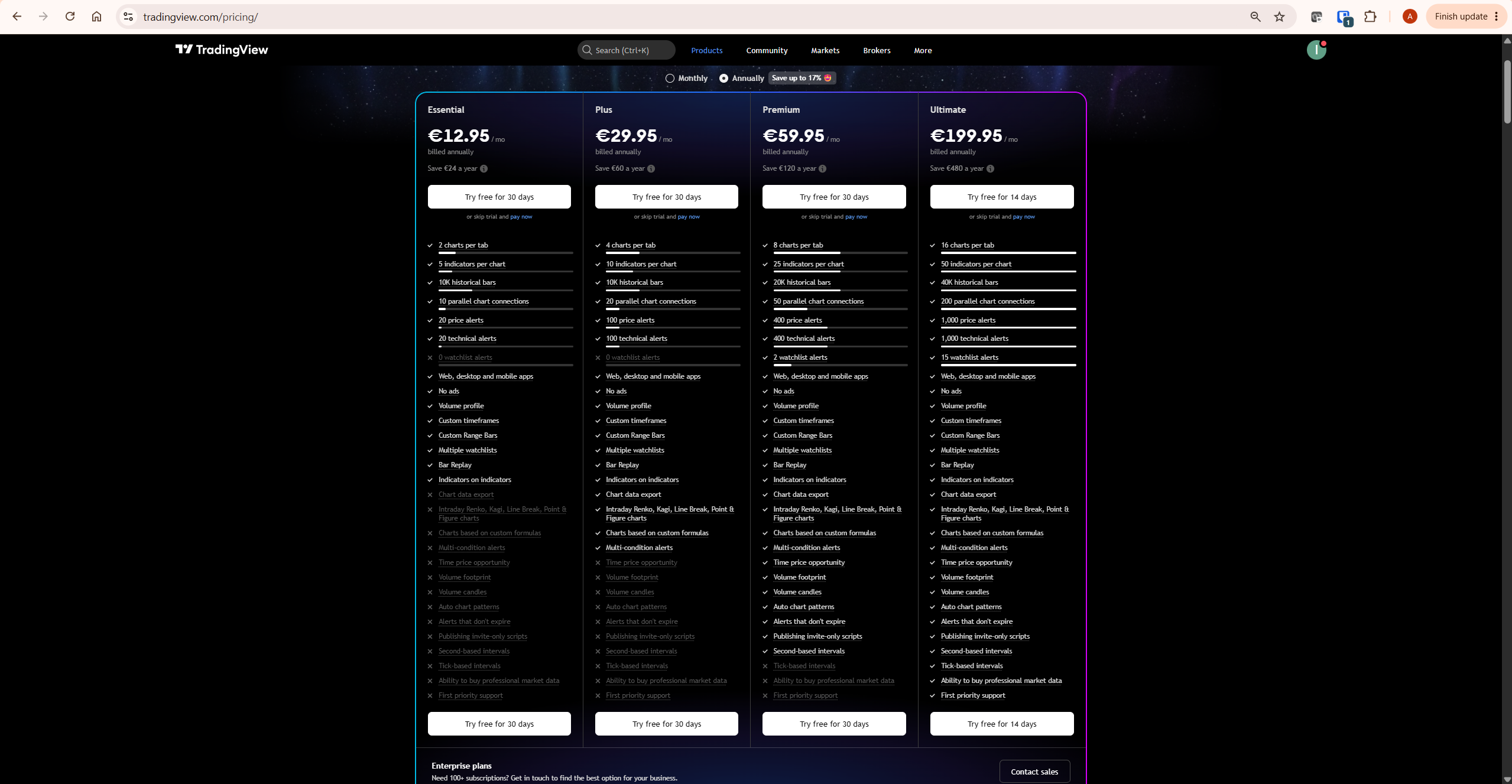
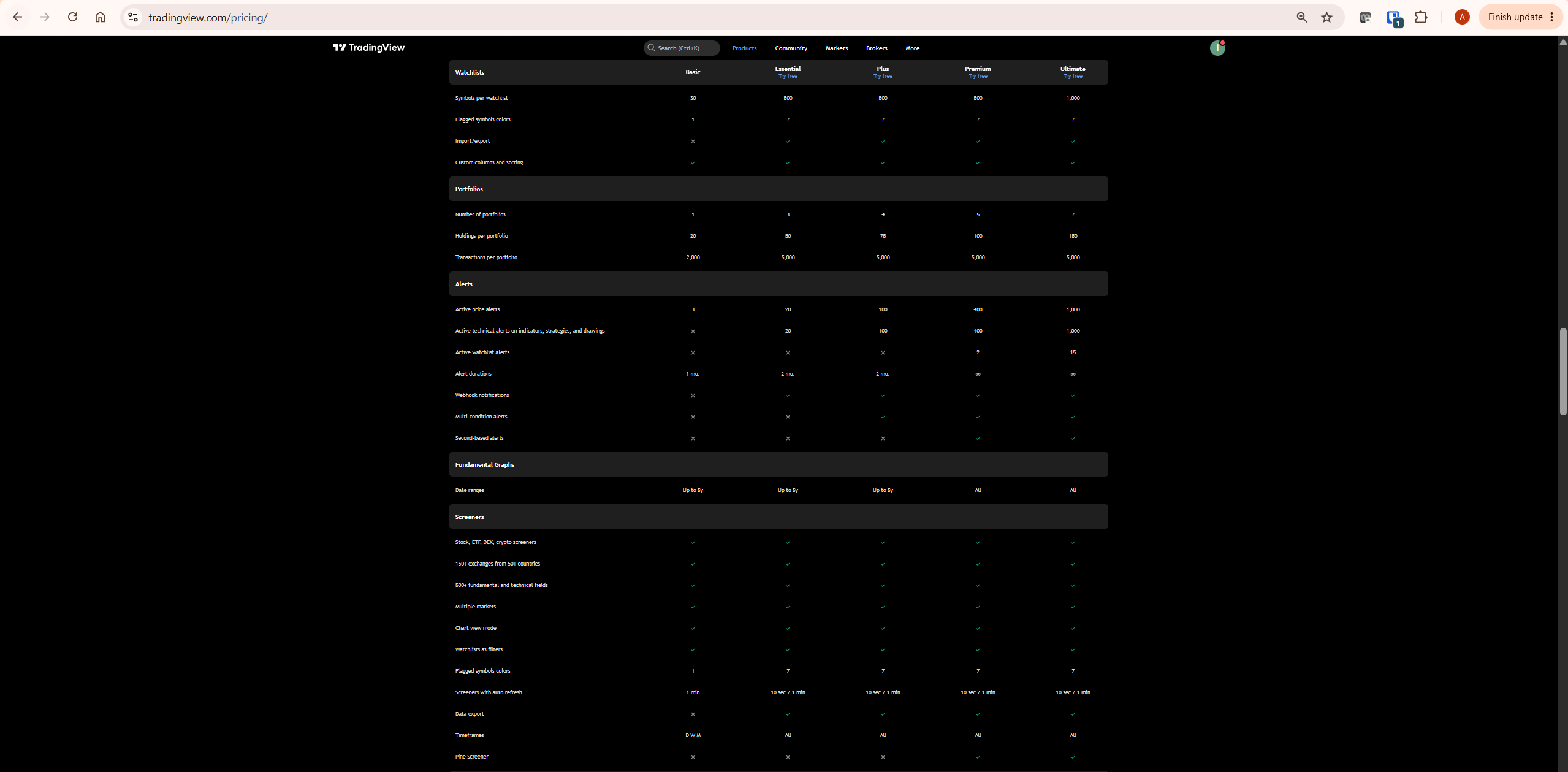
| Plan | Price Alerts | Technical Alerts | Alert Duration | Webhooks | Multi-Condition |
|---|---|---|---|---|---|
| Basic (Free) | 3 | Not included | 1 month then expires | Not included | Not included |
| Essential | 20 | 20 | 2 months then expires | Included | Not included |
| Plus | 100 | 100 | 2 months then expires | Included | Included |
| Premium | 400 | 400 | Never expires | Included | Included |
| Ultimate | 1,000 | 1,000 | Never expires | Included | Included |
If you are on the Basic, Essential, or Plus plan and an alert that was working has gone quiet, check when you created it. Basic alerts expire after one month. Essential and Plus alerts expire after two months. Once expired, the alert is removed from the system entirely — it does not reset or pause, it disappears.
The fix: Open the Alerts panel (clock icon in the right toolbar), check the alert list for expired items, and recreate the alert. If you find yourself recreating the same alerts repeatedly, Premium is the first plan where alerts never expire — worth considering if this is a recurring problem for your workflow. Always verify current plan details and pricing at tradingview.com/pricing.
Fix 2: You Have Hit Your Plan’s Alert Limit
TradingView silently stops creating new alerts once you reach your plan’s active alert cap. There is no error message — the alert simply does not get added, or an older one may be deactivated depending on how the limit is enforced.
The Basic plan allows 3 active price alerts and zero technical alerts. Essential allows 20 of each. Plus allows 100. If you monitor multiple instruments across several timeframes, hitting the Essential limit of 20 is easy — particularly if you have not cleared out old alerts that are no longer relevant.
The fix: Open the Alerts Manager, sort by status, and delete any alerts on instruments you are no longer tracking. If you regularly hit the cap, the upgrade from Essential to Plus (100 alerts each) is the practical solution. For traders running automated strategies with webhooks across multiple markets, Plus is typically the minimum viable plan.
For a full breakdown of what each plan includes beyond alerts, see our TradingView Free vs Paid guide.
Fix 3: Wrong Frequency Setting
The frequency setting determines how often an alert can fire once its condition is met. Getting this wrong is extremely common and produces behaviour that looks like a broken alert when the alert is actually working correctly — just not in the way you intended.
TradingView offers four frequency options: Once, Once Per Bar, Once Per Bar Close, and Every Time. Each one behaves differently:
| Frequency Setting | When It Fires | Best Used For | Common Mistake |
|---|---|---|---|
| Once only | Fires one time only, then deactivates permanently | One-time price level notifications | Alert fires once and never again — trader thinks it broke |
| Once per bar | Fires once each time a new bar opens and condition is met | Indicator crossovers where you want one alert per candle | Fires on open-bar data that repaints before close |
| Once per bar close | Fires only when the bar closes with the condition met | Strategy alerts where you need confirmed signals | Appears to lag — fires after the move, not during it |
| Once per minute or every time | Fires continuously while condition is met, up to once per minute | Real-time monitoring of live conditions | Alert spam — fires repeatedly on a strong sustained trend |
The fix: If your alert fired once and stopped, it was set to “Once only” — delete and recreate with “Once per bar close” for indicator alerts or “Once per minute or every time” for price level monitoring. If it is firing too often, switch to “Once per bar close.” For most technical analysis alerts, Once per bar close is the most reliable setting because it only fires on confirmed candle data.
Fix 4: Repainting Indicators
Repainting is one of the least understood causes of unreliable alerts and one of the most important to diagnose correctly. TradingView’s own support documentation identifies repainting as a primary cause of alert miscalculation.
A repainting indicator recalculates its historical values as new data arrives. On a live chart this looks fine — the signal appears, the alert fires, and everything seems to work. The problem emerges when you check the chart after the fact: the signal that triggered your alert may no longer be visible because the indicator has recalculated and removed it. The alert fired on data that the indicator has since changed.
This is particularly common with community-published Pine Script indicators that use future data in their calculations, and with any indicator that uses the barstate.isrealtime function without a bar-close condition.
The fix: Set the alert frequency to “Once Per Bar Close.” This forces the alert to evaluate the indicator only on completed bars, where repainting cannot change the value. If the problem persists, the indicator itself may be fundamentally repainting — check the script source or switch to a confirmed non-repainting alternative. TradingView’s official guide on repainting is available at their support centre and explains the underlying mechanics clearly.
Fix 5: Notification Delivery Failure
The alert fires on TradingView’s servers but you never receive it. This is a delivery problem, not an alert problem — the two are separate systems and fail independently.
The most common delivery failures are push notifications not enabled in your device settings, email alerts going to spam, and the TradingView mobile app not having notification permissions granted in your phone’s system settings.
The fix — check in this order:
- Go to TradingView Profile → Notifications and confirm which delivery methods are enabled
- On mobile: check your phone’s system settings (Settings → Apps → TradingView → Notifications) and confirm notifications are allowed
- Check your email spam folder for the address registered on your TradingView account
- Test with a simple price alert on a liquid instrument set to trigger immediately — confirm it fires and you receive the notification before relying on it for trading decisions
Native push notifications are available across all plans including Basic. If you are on Basic and not receiving push notifications, the issue is almost always device permissions rather than the plan.
Fix 6: Notification Delivery vs Alert Triggering
There is an important distinction that resolves a lot of confusion here. TradingView’s own help centre confirms that all alerts — across every plan including the free Basic plan — are server-side. This means the alert condition is evaluated on TradingView’s servers and will trigger even if you close your browser, close the app, or turn off your computer.
What can fail is not the alert triggering — it is the notification reaching you. The alert fires on TradingView’s servers but the delivery path breaks before it reaches your device. This is why an alert can appear to have “not worked” even when TradingView’s own logs show it fired correctly.
The most common delivery failures are: push notifications not enabled in your device’s system settings, the TradingView mobile app backgrounded and killed by your phone’s battery optimisation, email alerts going to spam, and pop-up notifications blocked by your browser.
The fix: Check Profile → Notifications and confirm which delivery methods are active. On mobile, go to your phone’s system settings, find TradingView under Apps, and confirm notifications are allowed and background app refresh is enabled. Test with a simple price alert set to trigger immediately — confirm the notification arrives before relying on any alert for trading decisions.
TradingView Premium includes never-expiring server-side alerts — try it free for 30 days.
Fix 7: Webhook Not Receiving Alerts
Webhooks are available from Essential upward and are used for automated trading workflows — sending alert signals to external bots, scripts, or trading platforms. When a webhook stops working, the alert itself is usually firing correctly; the problem is in the delivery path between TradingView and your endpoint.
Check these four things in order:
- URL format: TradingView requires HTTPS. An HTTP endpoint will fail silently. Confirm your URL starts with https://
- Trailing spaces: A single invisible space at the end of a pasted webhook URL breaks delivery. Delete and retype the URL manually rather than pasting
- Server response time: TradingView requires your endpoint to respond within 3 seconds. If your server is slow or down, the webhook times out and TradingView marks it as failed
- Test with webhook.site: This free tool gives you a temporary HTTPS endpoint that logs every incoming request. Temporarily set your alert webhook URL to a webhook.site address and confirm TradingView is sending — this isolates whether the problem is on TradingView’s side or your server’s side
If TradingView sends repeated failed webhooks to an endpoint, it may temporarily disable delivery to that URL. Recreating the alert with a corrected URL resolves this.
Fix 8: Chart Settings Changed After Alert Creation
TradingView saves alerts against the exact state of the chart at creation time. If you change the indicator settings, modify the symbol, or switch the timeframe after creating the alert, the alert condition may no longer match what is currently on the chart — and it will either fire incorrectly or not fire at all.
This is particularly common with Pine Script indicator alerts. If you update a script’s source code or change its input parameters after the alert was created, the alert continues referencing the old version of the indicator. The signal on the live chart comes from the new version; the alert fires from the old one. The two can diverge significantly.
The fix: Any time you modify an indicator’s settings or script, delete and recreate all associated alerts from scratch. This ensures the alert and the live chart are evaluating the same condition. It takes two minutes and eliminates an entire category of phantom alert behaviour.
Fix 9: TradingView Platform Outage
Platform outages are rare but worth ruling out quickly before spending time on your own setup. TradingView has experienced occasional brief alert outages — typically resolved within an hour. The key signal that this is a platform issue rather than your configuration: alerts stop working across multiple instruments and conditions simultaneously, not just one specific setup.
The fix: Check status.tradingview.com first — it takes 10 seconds. If there is an active incident, wait it out. If the status page shows all systems operational, the problem is in your setup and the other eight fixes in this guide will find it. Bookmark the status page as a quick first check before any deeper troubleshooting session.
The Fastest Diagnostic Sequence
When an alert stops working, run through this sequence before changing anything. Changing multiple settings at once means you lose the ability to identify what actually fixed the problem.
- Check status.tradingview.com — confirm no active outage
- Open Alerts Manager — check if the alert has expired or been deactivated
- Check your plan’s alert count — confirm you have not hit the cap
- Check the alert’s frequency setting — confirm it matches your intent
- Check notification delivery settings in Profile → Notifications
- If using a Pine Script indicator — check whether the indicator repaints and switch to Once Per Bar Close
- If using webhooks — test with webhook.site to isolate the delivery path
- If chart settings changed since the alert was created — delete and recreate the alert
Most alert failures are resolved by step 3. The remaining cases are almost always frequency setting or repainting issues.
Which Plan Solves the Most Common Alert Problems
Many alert problems are not bugs — they are plan limitations. Understanding which plan resolves which problem saves time and avoids unnecessary troubleshooting.
If alerts keep expiring: upgrade to Premium — the first plan where alerts never expire. Essential and Plus both still expire after two months.
If you keep hitting the alert cap: upgrade from Essential (20) to Plus (100). For most active traders monitoring multiple markets, Plus covers everything.
If alerts miss moves when your browser is closed: upgrade to Premium for server-side delivery. This is the most impactful upgrade for traders who monitor markets they cannot watch continuously.
If you need multi-condition alerts: upgrade from Essential to Plus. Essential does not support multi-condition logic — each alert can only evaluate one condition at a time.
If you need second-based alerts for scalping: Premium is the minimum plan. Basic, Essential, and Plus are limited to minute-based intervals.
For a full explanation of TradingView’s alert setup process before troubleshooting, see our TradingView Alerts Explained guide. For context on how technical alerts fit into broader technical analysis workflows, Investopedia covers the fundamentals clearly.
What To Do Next
Open your TradingView Alerts Manager right now and check the status of every active alert. Look for expired alerts, alerts approaching their expiry date, and any with the “Once” frequency setting that may have already fired and deactivated. Delete what is no longer needed, recreate anything expired, and confirm your notification delivery settings in Profile → Notifications. This takes less than ten minutes and resolves the majority of alert problems without any further troubleshooting.
Related TradingView Guides
- TradingView Alerts Explained — complete setup guide for creating alerts from scratch
- TradingView Free vs Paid — full plan comparison including alert limits, expiry, and server-side delivery
- TradingView Review — complete platform overview including honest limitations
- Pine Script Tutorial — how to build custom indicators and use alertcondition() correctly
- TradingView Screener — find instruments worth alerting on before setting up conditions
Frequently Asked Questions
Why are my TradingView alerts not working?
The most common reasons are alert expiry, hitting your plan’s alert limit, and wrong frequency settings. Basic plan alerts expire after one month, Essential and Plus after two months. If your alert simply went quiet without any obvious cause, check the Alerts Manager for expired or deactivated alerts first. If the alert is still active, check the frequency setting — an alert set to “Once only” deactivates permanently after its first trigger.
Do TradingView alerts expire?
Yes. Basic plan alerts expire after one month. Essential and Plus plan alerts expire after two months. Premium and Ultimate plan alerts never expire. Expiry is one of the most overlooked causes of alerts stopping — the alert is not broken, it has simply reached its duration limit and been removed from the system. Recreate it to restore it.
Why is my TradingView alert not triggering on my indicator?
The most likely cause is a repainting indicator combined with the wrong frequency setting. Set the alert to “Once Per Bar Close” — this forces the condition to be evaluated only on completed bars, where repainting cannot alter the result. If the alert still does not trigger, check whether the indicator’s settings were changed after the alert was created. Any change to the indicator after alert creation requires the alert to be deleted and recreated.
Why did my TradingView alert stop firing after working for a while?
This is almost always alert expiry. If the alert was working and then suddenly went quiet with no changes made, check when you created it. Basic alerts expire at one month, Essential and Plus at two months. The second most common cause is hitting the active alert limit — if you created new alerts after this one, older alerts may have been displaced. Open the Alerts Manager and check the status of the specific alert.
Does TradingView alert work when the app is closed?
Yes — on all plans including the free Basic plan. TradingView confirms in their official help centre that all alerts are server-side and will trigger even if you close TradingView completely. What can fail is notification delivery to your device, not the alert itself. If you close your browser but have push notifications enabled on your phone, you will still receive the alert. The most common reason alerts appear to stop when TradingView is closed is that push notifications are not properly configured on your device, not that the alert failed to trigger.
How many alerts can I have on TradingView free?
The free Basic plan allows 3 active price alerts. Technical alerts on indicators, strategies, and drawings are not available on the free plan. All three alerts expire after one month. Upgrading to Essential increases the limit to 20 price alerts and 20 technical alerts, extending expiry to two months and adding webhook support.
How do I fix TradingView webhook alerts not sending?
Check four things: confirm the URL starts with HTTPS not HTTP, remove any trailing spaces from the webhook URL, verify your server responds within 3 seconds, and test delivery using webhook.site to isolate whether TradingView is sending or your server is failing to receive. Webhooks require Essential plan or higher — they are not available on the free Basic plan.
Trading disclaimer: Trading involves risk. Technical analysis tools do not guarantee profitable results. Past performance is not indicative of future results. Always manage your risk appropriately.
