
How to Use TradingView Bar Replay: Best Complete Guide (2026)
This article contains affiliate links. If you sign up for TradingView through a link on this page, I may earn a commission at no extra cost to you. I only recommend tools I have genuinely evaluated.
Trading involves risk. Technical analysis tools do not guarantee profitable results. Past performance is not indicative of future results. Always manage your risk appropriately.
If you have been studying chart patterns and technical setups but cannot seem to identify them consistently in real time — only recognising them clearly in hindsight — learning how to use TradingView Bar Replay is the specific skill that closes that gap. How to use TradingView Bar Replay correctly turns historical price data into a live training environment where you make decisions without knowing what happens next, building the pattern recognition and execution discipline that hindsight analysis cannot develop.
How to use TradingView Bar Replay is one of the most underutilised skills among developing traders — and one of the most valuable. Most traders look at finished charts and draw conclusions from a position of complete information. Bar Replay removes that luxury and forces you to read price as it unfolds, candle by candle, exactly as you would in a live trading session. The difference in skill development between these two approaches is significant.
After 30 years in finance, I have seen traders spend months analysing completed charts and still struggle with live execution. How to use TradingView Bar Replay is the bridge between knowing what a setup looks like and being able to act on it in real time.
By the end of this guide, you will know exactly how to use TradingView Bar Replay from activation through to a structured daily practice workflow — including how to combine it with multi-timeframe analysis and paper trading for maximum skill development.
If you do not yet have a TradingView account, Bar Replay is available on the free plan. Get started with TradingView here.
Quick Answer: How to Use TradingView Bar Replay
How to use TradingView Bar Replay in three steps: click the Bar Replay icon in the top chart toolbar (it looks like a play button), drag the vertical selector line to the historical point where you want to begin your replay, and click Play. All candles after your selected point are hidden — you now see only what a trader in that moment would have seen. Use the playback controls to advance candle by candle or play continuously at adjustable speed. How to use TradingView Bar Replay effectively goes beyond the mechanics: the training value comes from making explicit entry, exit, and stop-loss decisions at each pause point before advancing to the next candle — not watching passively as price unfolds.
What Is TradingView Bar Replay and Why It Matters
Before walking through how to use TradingView Bar Replay step by step, understanding what makes this feature genuinely valuable — rather than just an interesting chart toy — sets the right expectations for how to use it productively.
TradingView Bar Replay is a built-in historical replay tool that allows you to select any point in a chart’s history and replay price action forward from that point, candle by candle, with future price hidden. How to use TradingView Bar Replay is fundamentally different from reviewing a completed chart — when you look at a finished chart, you know where price went, which means your brain unconsciously interprets every indicator reading and price level through the lens of the outcome. This is hindsight bias, and it is the most significant distortion in self-assessed trading performance.
How to use TradingView Bar Replay eliminates hindsight bias by creating genuine information uncertainty — you see what a trader at that historical moment would have seen, nothing more. This makes the decisions you make during replay psychologically closer to live trading decisions than any other form of chart study. According to Investopedia’s guide on backtesting, the most realistic strategy validation combines rule-based testing with manual replay practice — because automated backtesting cannot capture the discretionary judgment that characterises most retail trading approaches.
For a complete overview of TradingView’s full feature set including alerts, indicators, and multi-chart layouts, our TradingView review covers the platform in detail.
How to Use TradingView Bar Replay: Step-by-Step Activation
How to use TradingView Bar Replay begins with finding and activating the feature — which takes under a minute once you know where to look.
Step 1: Open your chart. Go to TradingView and open the asset you want to practice on. How to use TradingView Bar Replay works across all markets — crypto, stocks, forex, commodities — and across all timeframes. Select the asset and timeframe you actually trade, not just the most convenient one. Practice on your real trading environment.
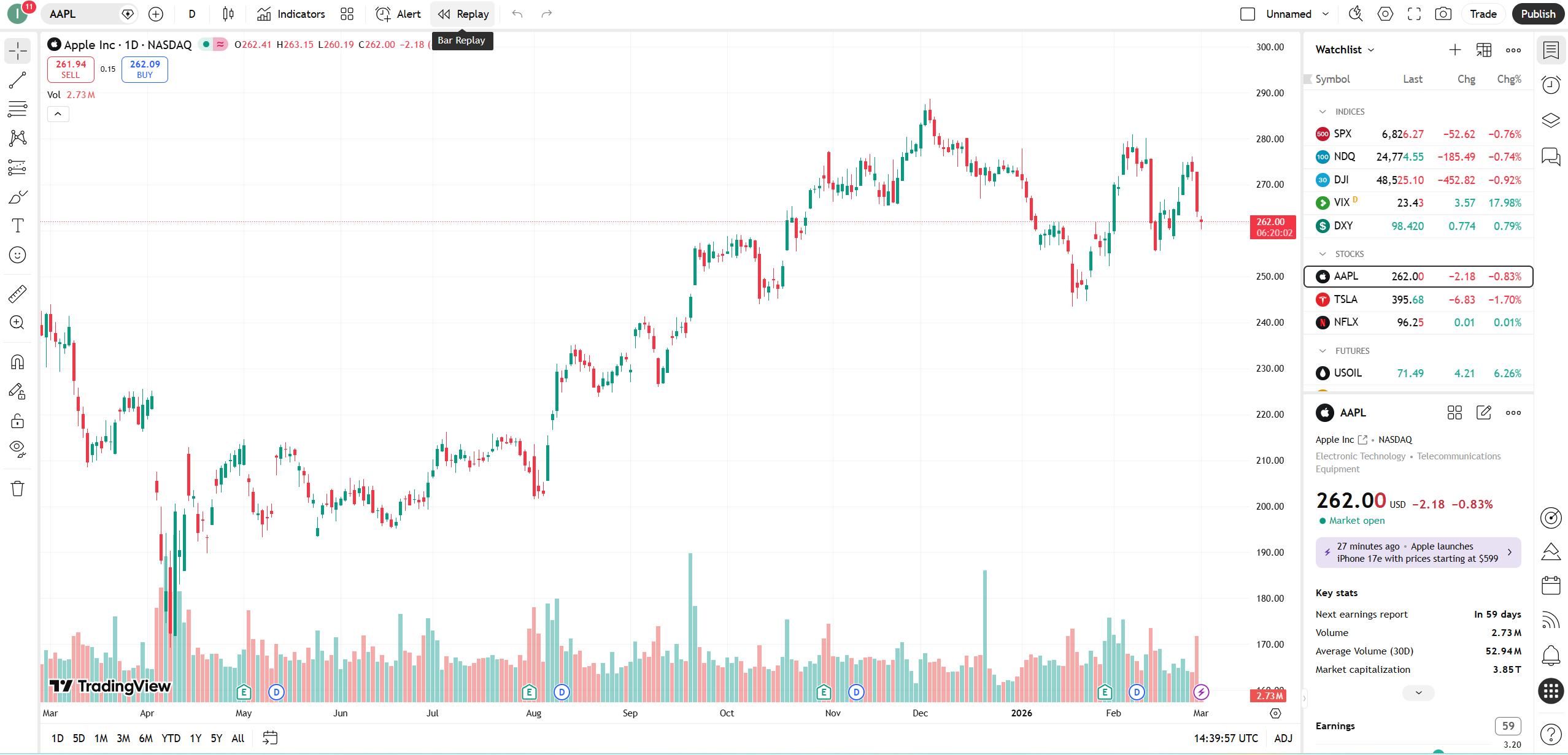
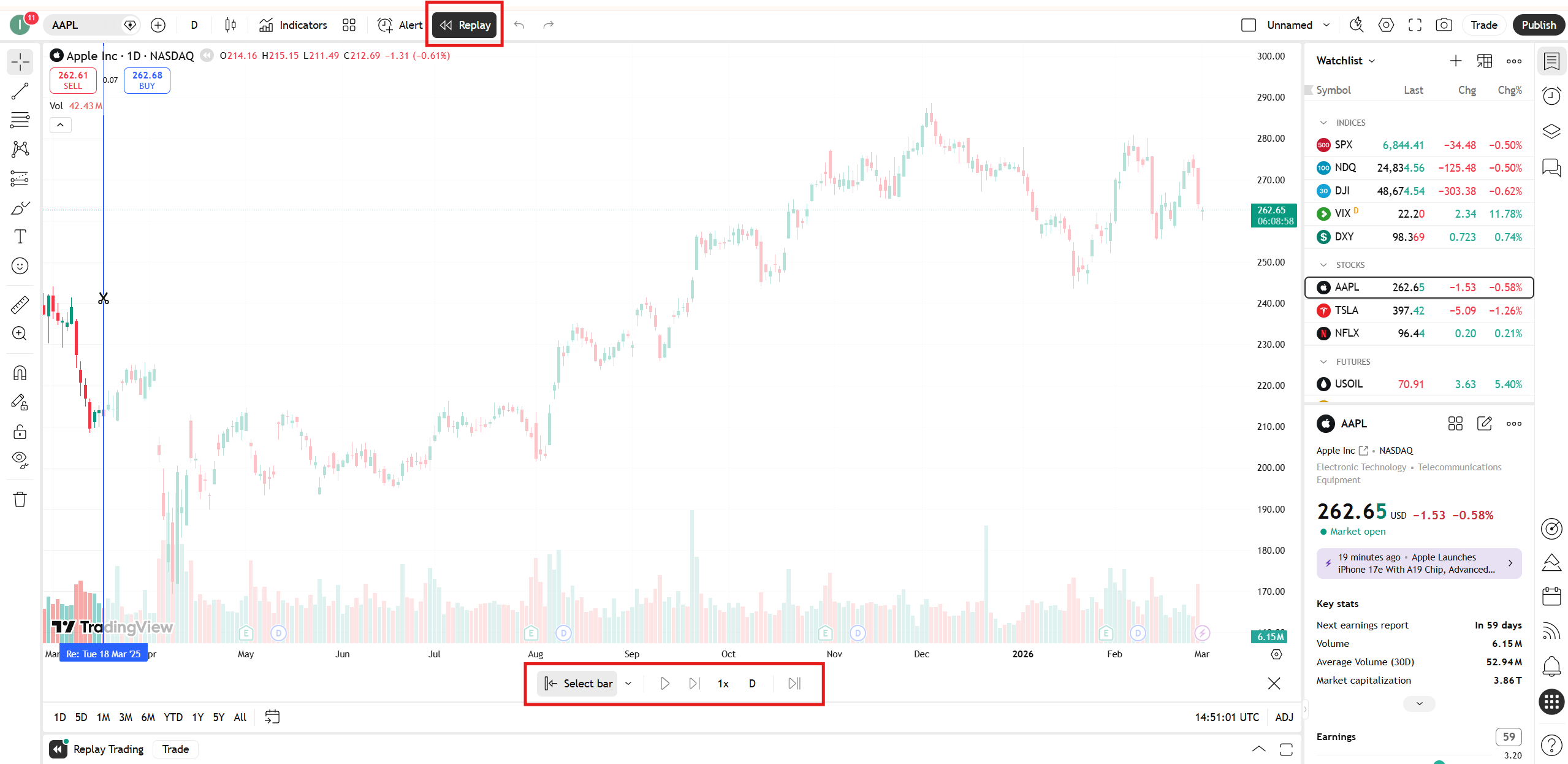
Step 2: Locate the Bar Replay button. Look at the top toolbar of your chart. The Bar Replay icon appears as a play button symbol in the toolbar row. How to use TradingView Bar Replay starts here — click this icon to enter replay mode.

Step 3: Select your starting point. Once Bar Replay is activated, a vertical blue selector line appears on your chart. How to use TradingView Bar Replay from this point: drag the vertical line to the historical candle where you want your practice session to begin. Choose a point with enough preceding price action to provide context — at least 30-50 candles before a known setup type. All candles after your selected point will be hidden when you click Play.
Step 4: Use the playback controls. How to use TradingView Bar Replay with the playback controls: the replay control bar appears at the bottom of the chart once replay begins. You can play continuously at adjustable speeds, pause at any moment, or advance exactly one candle at a time using the step-forward button. For skill development, one-candle-at-a-time advancement is the most valuable mode — it forces an explicit decision at each candle rather than allowing passive observation of price movement.
How to Use TradingView Bar Replay for Pattern Recognition Training
How to use TradingView Bar Replay for genuine pattern recognition improvement requires a structured approach rather than passive chart watching.
Before starting each replay session, define what you are looking for — a specific setup type such as a breakout above resistance with RSI confirmation, a pullback to a moving average with a bullish candle structure, or a trend continuation pattern following a consolidation. How to use TradingView Bar Replay with a defined target setup prevents the common mistake of watching price unfold and concluding retrospectively that you would have taken the trade — which is hindsight bias in a slightly more subtle form.
As you step through candles, pause whenever your setup conditions are approaching. Ask explicitly: do the conditions for entry exist right now, based only on what is visible? If yes, write down or note your entry price, stop-loss level, and take-profit target before advancing the next candle. How to use TradingView Bar Replay with explicit pre-commitment to decisions is what builds genuine pattern recognition — the habit of identifying conditions before knowing the outcome.
For specific indicator configurations that work well with Bar Replay practice sessions, our best TradingView indicators for crypto trading guide covers RSI, EMA, and MACD setups with practical settings recommendations.
How to Use TradingView Bar Replay With Multi-Timeframe Analysis
How to use TradingView Bar Replay in combination with multi-timeframe analysis is where the feature becomes most powerful for intermediate and advanced traders.
Multi-timeframe analysis — checking the daily chart for trend context before acting on a 1H signal — is one of the most reliable improvements any trader can make. How to use TradingView Bar Replay with multiple timeframes requires a paid plan that supports multiple charts per layout. With a 4-chart layout, you can replay the daily, 4H, and 1H charts simultaneously — seeing how a signal on the execution timeframe aligns or conflicts with the higher timeframe context as it develops in real time.
This is significantly more valuable than single-timeframe replay because it trains the top-down analysis habit that separates structured traders from reactive ones. How to use TradingView Bar Replay across multiple timeframes simultaneously: set up your multi-chart layout first, then activate Bar Replay on your primary chart — the replay synchronises across charts automatically. For the complete multi-chart layout setup process, our multi-chart TradingView guide covers the configuration in detail.
How to Use TradingView Bar Replay With Paper Trading
How to use TradingView Bar Replay in combination with paper trading creates the most complete practice environment available within the platform — and it is available on the free plan.
The workflow: activate Bar Replay on your chart, then open the Paper Trading panel simultaneously. As you step through historical candles in replay mode, place simulated paper trades using the order panel — setting stop-loss and take-profit on every trade, exactly as you would live. How to use TradingView Bar Replay with paper trading this way creates a complete simulation loop: historical price context, real-time decision making under information uncertainty, and simulated position management with tracked P&L.
This combination is as close as retail traders can get to live trading practice without actual capital at risk. How to use TradingView Bar Replay with paper trading as a weekly routine — one 45-minute session per week on 30-40 historical candles with paper trades placed and documented — builds execution skills faster than any amount of passive chart review. For the complete paper trading setup guide, our TradingView paper trading guide covers the full workflow.
How to Use TradingView Bar Replay: Building a Structured Practice Session
How to use TradingView Bar Replay productively requires structure — random replay produces random results.
Pre-session setup. Before activating replay, add your standard indicators to the chart — the same configuration you use in live trading. How to use TradingView Bar Replay with your actual indicator setup rather than a simplified version ensures the practice transfers to your real trading environment. Add your EMAs, RSI, and any other indicators you use, then activate replay.
Define the session goal. Each replay session should have a specific focus. How to use TradingView Bar Replay with a defined goal — “today I am practising breakout entries on the 4H chart with RSI confirmation” — prevents unfocused scrolling through price action. Pick one setup type per session and replay exclusively for that setup.
Step through candles deliberately. How to use TradingView Bar Replay with one-candle advancement: use the step-forward button rather than continuous play for the sections approaching potential setups. Slow down where decisions need to be made. Speed up through clear non-setup periods.
Document every decision. Keep a simple session log — candle timestamp, setup conditions present, entry decision (yes/no), entry price, stop level, target. How to use TradingView Bar Replay with documentation converts practice into measurable data. Over 20-30 sessions you will identify patterns: which conditions you consistently misread, which setups you tend to enter too early or too late, and which market environments your strategy handles poorly.
Review after each session. After completing the replay, advance through the hidden candles at full speed to see what actually happened. How to use TradingView Bar Replay for post-session review: compare your logged decisions against the actual price action. This is the feedback loop that converts practice into genuine skill improvement.
How to Use TradingView Bar Replay: Common Mistakes
These are the patterns that prevent traders from getting genuine training value from Bar Replay.
Watching passively instead of deciding actively. How to use TradingView Bar Replay incorrectly: clicking Play and watching price unfold without making explicit entry decisions at each pause point. Passive replay trains observation, not execution. Force explicit decisions — even if you decide not to trade, that decision should be conscious and reasoned.
Only replaying setups you already know worked. How to use TradingView Bar Replay with selection bias — choosing historical periods where you know a big move occurred — trains pattern recognition only for the most obvious setups in hindsight. Include failed setups, false breakouts, and choppy periods in your practice. These are the conditions that produce losses in live trading, and they are exactly what needs to be trained.
Fast-forwarding through difficult sections. The periods where price action is unclear and decision-making is hardest are the most valuable for training. How to use TradingView Bar Replay with discipline means slowing down in the difficult sections, not speeding through them.
Practising without indicators. How to use TradingView Bar Replay without your actual indicator setup creates a practice environment that does not match your live trading environment. Always replay with the same chart configuration you trade with live.
How to Use TradingView Bar Replay: Free vs Paid Plan Differences
How to use TradingView Bar Replay is available on the free plan — the core replay functionality is not locked behind a paywall. The limitations on the free plan are the same as the general platform limits: one chart per layout (preventing multi-timeframe replay) and three indicators per chart.
Paid plans add meaningful capability for how to use TradingView Bar Replay at an advanced level. Multi-chart layouts — available from the Essential plan — allow simultaneous replay across timeframes, which is the most significant upgrade for replay practice quality. More indicators per chart allow you to replay with your complete indicator setup rather than a simplified version. Deeper historical data on higher plans extends how far back you can replay.
For most developing traders learning how to use TradingView Bar Replay for the first time, the free plan is the correct starting point. Upgrade when the single-chart limitation becomes a genuine constraint on your practice workflow. Explore TradingView’s plan options here.
Frequently Asked Questions: How to Use TradingView Bar Replay
Is TradingView Bar Replay available on the free plan?
Yes — how to use TradingView Bar Replay is available on the free plan. The core replay functionality including candle-by-candle stepping, playback speed control, and starting point selection are all available without a paid subscription. The free plan limitation most relevant to Bar Replay is the single-chart layout — multi-timeframe simultaneous replay requires a paid plan that supports multiple charts per layout.
Can I use Bar Replay with indicators active?
Yes — and you should. How to use TradingView Bar Replay with your standard indicators active is the correct approach. Add your EMAs, RSI, MACD, or whatever indicators you use in live trading before activating replay. The indicators recalculate in real time as each new candle is revealed, exactly as they would in live trading — giving you accurate indicator readings at each decision point without future data contamination.
How far back can I replay historical data?
The historical data depth available for how to use TradingView Bar Replay depends on your plan and the specific asset. On the free plan, historical data is available but depth is limited. Paid plans provide deeper historical access. For major assets like Bitcoin, EURUSD, or large-cap stocks, sufficient historical data for meaningful practice sessions is available on all plans. For less liquid assets or intraday timeframes on free plans, data may be more limited.
How is Bar Replay different from the Strategy Tester?
How to use TradingView Bar Replay is a manual, visual practice tool — you make each decision yourself as price unfolds. The Strategy Tester is an automated backtesting tool that runs a coded Pine Script strategy against historical data and produces statistical performance metrics without any manual decision-making. Bar Replay is best for discretionary traders who want to improve real-time pattern recognition and execution timing. The Strategy Tester is best for algorithmic traders validating coded strategy logic at scale. According to Tradeciety’s guide on backtesting trading strategies, combining manual replay practice with rule-based backtesting gives discretionary traders the most complete picture of strategy viability across different market conditions.
What to Do Next With How to Use TradingView Bar Replay
How to use TradingView Bar Replay this week: open Bitcoin on the 4H chart, add your standard indicators, activate Bar Replay, set your starting point to 60 candles before the most recent significant price move, and step through candle by candle with a specific setup in mind. Make one explicit entry decision per session — even if that decision is “no trade, conditions not met.” Document it. Review the outcome. Repeat next session.
After ten structured sessions using how to use TradingView Bar Replay with this approach, your pattern recognition on the replayed setup type will be measurably sharper. The training effect is real — it just requires the structured, decision-focused approach rather than passive chart watching.
For the complete TradingView workflow surrounding Bar Replay — alert configuration, indicator setup, and multi-chart layouts — our TradingView review covers everything the platform offers. And for building alerts to monitor live markets between practice sessions, our TradingView alerts guide covers the complete alert setup workflow.
For traders ready to explore TradingView’s full analytical environment, explore TradingView’s plan options here.